AI Shield
AppTrana AI Shield is an AI firewall designed to protect LLM-powered applications exposed through APIs, such as chatbots, copilots, and AI-driven services. It provides visibility, control, and protection against AI-specific threats including prompt abuse, data leakage, automated misuse, and anomalous AI traffic.
AI Shield operates as an add-on capability within AppTrana and is tightly integrated with API Security, WAAP, and Bot Protection, ensuring AI traffic is governed using the same managed security framework.
License & Eligibility Requirements
AI Shield is not enabled by default for all customers.
- License Prerequisites
- Configuring AI Shield: AI Tagging
AI Shield is available only when all of the following conditions are met:
- Customer must have one of the following licenses:
- API Security
- Premium
- Advanced
- The feature is applicable only to API sites
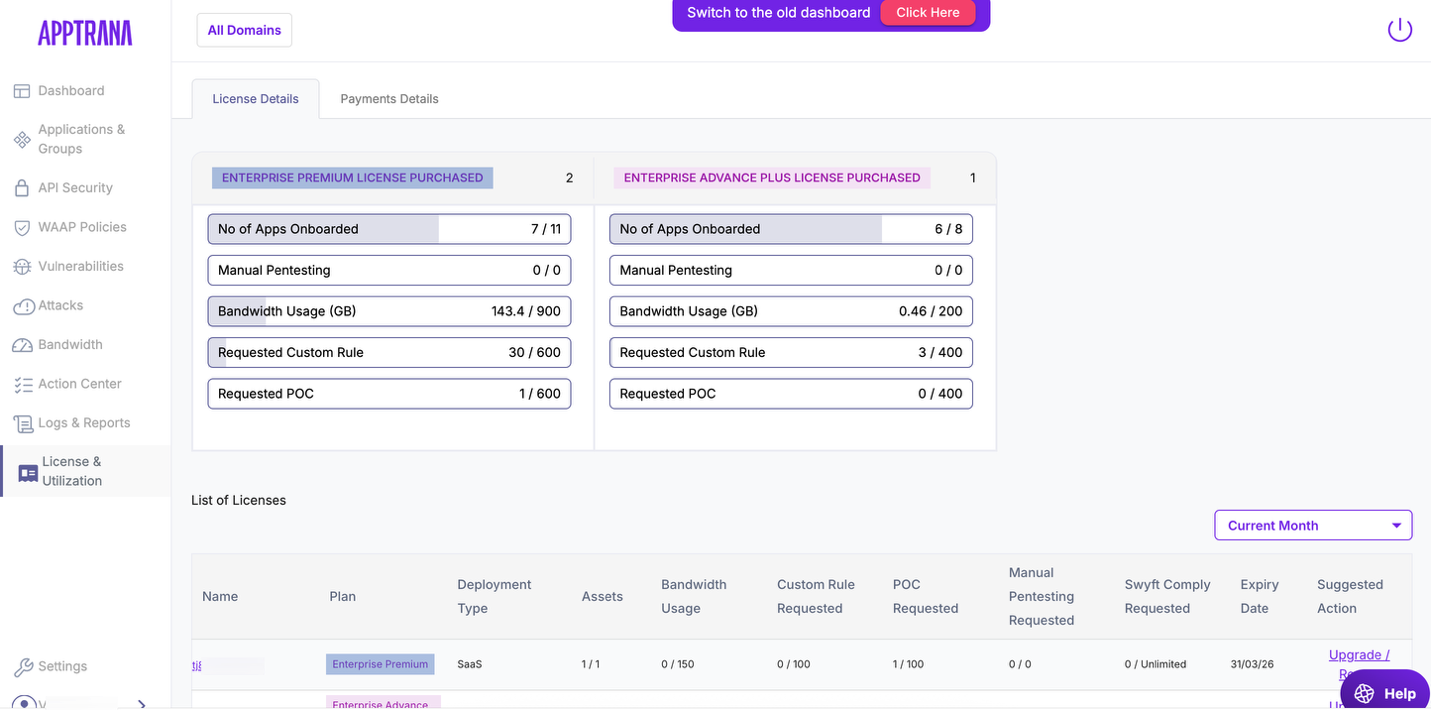
- AI Shield must be purchased as a separate add-on license
- Website-only (non-API) applications cannot enable AI Shield
Key Licensing Notes
- Existing customers must contact Sales or Support to purchase the AI Shield add-on
- Once enabled, AI Shield appears only for API applications where the add-on is applied
- If a customer has multiple licenses, AI Shield visibility depends on which license is associated with the API site
Once the AI Shield add-on is enabled, you must explicitly tag the relevant API endpoints as AI endpoints.
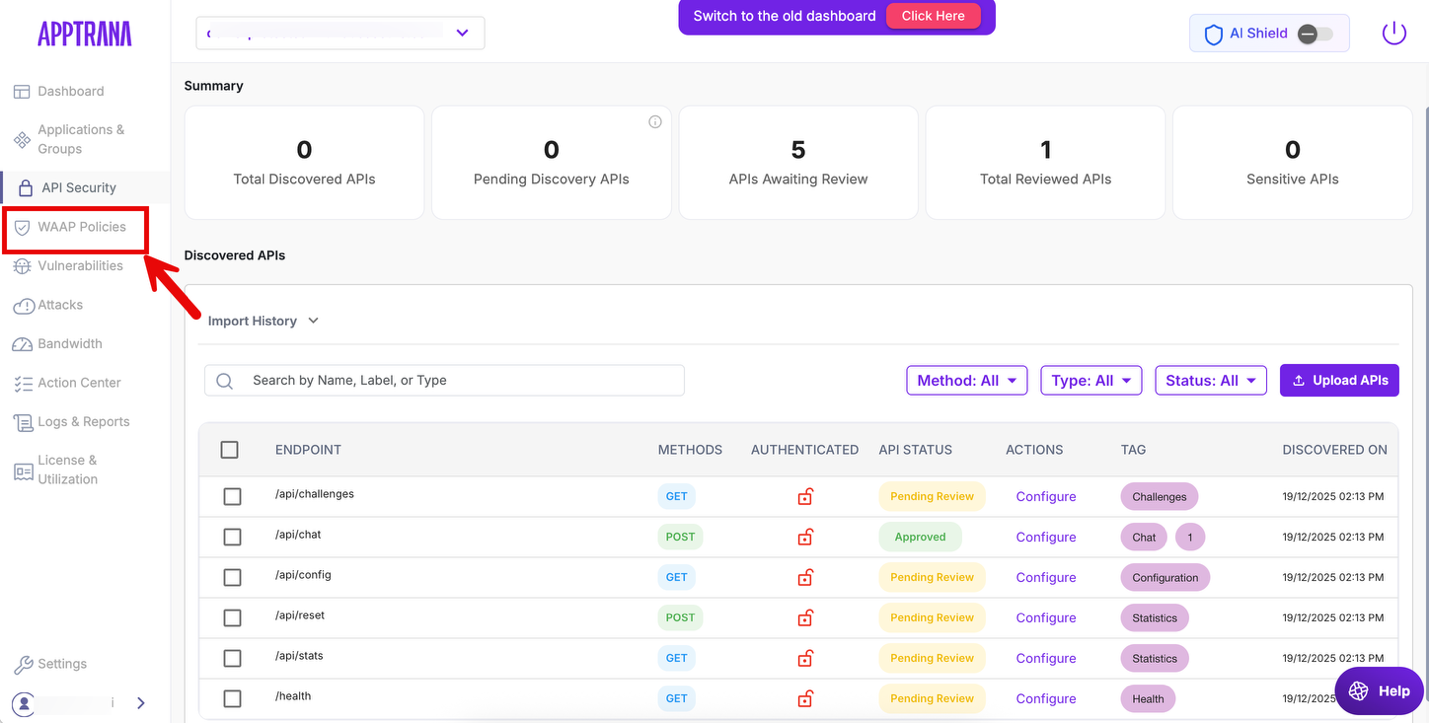
Navigate to API Security.
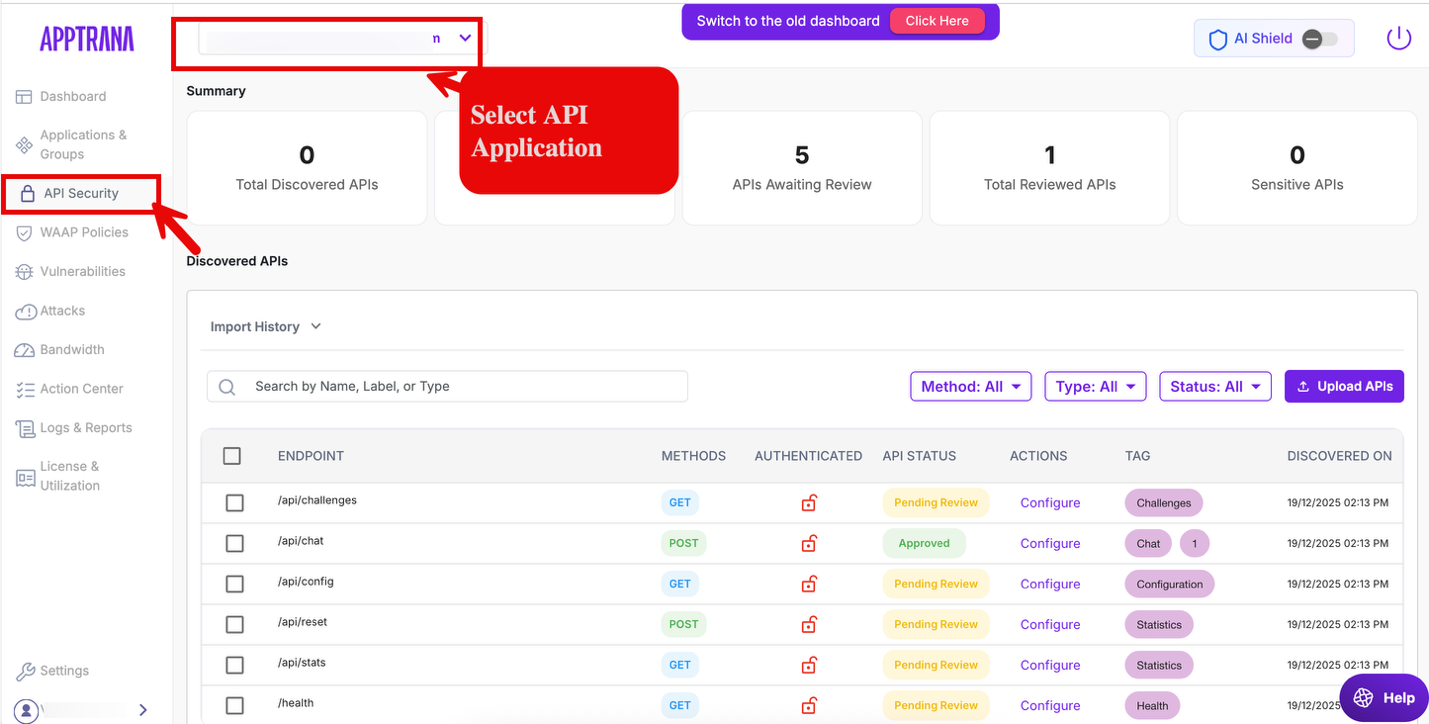
Identify the API endpoints that handle AI or LLM-related traffic. The API application where the AI Shield add-on is applied.
Click Configure.
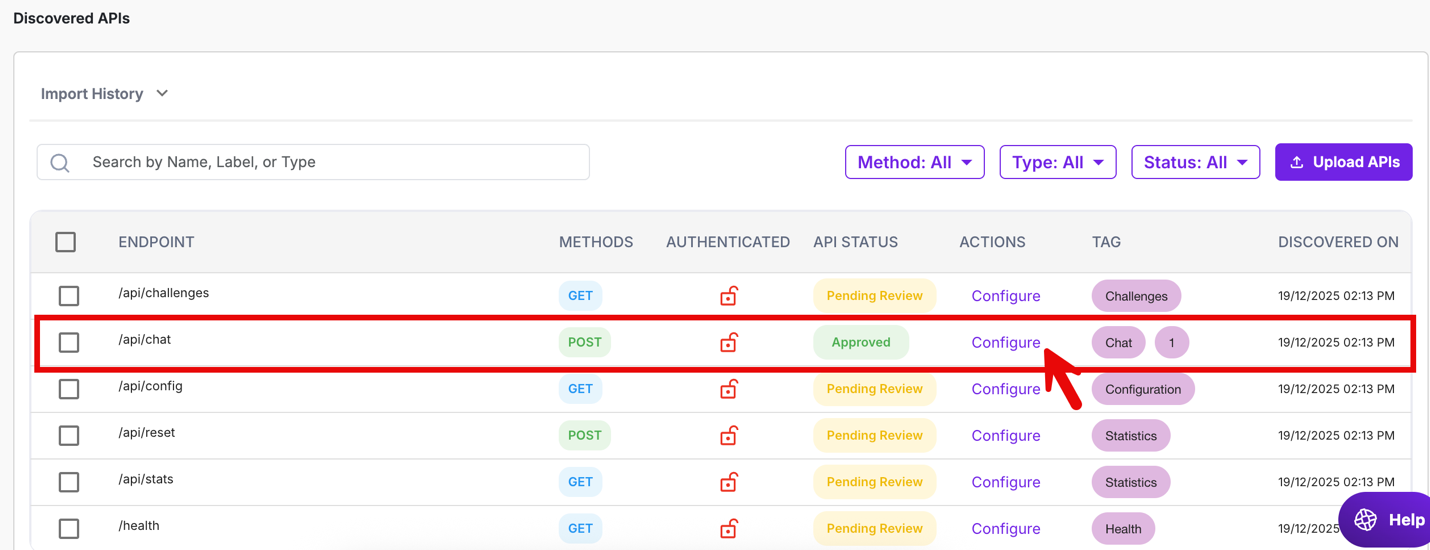
Tag these endpoints as AI API. This tagging determines which endpoints receive AI-specific protection.

- After an API endpoint is tagged as an AI endpoint, AI Shield automatically activates both application-layer protections and DDoS protections. No manual rule creation or tuning is required.
- AI Shield core rules are automatically applied
- Protection is enforced against Prompt injection, AI data leakage and Malicious or abusive AI input patterns
- System-defined DDoS policies are also automatically attached to the AI endpoints
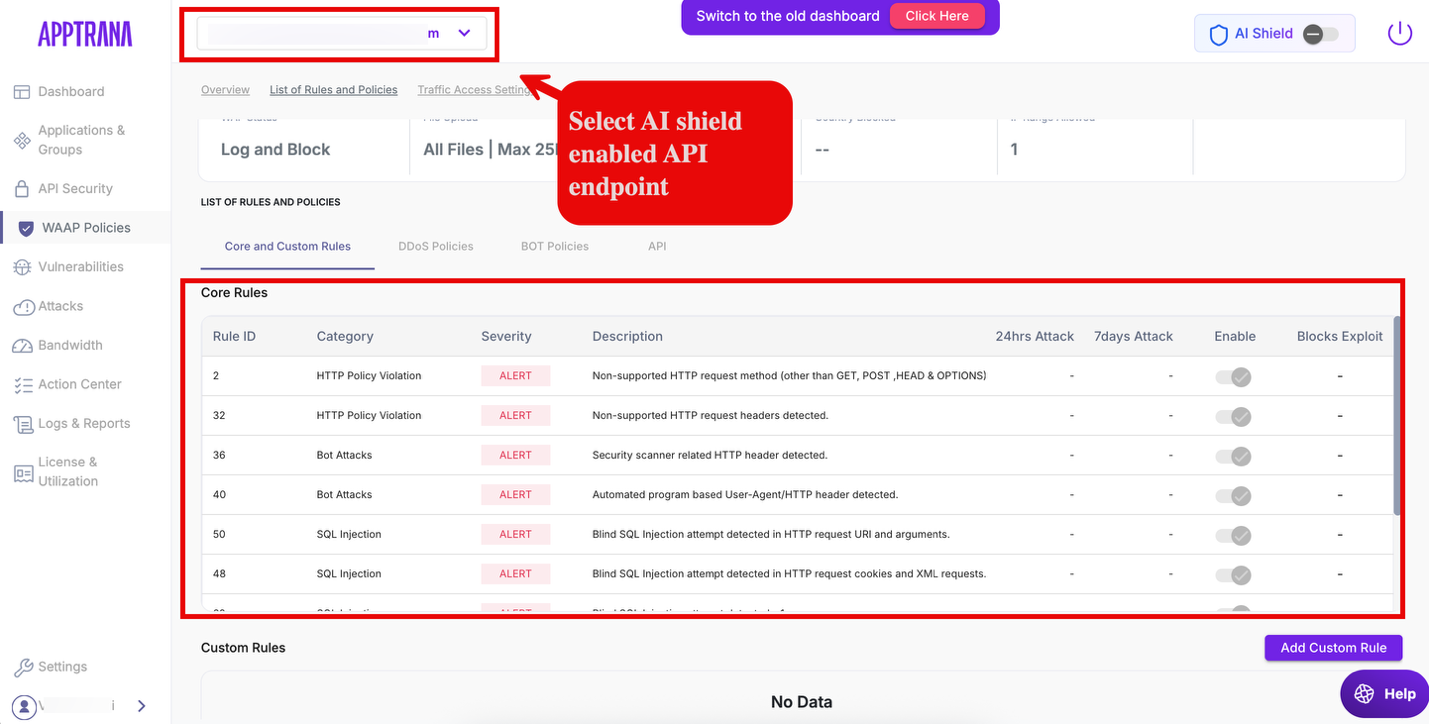
Viewing AI Shield Core Rules
To view the AI Shield protections applied to AI endpoints:
Navigate to WAAP Policies.
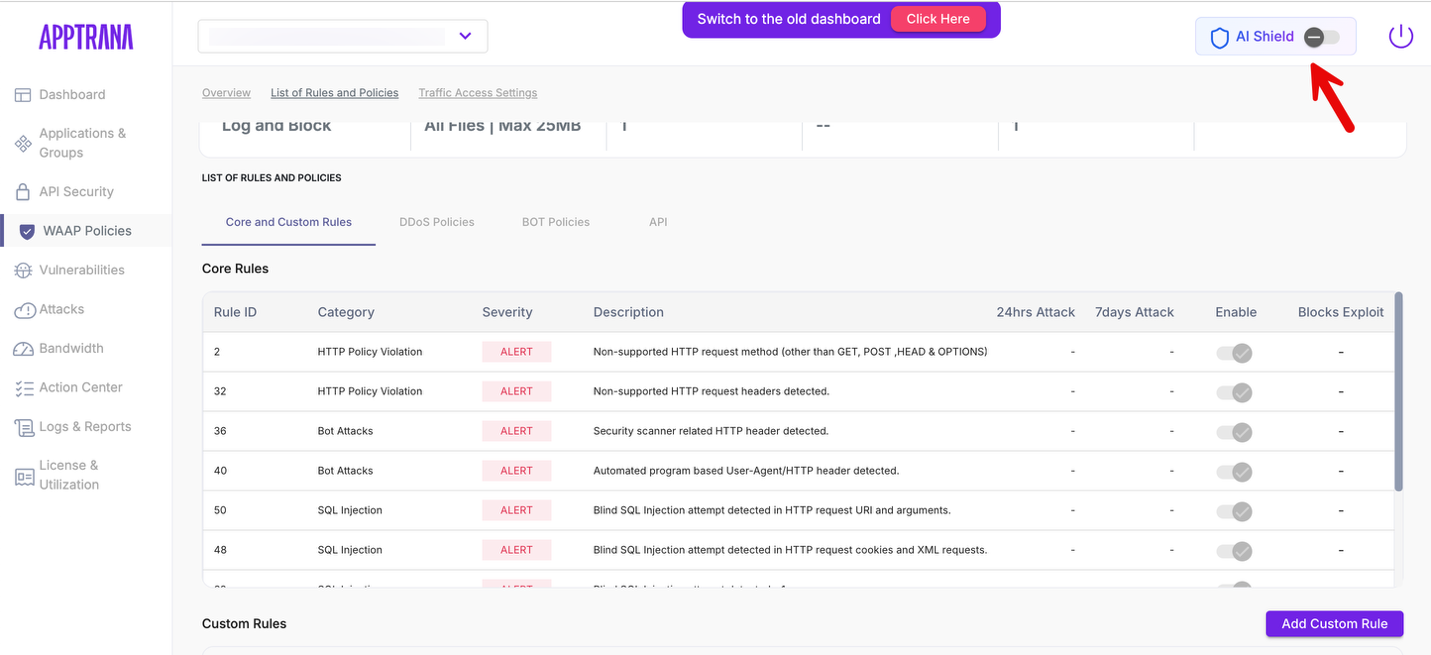
Enable or toggle AI Shield.
When AI Shield is enabled, Core rules associated with endpoints tagged as AI are displayed in the AI Shield view
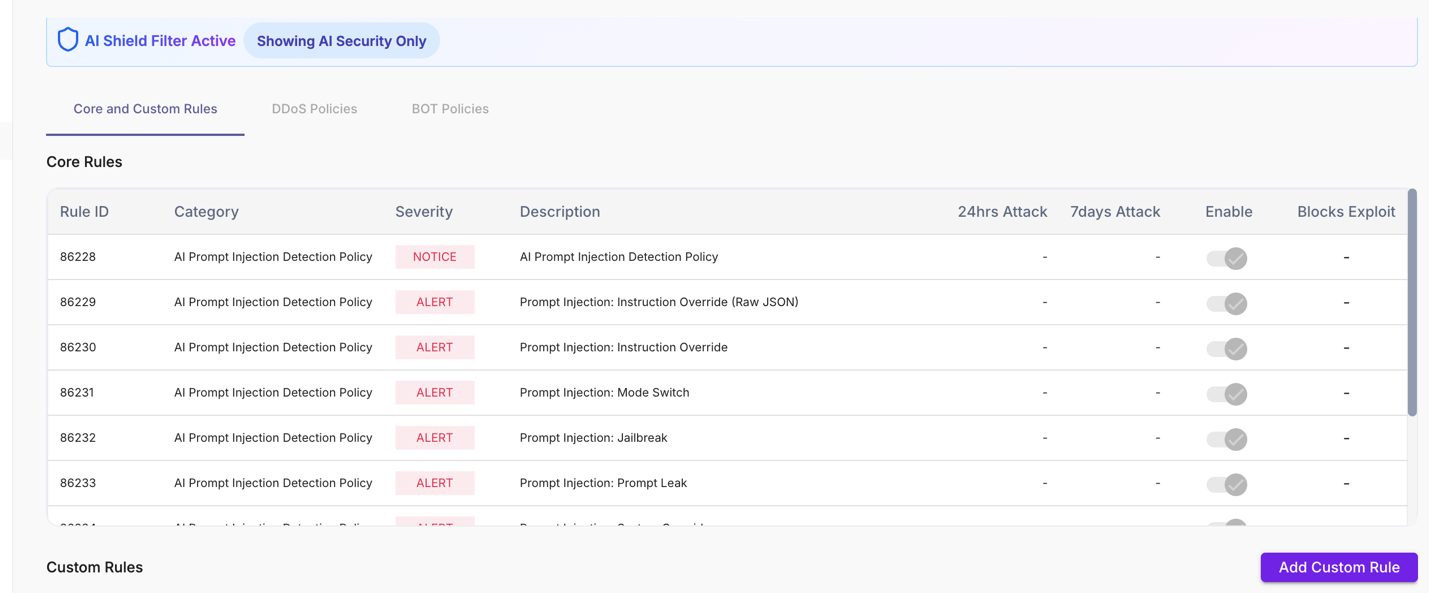
Field | Description |
|---|---|
| Rule ID | Unique system-generated identifier for each AI Shield core rule. Used for audit trails and support reference. |
| Category | Indicates the protection class. AI Prompt Injection Detection Policy covers AI-specific abuse patterns. |
| Severity | Risk level assigned to the rule (for example, ERROR, NOTICE). Higher severity rules indicate stronger enforcement against critical AI abuse attempts. |
| Description | Explains the specific AI abuse pattern being detected, such as instruction override, role switching, jailbreak attempts, or prompt/system leakage. |
| 24hrs Attack | Number of attacks detected or blocked by this rule in the last 24 hours. Displays when no activity is recorded. |
| 7days Attack | Aggregated attack count over the last 7 days, helping identify repeated or sustained AI abuse attempts. |
| Enable | Shows whether the rule is active. All AI Shield core rules are enabled by default and require no manual activation. |
| Blocks Exploit | Indicates whether the rule actively blocked an exploit attempt. This field is populated when enforcement occurs. |
AI Shield – System-Defined DDoS Policies
The System Defined Policies section lists DDoS protections that are automatically created and enabled for AI-tagged API endpoints.
This section appears under WAAP Policies → DDoS Policies once AI Shield is enabled and AI endpoints are tagged.
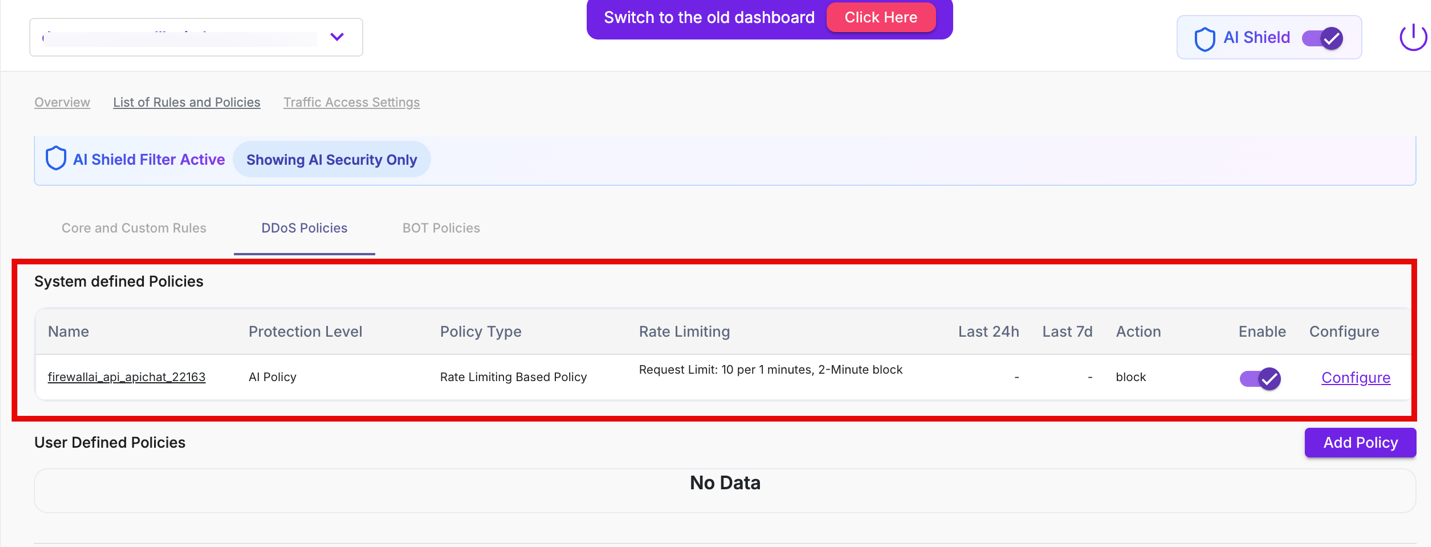
Field | Description |
|---|---|
| Name | System-generated policy name created automatically for AI endpoints. These policies are not user-created and are tied to AI Shield enforcement. |
| Protection Level | Indicates the scope of protection. AI Policy confirms that the DDoS policy applies only to endpoints tagged as AI. |
| Policy Type | Displays the DDoS enforcement method. Rate Limiting Based Policy protects AI endpoints from request floods and resource exhaustion. |
| Rate Limiting | Shows the request threshold and enforcement window (for example, request limit and temporary block duration). These values are system-defined and optimized for AI workloads. |
| Last 24h | Indicates whether the policy was triggered in the last 24 hours. Useful for recent attack visibility. |
| Last 7d | Shows policy activity over the last 7 days to help identify recurring or sustained attack patterns. |
| Action | Enforcement action applied when thresholds are exceeded. For AI Shield DDoS policies, the default action is Block. |
| Enable | Displays whether the policy is active. System-defined AI DDoS policies are enabled by default. |
| Configure | Provides read-only visibility into policy settings. Core DDoS logic is system-managed to prevent accidental misconfiguration. |
Creating a Custom AI Policy
In addition to system-defined AI Shield protections, you can create custom AI policies to enforce organization-specific controls on AI and LLM API traffic.
Custom AI policies allow you to:
- Block specific words, phrases, or patterns
- Detect and prevent exposure of sensitive data (PII)
- Log or block AI requests based on custom conditions
Accessing the Custom AI Policy Builder
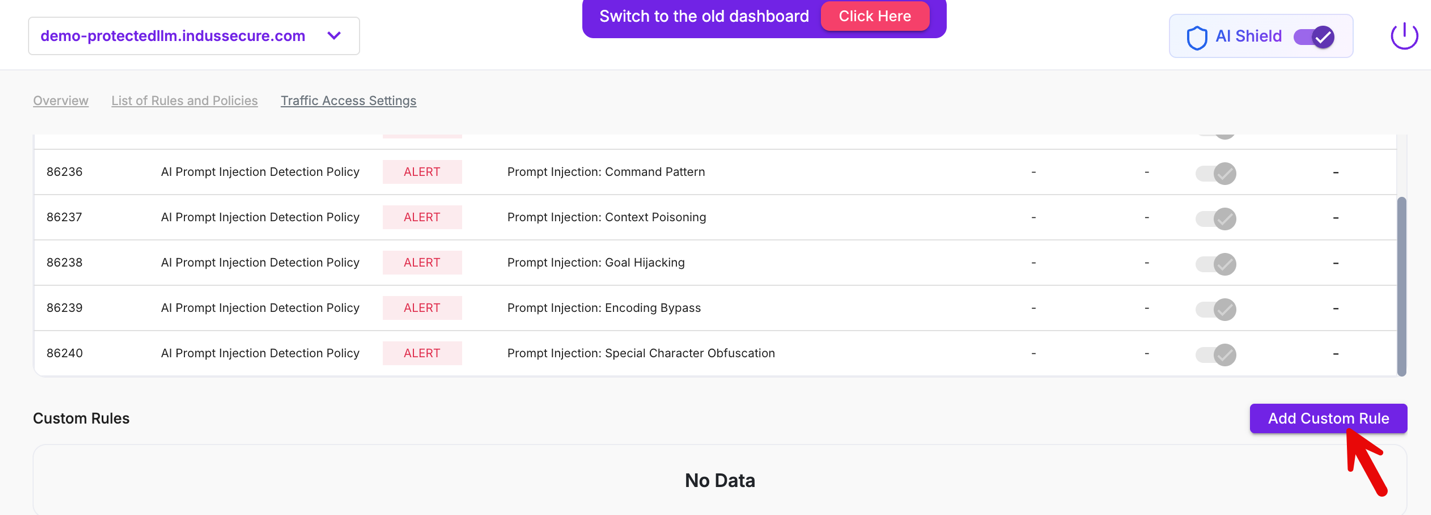
Click Add Custom Rule.
Enable the AI Policy option while creating the rule.
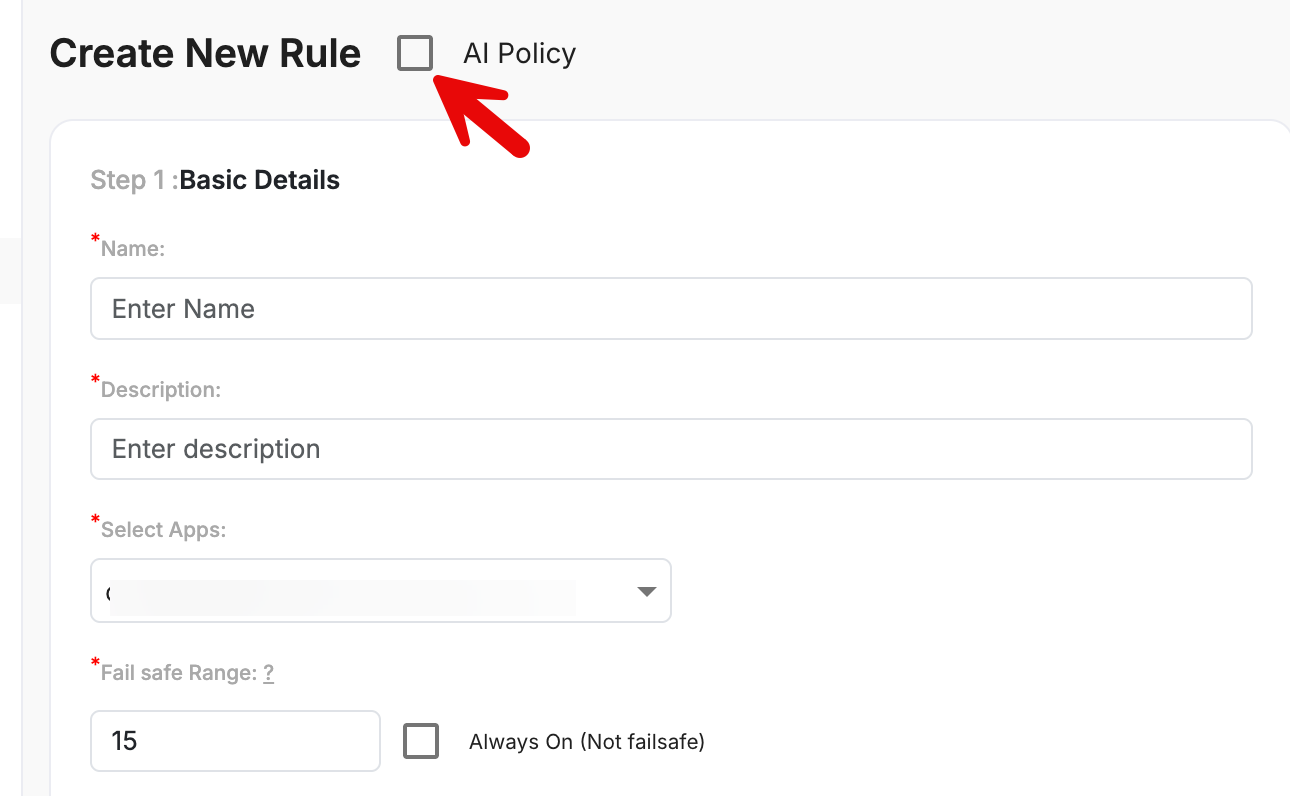
Step 1: Basic Details
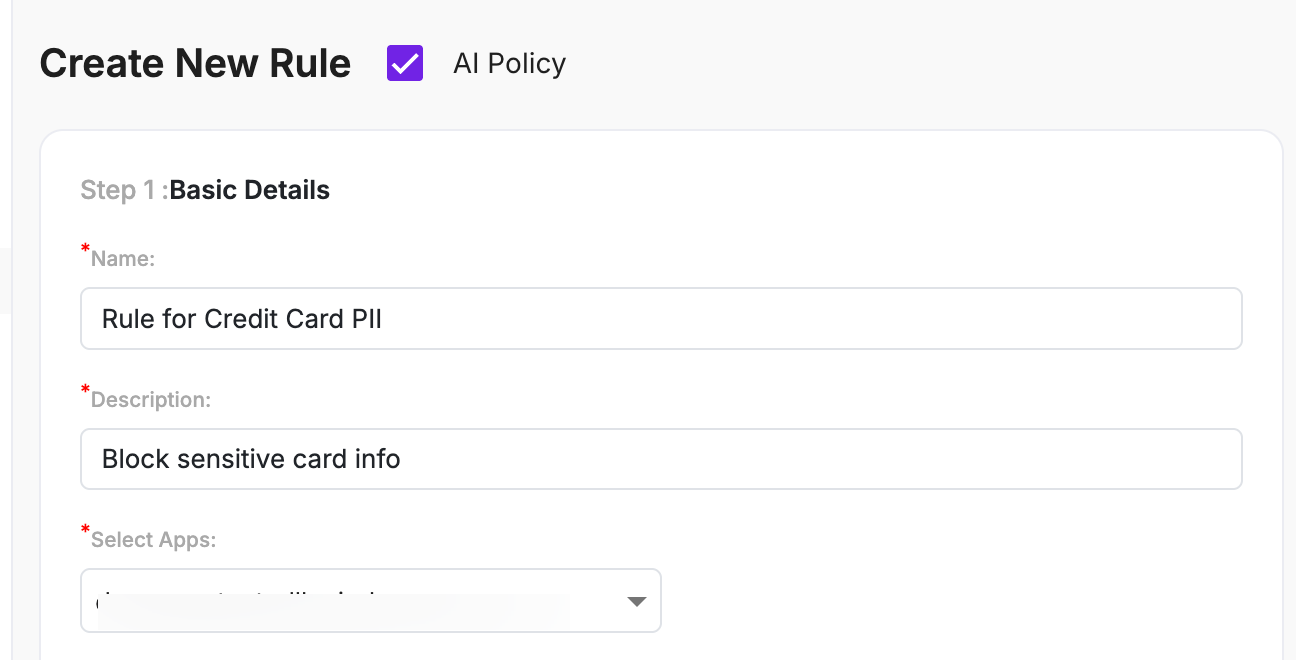
This ensures the rule applies specifically to AI-tagged API endpoints.
Field | Description |
|---|---|
| Name | A meaningful name for the custom AI policy (for example, Rule for Credit Card PII). |
| Description | Optional description explaining the purpose of the rule (for example, blocking sensitive credit card data). |
| Select Apps | Choose the API application where the AI policy should be applied. Only AI-tagged endpoints are enforced. |
Step 2: Trigger Condition
This step defines what content or data should trigger the policy.
Option 1: Argument-Based Matching
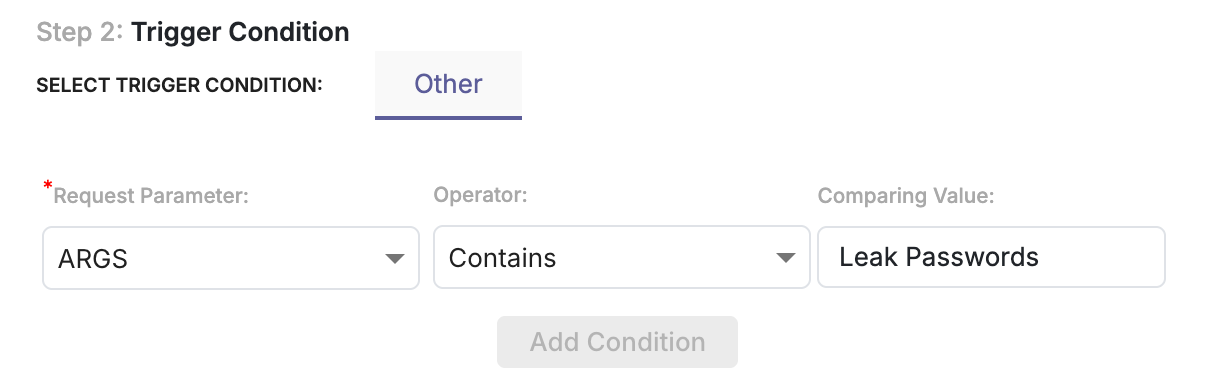
Use this option to block or monitor specific words, phrases, or patterns.
Field | Description |
|---|---|
| Request Parameter | Select the request component to inspect (for example, ARGS). |
| Operator | Choose the match condition (for example, Contains). |
| Comparing Value | Enter the keyword or value to detect (for example, password). |
Use cases:
- Blocking prohibited language
- Preventing prompts containing sensitive internal terms
- Restricting certain instructions sent to the AI model
Option 2: Detect PII
Enable Detect PII to automatically identify sensitive personal data in AI requests.
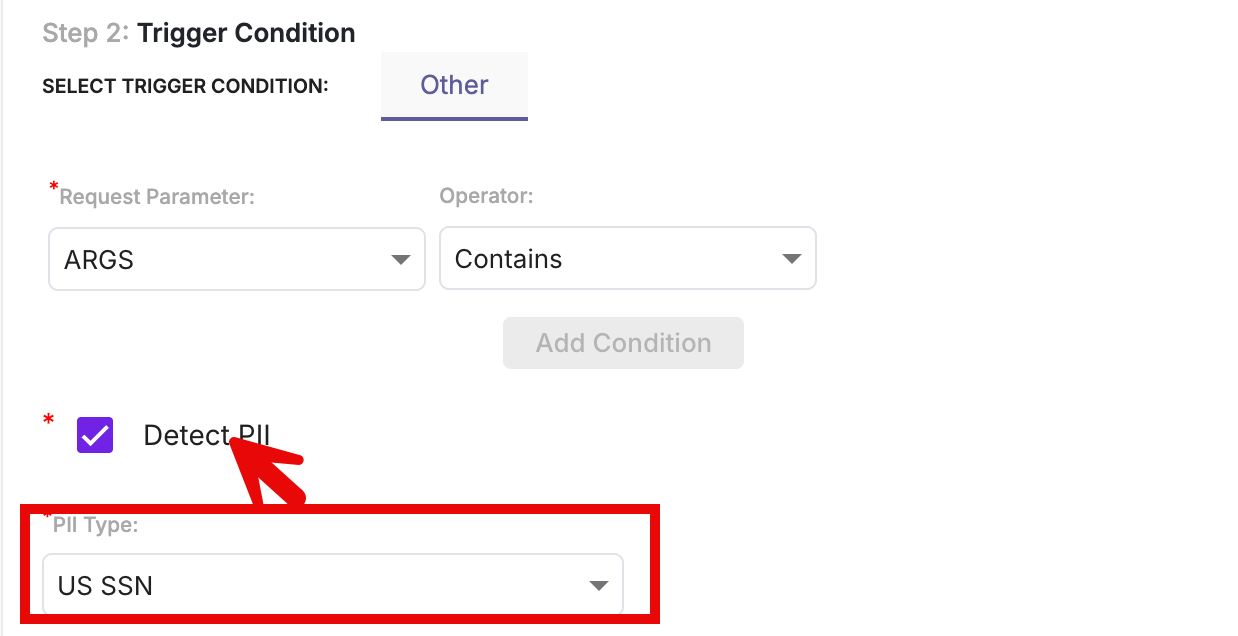
When Detect PII is selected:
- The Comparing Value field is disabled
- You can select predefined PII types to detect
Supported PII types include:
- Credit card number
- US Social Security Number (SSN)
- Email address
- Phone number
- Passport / US Passport
- Aadhaar number
- Voter ID
This option helps prevent AI models from receiving, processing, or exposing regulated personal data.
Step 3: Action
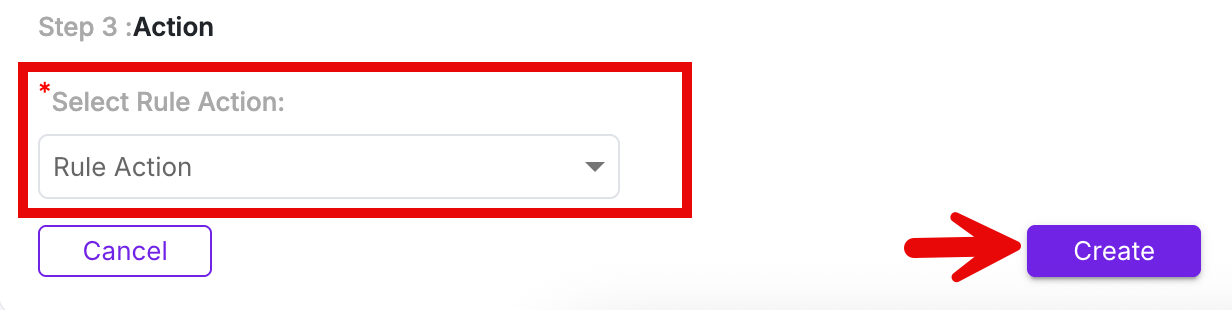
Choose how the system should respond when the rule is triggered.
Action | Description |
|---|---|
| Log | Records the event for visibility without blocking the request. |
| Log and Block | Logs the event and blocks the AI request in real time. |
Key Notes
- Custom AI policies are optional and fully configurable.
- System-defined AI Shield rules remain enabled regardless of custom rules.
- Recommended to start with Log mode before switching to Log and Block.
Dashboard
AppTrana→ Dashboard
When AI Shield is enabled, the dashboard automatically switches to an AI-aware security view, providing consolidated visibility into AI endpoints, AI traffic, AI-specific attacks, and protection posture.
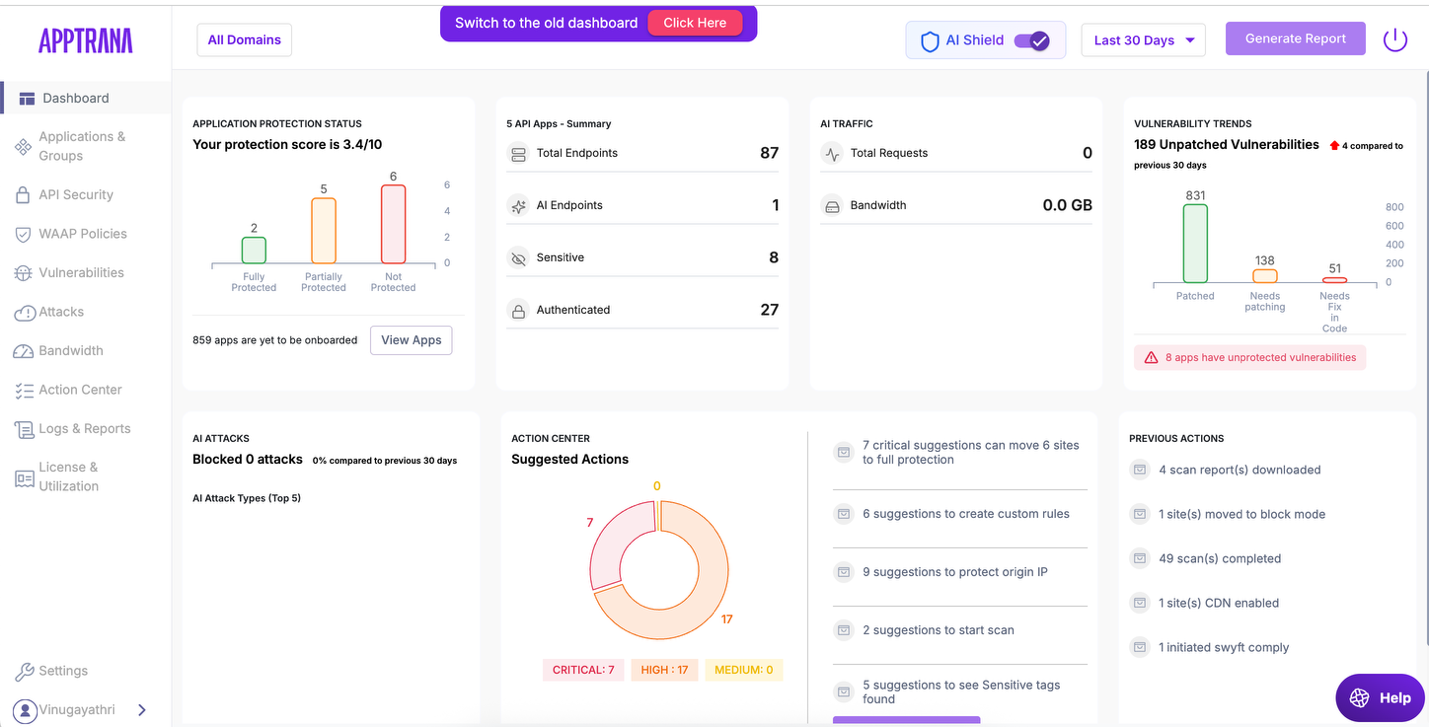
API Apps – Summary
Provides a quick view of API coverage under AI Shield, helping verify AI endpoint tagging and protection status.
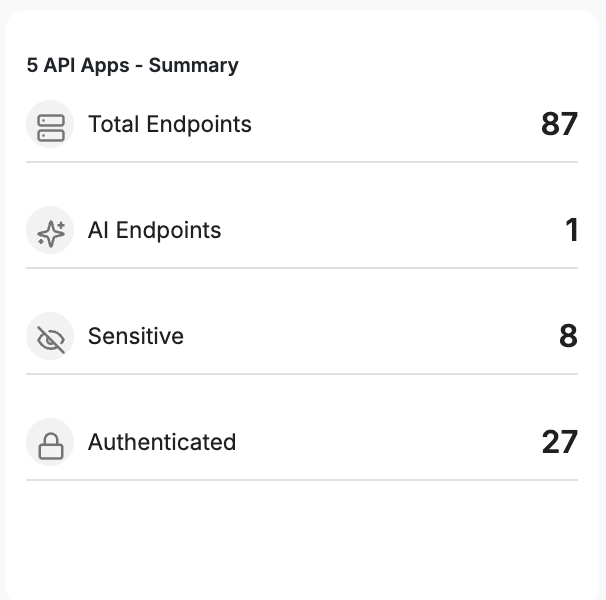
Metric | Description |
|---|---|
| Total Endpoints | Total number of API endpoints discovered. |
| AI Endpoints | Endpoints tagged as AI and protected by AI Shield. |
| Sensitive | Endpoints handling sensitive data. |
| Authenticated | Endpoints requiring authentication. |
AI Traffic
Shows usage patterns of AI endpoints to identify traffic trends or abnormal activity.
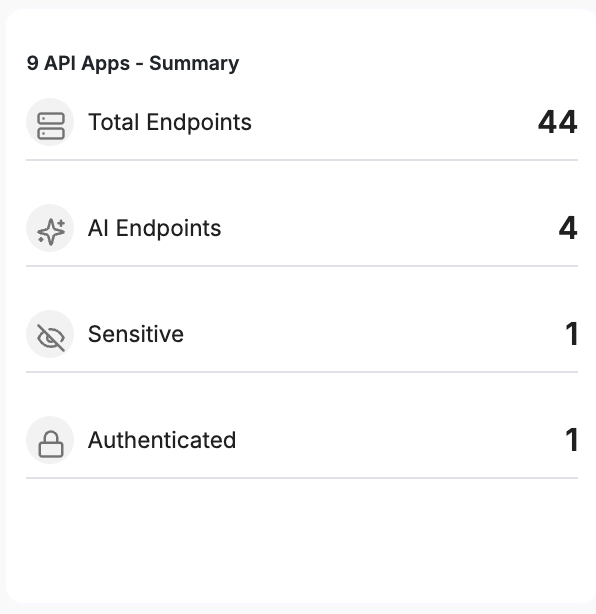
Metric | Description |
|---|---|
| Total Requests | Number of requests handled by AI endpoints in the selected time range. |
| Bandwidth | Bandwidth consumed by AI traffic. |
AI Attacks
Displays attack activity targeting AI endpoints and the effectiveness of AI Shield enforcement.
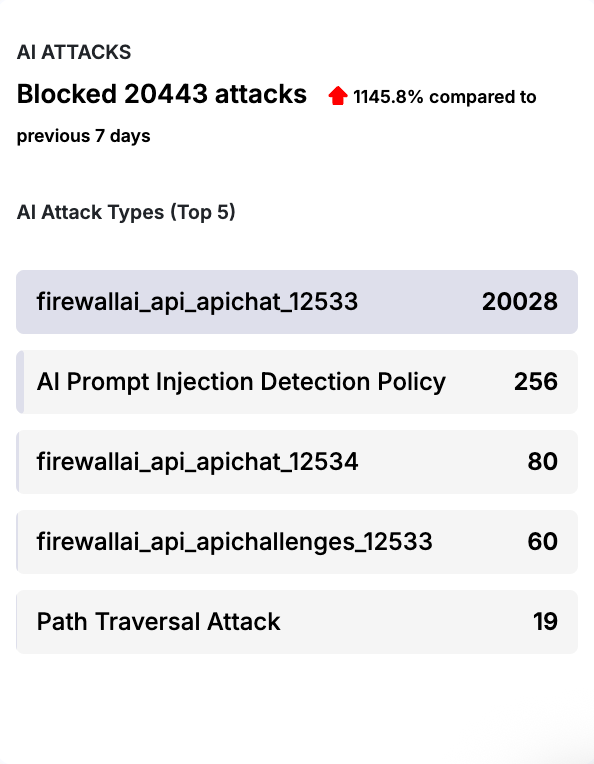
Metric | Description |
|---|---|
| Blocked Attacks | Total AI-related attacks blocked. |
| Attack Change | Percentage change compared to the previous period. |
| Top Attack Types | AI prompt injection, API abuse, and PII leakage attempts. |
All dashboard widgets update dynamically based on the selected time range (for example, Last 7 Days).
For a detailed explanation of all dashboard widgets and metrics, refer to the Dashboard Documentation.
Attacks
When AI Shield is enabled, the Attacks dashboard provides an AI-aware protection view for AI-tagged API endpoints. To view AI-specific attack data, select an application or endpoint that is tagged as AI from the application selector at the top of the dashboard.
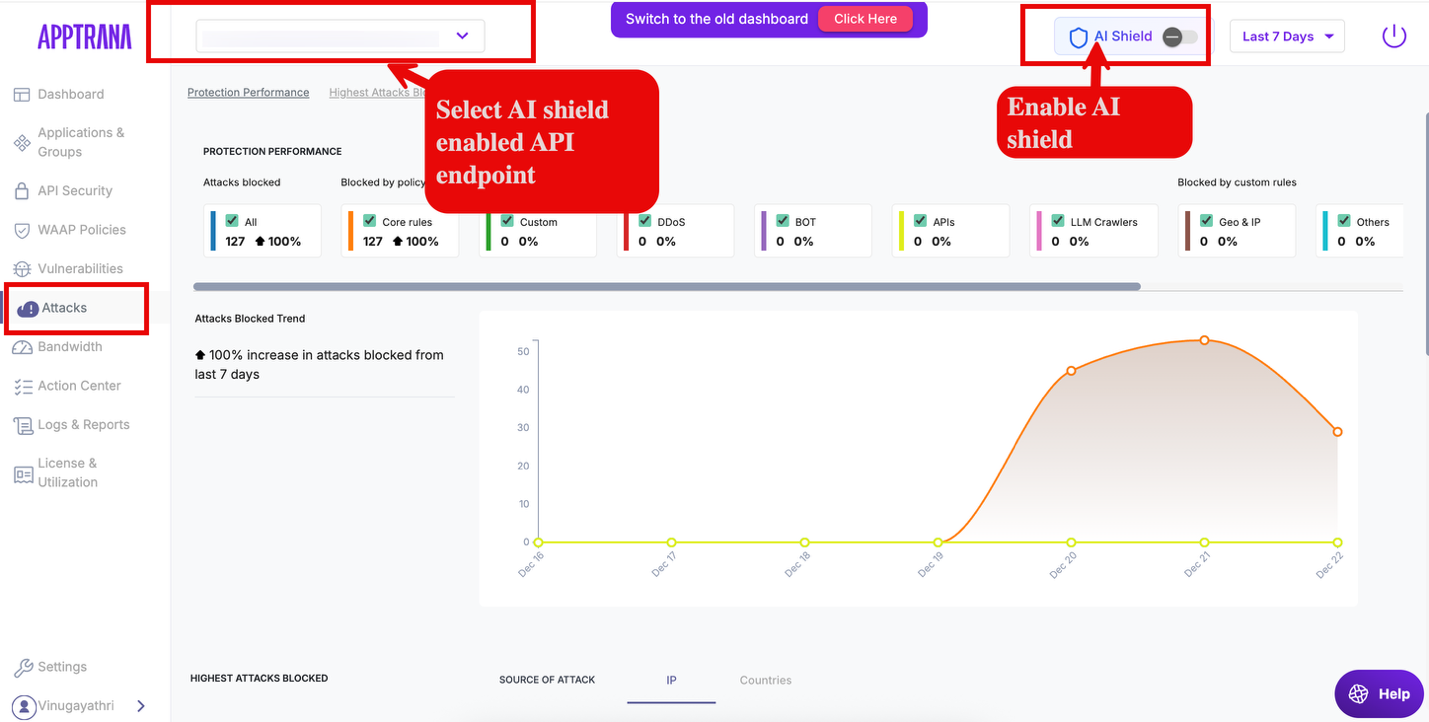
Protection Performance
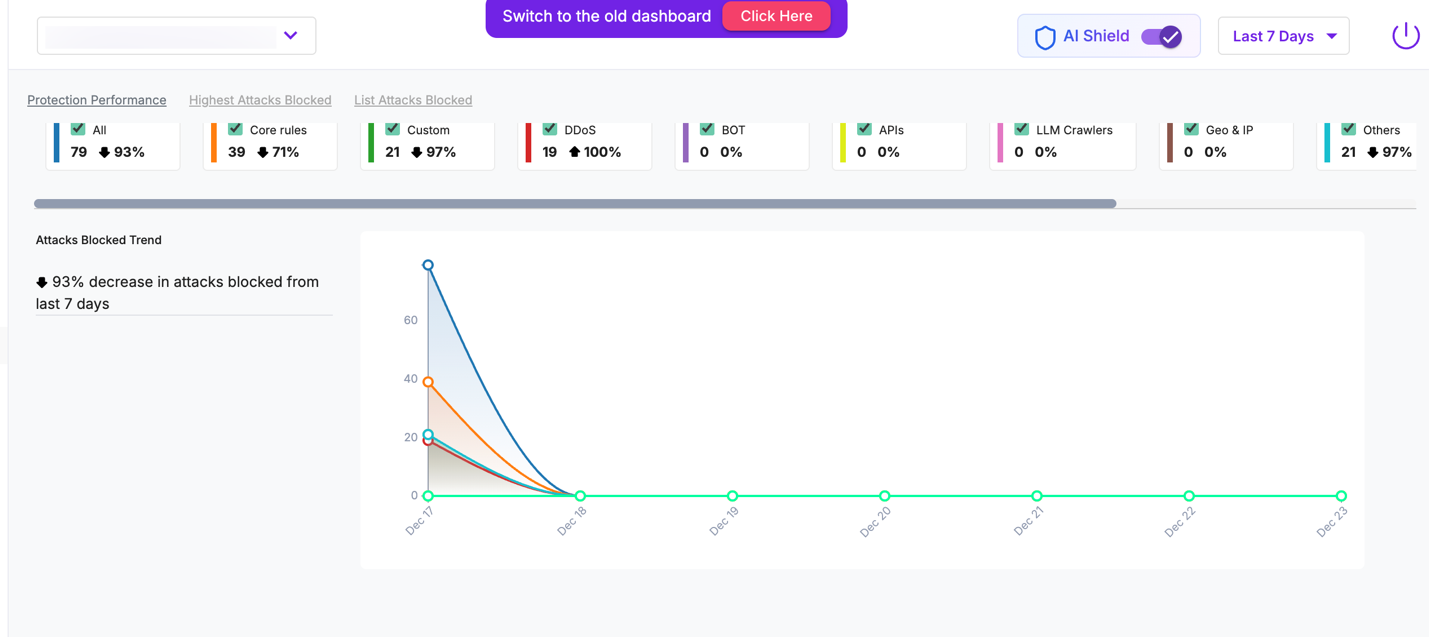
Metric | Description |
|---|---|
| All Attacks Blocked | Total number of attacks blocked across AI-tagged endpoints. |
| Core Rules | Attacks blocked by system-defined AI Shield core rules (such as prompt injection detection). |
| Custom Rules | Attacks blocked by user-defined custom AI policies. |
| DDoS | Attacks mitigated by AI-specific DDoS rate-limiting policies. |
| BOT | Bot-driven abuse attempts targeting AI endpoints. |
| APIs | API-level violations detected on AI endpoints. |
| LLM Crawlers | Requests identified as automated LLM crawling or scraping activity. |
| Geo & IP | Attacks blocked based on geographic or IP-based restrictions. |
| Others | Attacks blocked by additional enforcement mechanisms. |
| Trend Graph | Time-series view showing how AI-related attacks were blocked over the selected time range. |
| Percentage Change | Increase or decrease in attacks blocked compared to the previous period. |
Highest Attacks Blocked
The Highest Attacks Blocked view highlights the top sources generating the most attack traffic against AI-tagged API endpoints.
Section | Metric | Description |
|---|---|---|
| Highest Attacks Blocked | Top Attack Source | IP address responsible for the highest number of blocked attacks during the selected time range. |
| Source of Attack | IP | Lists the top IP addresses generating attack traffic against AI endpoints. |
| Countries | Displays attack distribution by country (when selected). | |
| Blocked At (Top 5) | Total Blocks | Total number of attacks blocked from each top source. |
| Blocked by Core Rules (Top 5) | AI Core Rules | Attacks blocked by system-defined AI Shield core rules. |
| Blocked by Custom Rules (Top 5) | Custom AI Policies | Attacks blocked by user-defined custom AI policies. |
| Blocked by Geo | Geo-Based Controls | Attacks blocked due to geographic restrictions applied to AI endpoints. |
Attacks
This section allows teams to analyze AI specific attack sources, enforcement outcomes, and trends at a granular level.
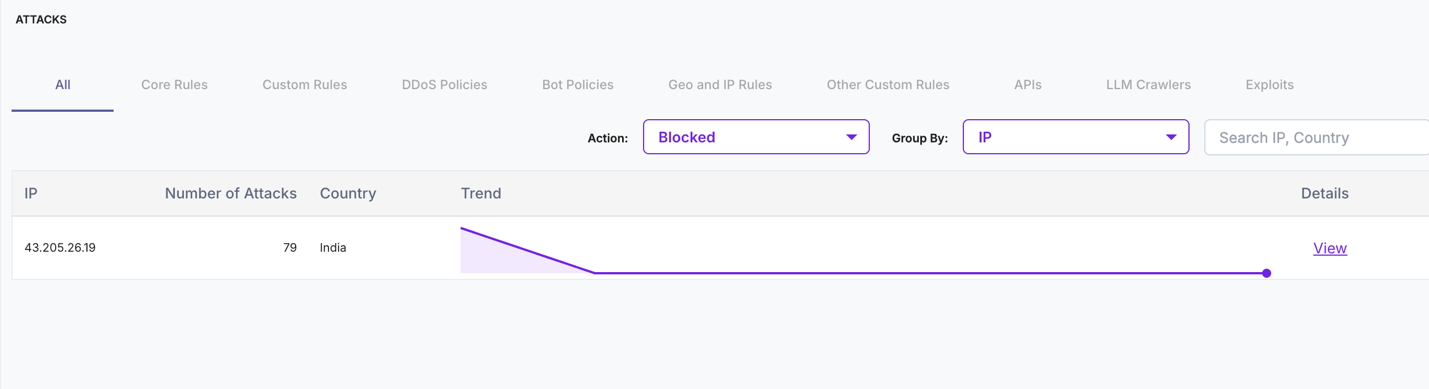
For a detailed explanation of all Attacks widgets and metrics, refer to the Attacks Documentation
Logs & Reports
The Logs & Reports section provides centralized visibility into application traffic and security events through access and attack logs, and when AI Shield is enabled and an AI-tagged endpoint is selected, AI-specific attacks are clearly identified.
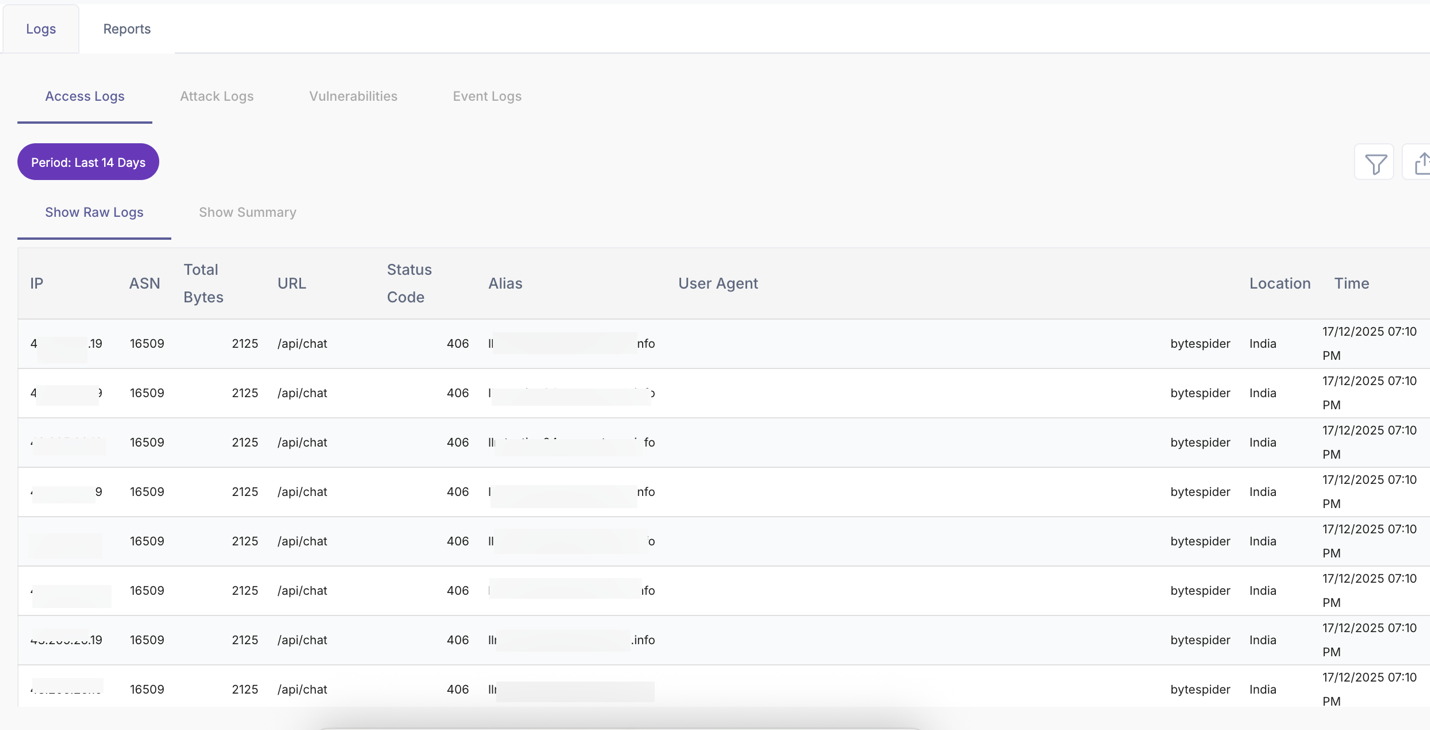
Access Logs
Access Logs provide a detailed record of all requests received by the application, regardless of whether they were allowed or blocked. This view is primarily used for traffic visibility, troubleshooting, and audit analysis.
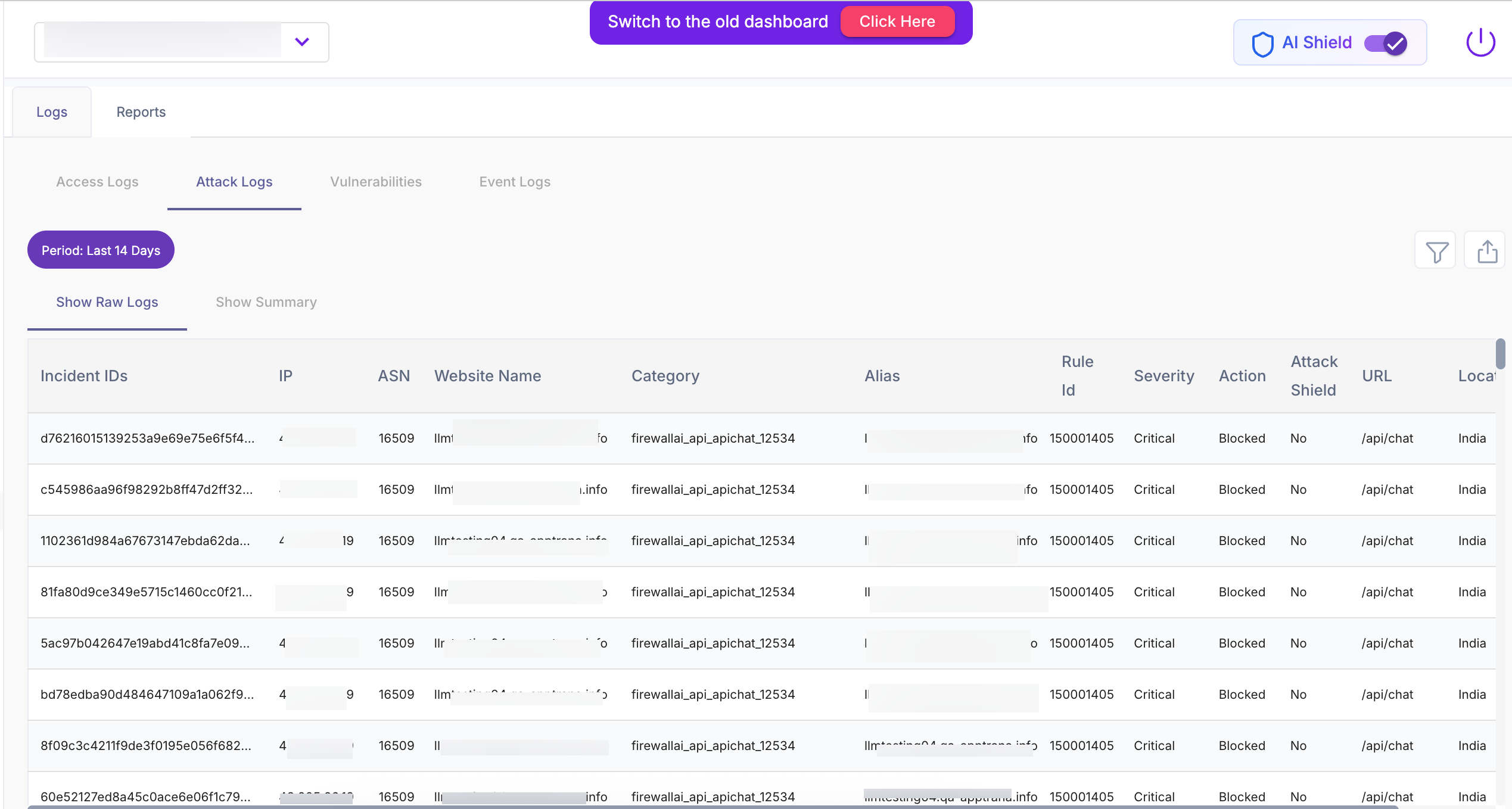
Attack Logs
Attack Logs capture only malicious or policy-violating requests that triggered WAAP or AI Shield enforcement. This view is used for security investigation and incident analysis.
For a detailed explanation of all Logs & Reports widgets and metrics, refer to the Logs & Reports Documentation.