
Whitelist Vulnerabilities
Whitelisting allows you to exclude a vulnerability from remediation workflows when it is accepted as a risk or considered non-impactful. Critical Severity vulnerabilities cannot be whitelisted.
You can initiate whitelisting directly from the Vulnerabilities -> LIST OF VULNERABILITIES DETECTED section using the Whitelist action.
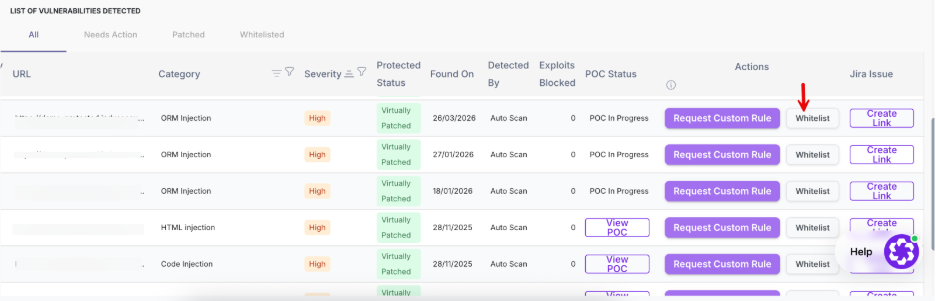
When you click Whitelist, the Confirm Whitelisting window is displayed.
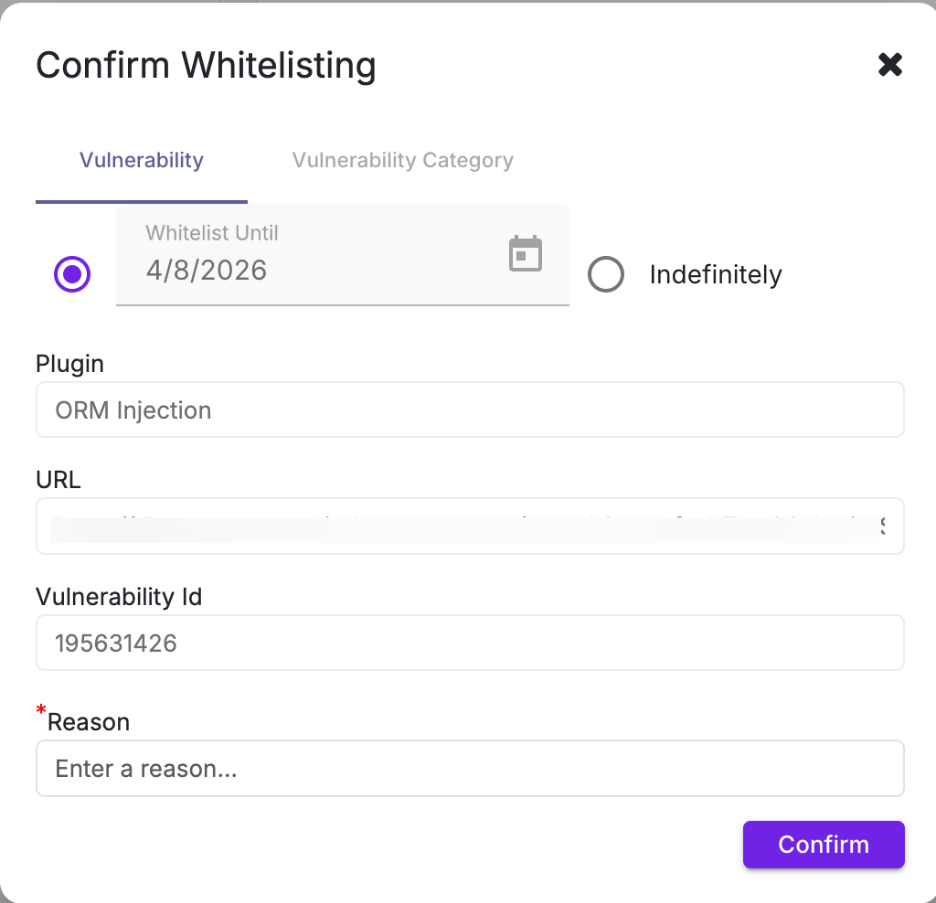
Whitelisting Modes
Mode | Description |
| Vulnerability | Applies only to the selected vulnerability instance (specific URL + parameter) |
| Vulnerability Category | Applies to all vulnerabilities under the same category (e.g., ORM Injection) |
Use Vulnerability when the vulnerabilty is isolated
Use Vulnerability Category when the pattern is consistently acceptable
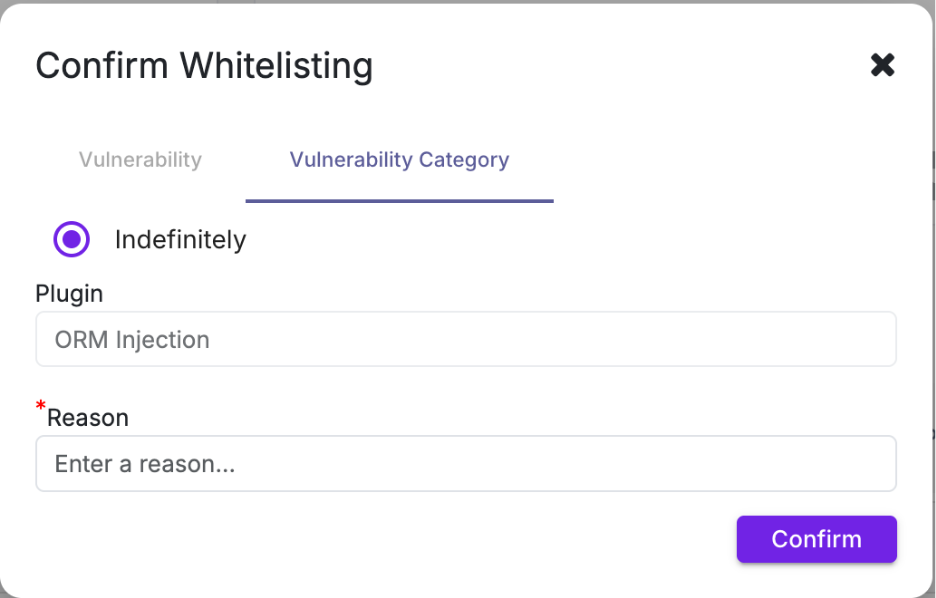
You must choose how the whitelist should be applied and define its duration.
Whitelisting Duration
Option | Description |
| Whitelist Until | Temporarily ignores the vulnerability until the selected date |
| Indefinitely | Permanently whitelists the vulnerability or category |
Temporary whitelisting is safer. Indefinite should only be used if you are absolutely sure
Whitelisting Parameters
Field | Description |
| Plugin | Vulnerability category (auto-filled, e.g., ORM Injection) |
| URL | Affected endpoint (visible in Vulnerability mode only) |
| Vulnerability Id | Unique identifier of the vulnerability (auto-filled) |
| Reason | Mandatory justification for whitelisting |
Confirmation
Click Confirm to apply the whitelist.
Once applied:
- The vulnerability moves to the Whitelisted tab
- It is excluded from remediation tracking
- It will not trigger further alerts or actions
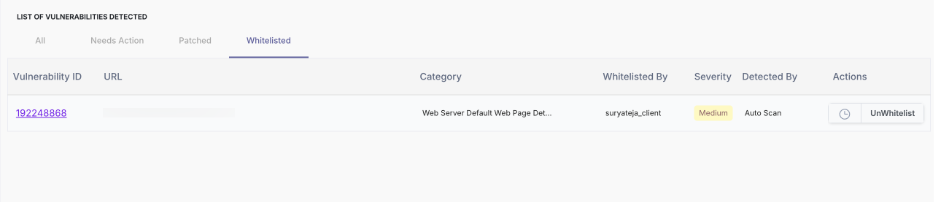
UnWhitelist Action
The UnWhitelist action allows you to restore a previously whitelisted vulnerability back into the remediation workflow.
This option is available in the Whitelisted tab under the Actions column
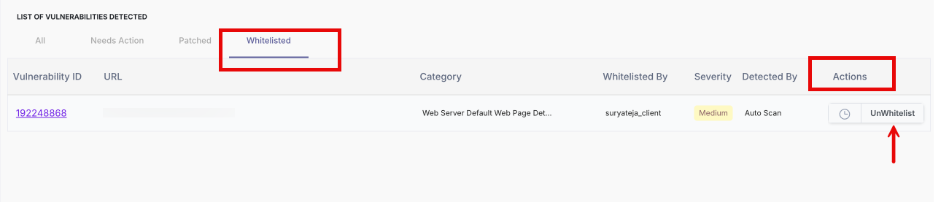
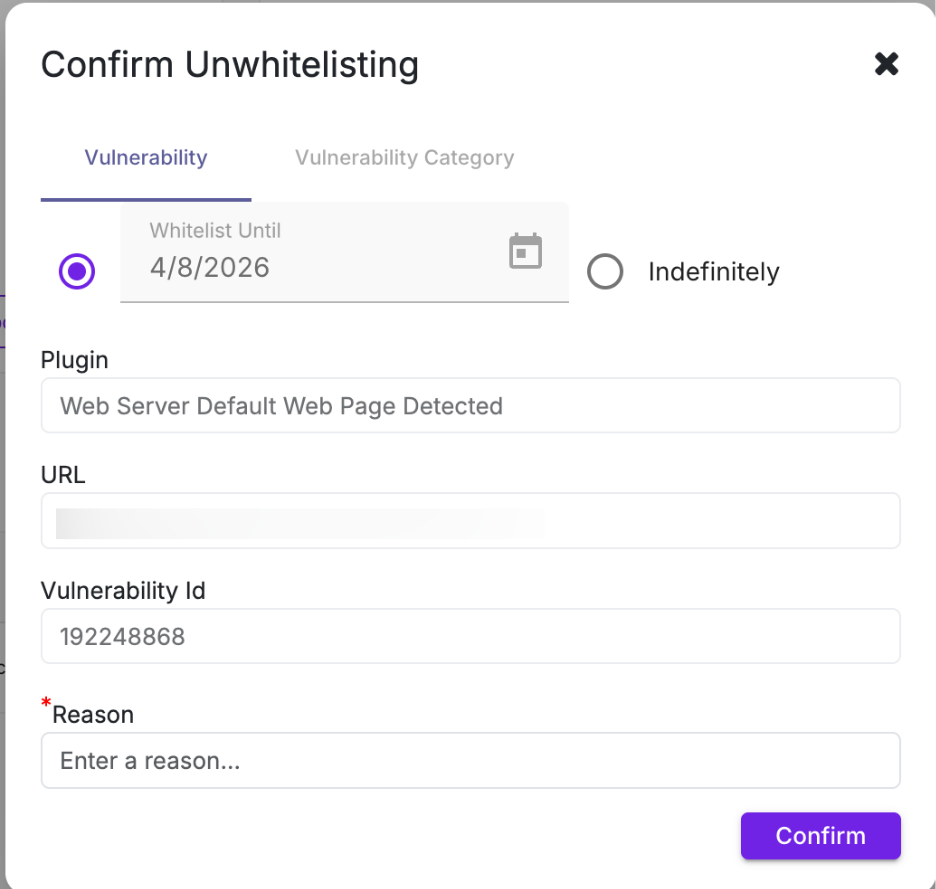
- Select the URL and click Unwhitelist.
- A confirmation pop-up appears.
- Enter a reason for unwhitelisting, select a date till the URL to be unwhitelisted, and then click Confirm.