---
title: "SSL Details"
url: "https://docs.indusface.com/en/article/ssl-details"
language: "en"
last_updated: "2025-10-13T09:52:05.382Z"
---
# SSL Details
### Introduction
Customers upload SSL certificate during the website onboarding process. An SSL (Secure Sockets Layer) certificate is a digital certificate that verifies the identity of a website.
By uploading an SSL certificate, customers can establish a secure, encrypted connection, ensuring that data exchanged between users and the website remains protected. This security measure helps to safeguard sensitive information and builds trust between users and the websites.
### SSL Details
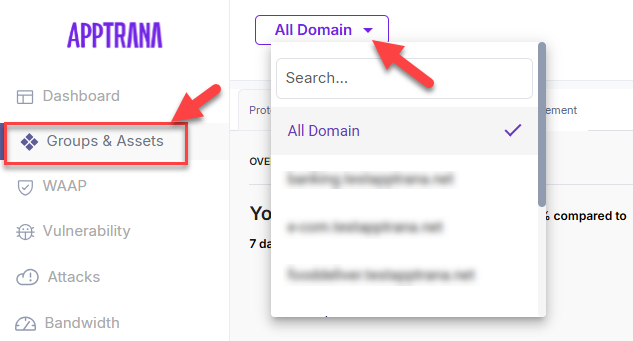
- Navigate to **Groups & Assets**.
- Select the website for which SSL certificate needs to be updated.
- Click **Application Configuration** and scroll down to find **Details** Section.
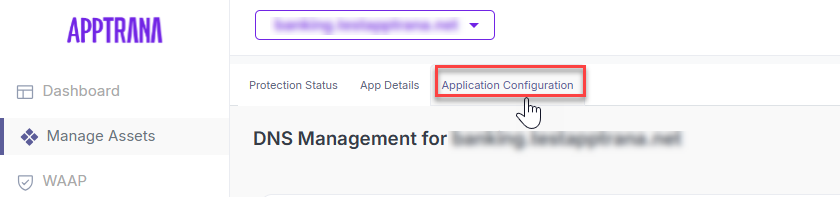
- In **Details** section, SSL certificate basic details are displayed. Details including:
| **Parameter** | **Description** |
| --- | --- |
| Type | Displays the certificate type that was last updated. There are two types of certificates:
**LetsEncrypt Certificate**: A free certificate option. SSL details will not be displayed for this certificate.
**Custom Certificate**: Issued by a certificate authority and includes a public key, private key, and chain key. |
| Expiry Date | Every certificate has a certain validity period. Once the validity period expires, users either renew the existing certificate or replace it with a new certificate. |
| SAN | SAN represents the onboarded domain name associated with the certificate. |
| Update Date | Indicates the date and time when the certificate was last updated. |

#### Upload SSL Certificate
Users are allowed to upload SSL Certificate in two ways.
1. Upload using **.pfx** file
2. Upload using **.pem** file
#### Update SSL Certificate
There are several reasons to update SSL certificate, including expiration, encryption issues, and domain changes.
1. Navigate to the **Details** section.
2. Click **Edit** to initiate the update process.
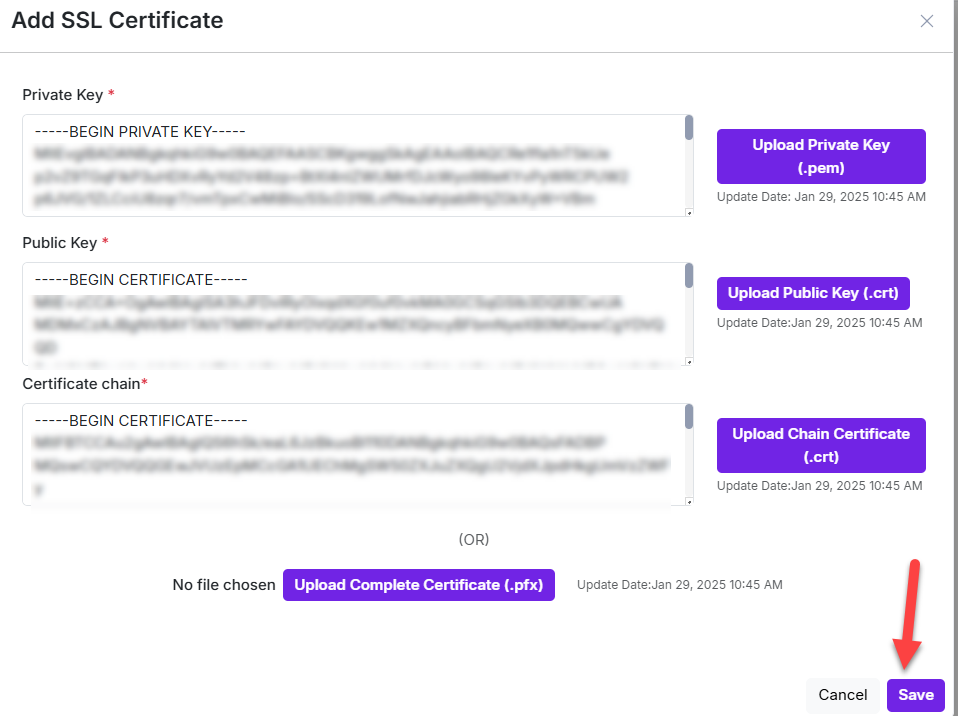
3. A pop-up window will open, allowing customers to upload a new certificate.
4. The last update date and time will be displayed to provide context for your changes.
#### Update Using .pem file
1. Open the file folder from your local, upload each certificate **Public Key**, **Private Key**, and **Chain** in their respective fields.
2. Click **Save**.
#### Update using .pfx file
1. Click **Upload Complete Certificate**.
2. Type the certificate password in **Enter PFX Password** field.
3. Click **Update Certificate** and then click **Save**.
