---
title: "Settings"
url: "https://docs.indusface.com/en/article/settings"
language: "en"
last_updated: "2025-02-21T10:49:18.138Z"
---
# Settings
This page displays huge number of settings like **User Settings**, **Group Settings**, **Website Settings** etc., allowing a user to **Add** or **Delete** an entity, for example **Website(s)**, **User(s)**, **Group(s)**, **Email Notification(s)**. **Report protection**, **Add Website**, and **Registered Websites** options are also displayed in **Settings** page.
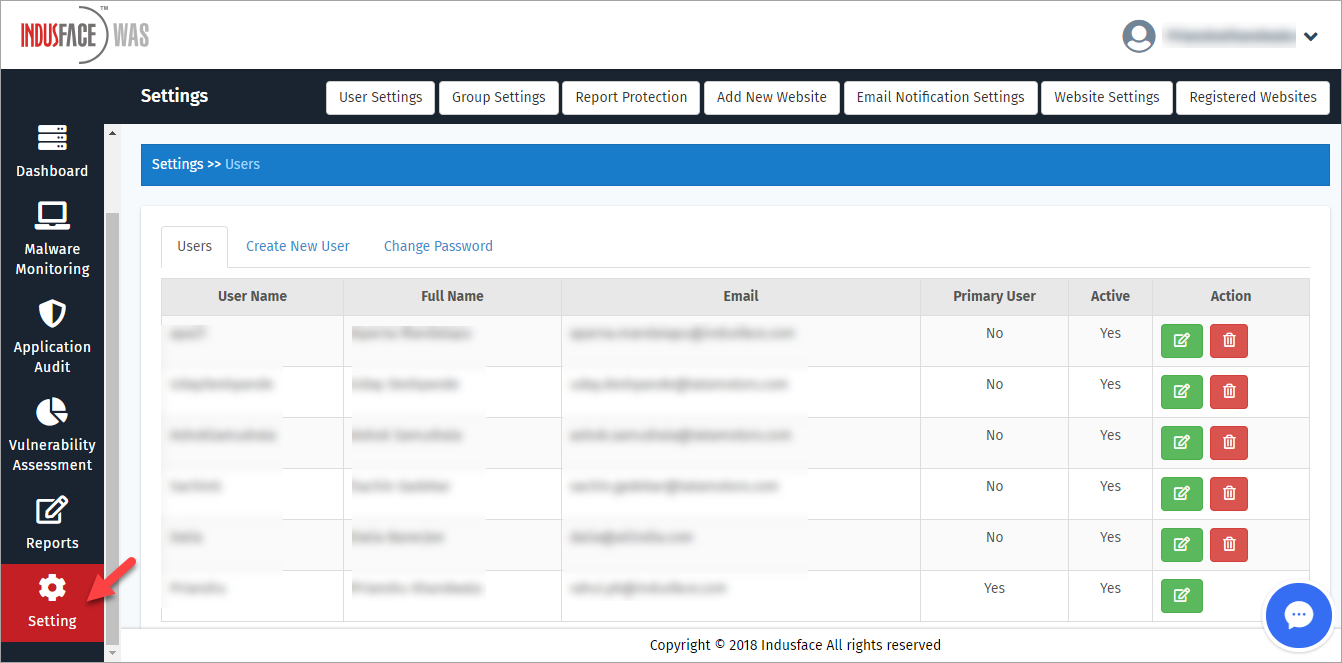
- Click **Setting** tab on the left navigation plane. **Settings** page appears.
or
- Click profile icon and click **Settings** option from the drop-down.

- **User Settings** page displays with **User Name**, **Full Name** etc., with **Edit** and **Delete** options in **Action** column.
### User Settings
- Click **User Settings** tab. **User Settings** page appears.

#### Edit User
- Click **Edit** option in **Action** column.

#### General
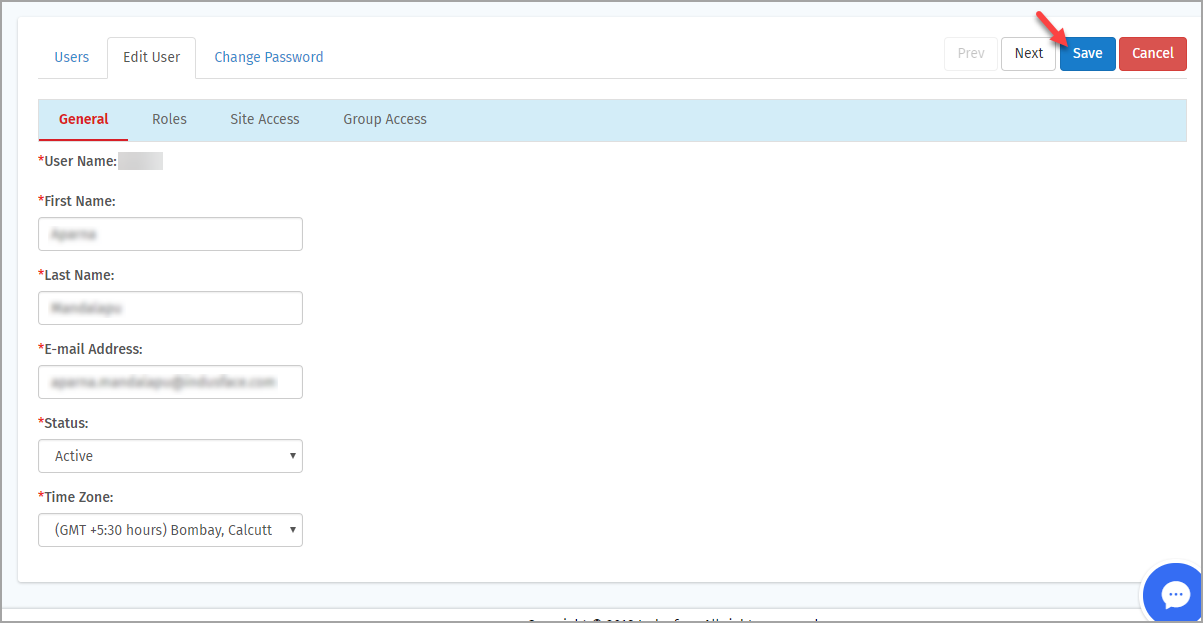
- Click to enter updated information in the respective fields and click **Save** button.
| **Parameter** | **Description** |
| --- | --- |
| First Name | This option displays your name saved at the time of registration. Click and update. |
| Last Name | This option displays the Last Name, click to update. |
| E-mail Address | This option displays the saved email address of the user. |
| Status | This option displays whether **User Status** is **Active** or **Inactive**. |
| Time Zone | This option displays the time zone of a user. Click to change the time-zone and click **Save** button. |
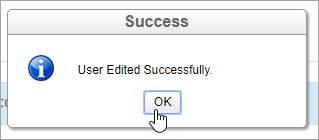
- A success pop-up displays **User Edited Successfully**. Click **OK** button to close the pop-up.
#### Roles
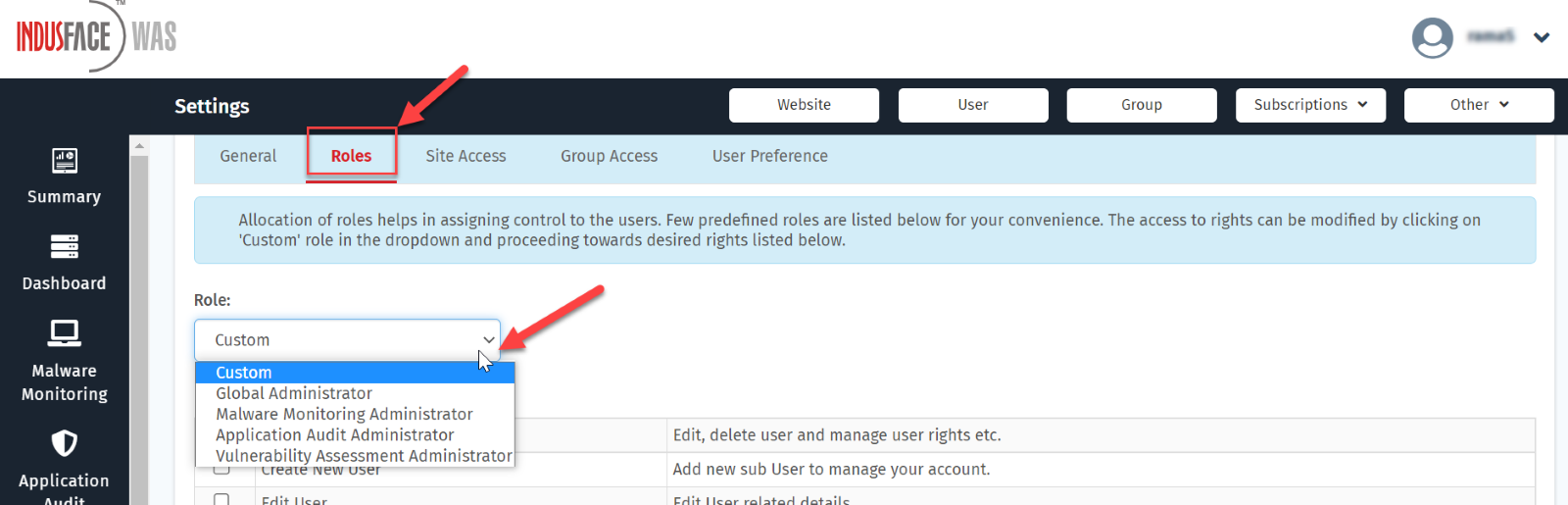
- When a new user is created, different roles to this user can be assigned by the global administrator. This section shows the roles for different scan services i.e., Malware Monitoring \[MM\] Administrator, Application Audit \[AA\] Administrator, and Vulnerability Assessment \[VA\] Administrator.
- Click on the **Roles** button and then select a role from the drop-down menu.
| **Role/Action** | **Global Administrator** | **Malware Monitoring Administrator** | **Application Audit Administrator** | **Vulnerability Assessment Administrator** |
| --- | --- | --- | --- | --- |
| Manage User | Y | \- | \- | \- |
| Create New user | Y | \- | \- | \- |
| Edit User | Y | \- | \- | \- |
| Delete User | Y | \- | \- | \- |
| Manage Group | Y | \- | \- | \- |
| Create New Group | Y | \- | \- | \- |
| Edit Group | Y | \- | \- | \- |
| Delete Group | Y | \- | \- | \- |
| Change Scan Schedule | Y | Y | Y | Y |
| Start Scan | Y | Y | Y | Y |
| Stop Scan | Y | Y | Y | Y |
| List Report | Y | \- | \- | \- |
| Add Report | Y | \- | \- | \- |
| Edit Report | Y | \- | \- | \- |
| Delete Report | Y | \- | \- | \- |
| Export Report | Y | \- | \- | \- |
| List Report Schedule | Y | \- | \- | \- |
| Add Report Schedule | Y | \- | \- | \- |
| Edit Report Schedule | Y | \- | \- | \- |
| Delete Report Schedule | Y | \- | \- | \- |
| List Notification | Y | \- | \- | \- |
| Edit Notification | Y | \- | \- | \- |
| Delete Notification | Y | \- | \- | \- |
| Add Notification | Y | \- | \- | \- |
| Set/Unset Reports Password | Y | \- | \- | \- |
| Show External Malware URL | Y | Y | \- | \- |
| Auto whitelist External URL | Y | Y | \- | \- |
| List Whitelist URL | Y | Y | \- | \- |
| Malware Neutralization | Y | Y | \- | \- |
| Edit User Role | Y | \- | \- | \- |
| Add New Website | Y | \- | \- | \- |
| List Open Report | Y | \- | \- | \- |
| Email Notification Settings | Y | \- | \- | \- |
| Whitelist Vulnerability/ Plugin | Y | \- | \- | \- |
| View Whitelisting | Y | Y | Y | Y |
**Global Administrator**
If a user is assigned the global administrator role, then the user will get control over all the actions in the client portal.
**Custom**
The custom button enables you to select a specific action and the user will get access to the selected actions in the client portal.
#### Site Access
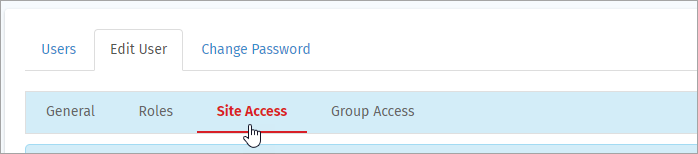
- Click **Site Access** option to update the existing website access permissions for a user.
- Click plus icon of an **IP Address** to display the **URLs** listed in it.
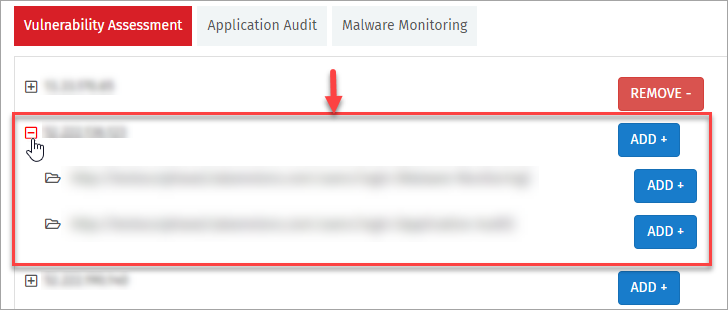
- Click **ADD** button of a specific **URL** of an **IP Address**.
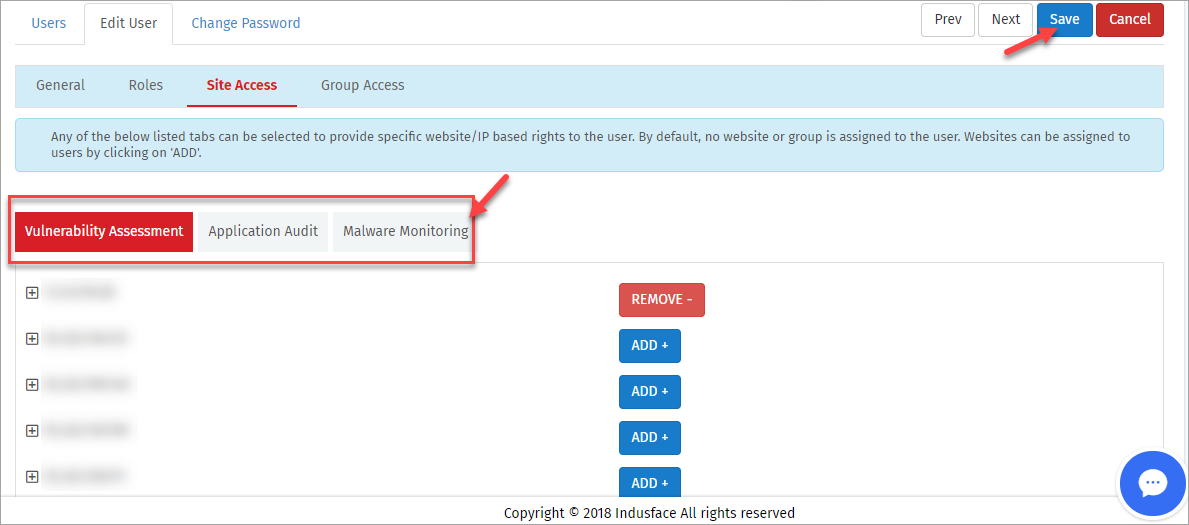
- Click to choose a particular service(i.e., **AA**, **VA** & **MM**), click **ADD** button of a website to start an access or **REMOVE** button to stop the access and then click **Save** button.
#### Group Access
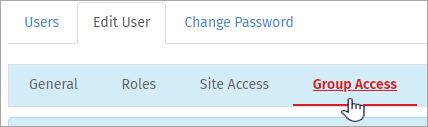
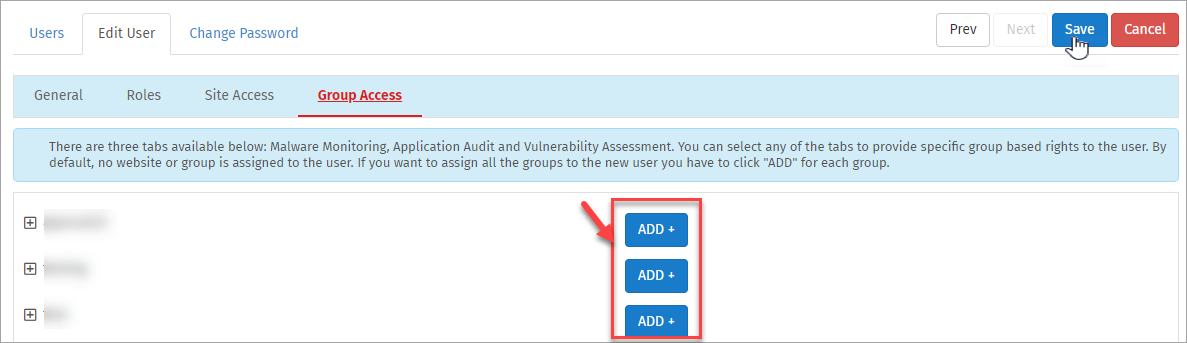
- Click **Group Access** option to update the existing group access permissions for a user.
- Click plus icon of a group to display the list of websites in it.
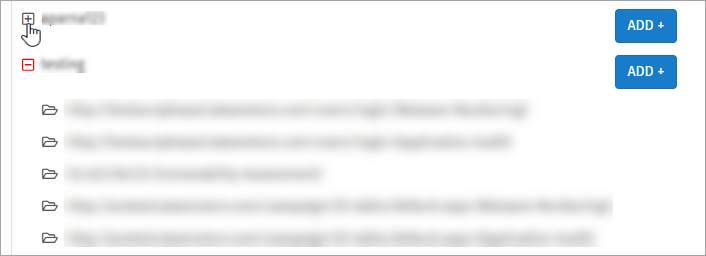
- Click **ADD** button to start accessing a **Group** or **REMOVE** button to stop the access and then click **Save** button.
#### Delete User
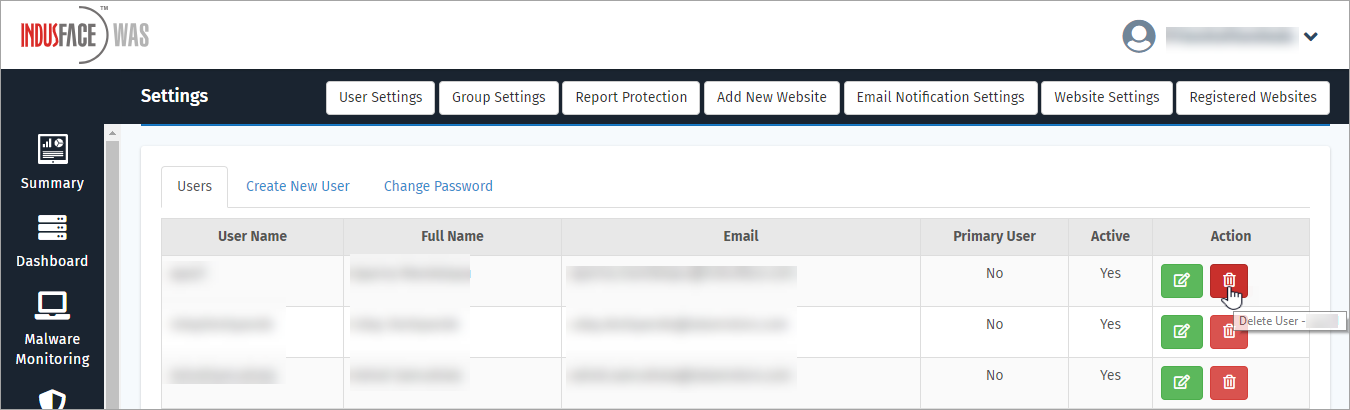
Click **Delete** option in **Action** column to delete a specific user. A **Confirmation** pop-up appears.
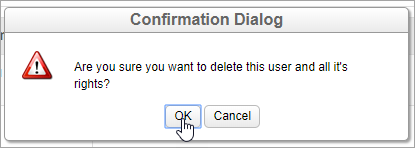
- Click **OK** button to delete the user or click **Cancel** button to keep the user details and all the rights associated with it.
#### Create New User
Click **Create New User** option to create a user. **Create New User** page appears.
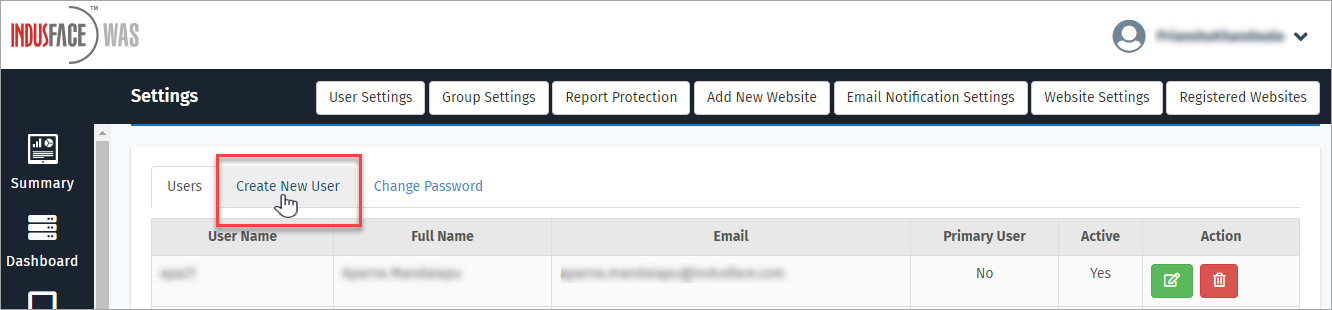
The process to create a new user is similar to the **Edit User**. Click here to follow **Edit User** steps.
#### Change Password
Click **Change Password** option to update your existing password. *Change Password* page appears.
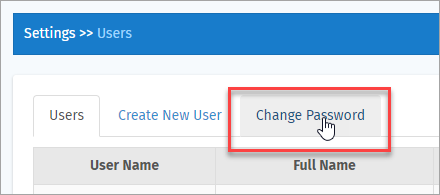
Click to enter the password details and click **Change Password** button. A **Success** pop-up message is displayed.
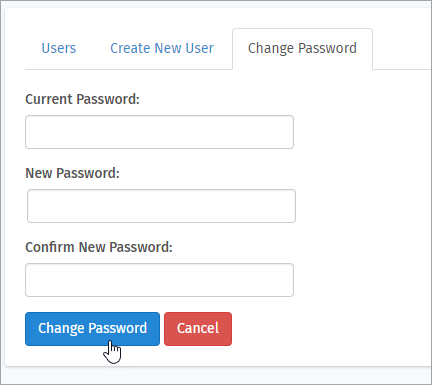
| Parameter | Description |
| --- | --- |
| Current Password | Click and enter your existing password in this option. |
| New Password | Click and enter your latest unique password in this option. |
| Confirm New Password | Click and re-enter the latest password for confirmation. |
| Delete Table
\- Column
\+ Column
\+ Row
\- Row |
| --- |
**Password Successfully Changed** message is displayed. Click **OK** button to close the pop-up.
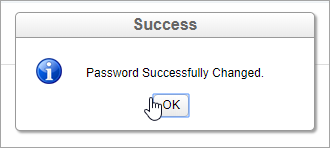
> Upon closing the pop-up **Dashboard** page appears.
#### Password Policy
Improve your account security with strong password protection.
Set a strong password based on the following requirements:
1. Password must use at least 8 characters long.
2. Password must have at least 1 lower character, 1 upper character, 1 special character, and 1 number.
3. Time out Attempts - 5 times if the user enters incorrect password, then the account will be blocked.
### Group Settings
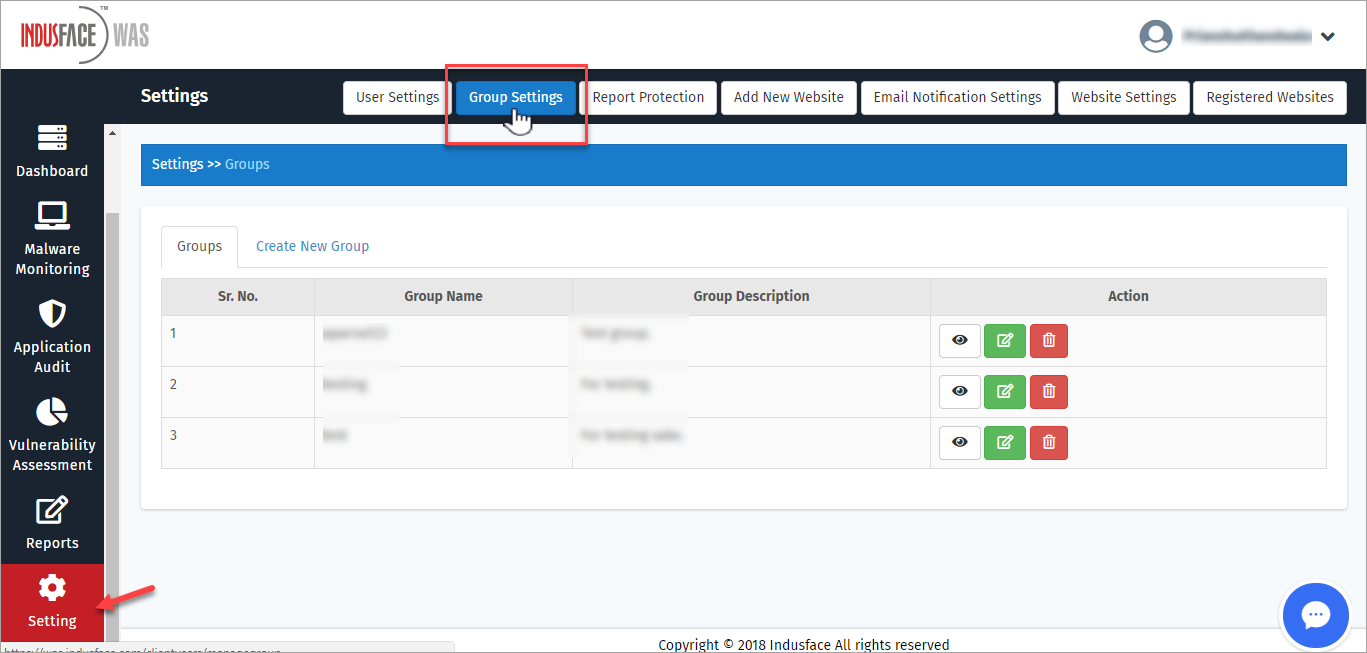
This option displays all the existing **Group Names**, **Descriptions** along with **Action** column which helps a user in modifying group information.
Click **Group Settings** tab to view, update and/or delete your group settings.
#### View Group
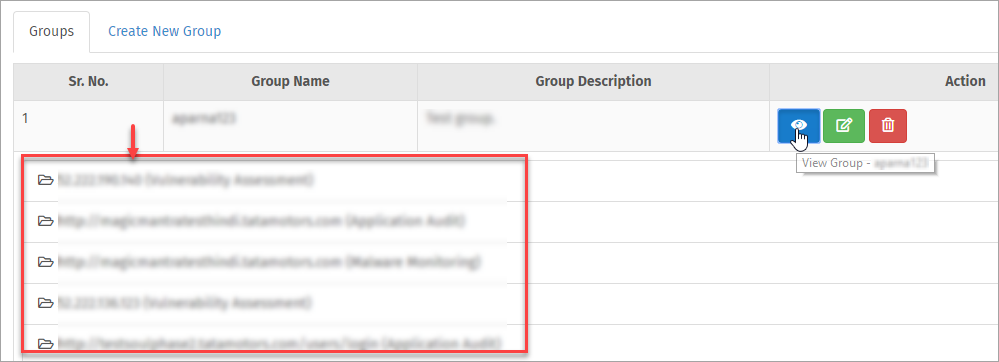
- Click **View** icon in **Action** column to see the websites included in the group.
- All the websites present in the group are displayed along with the registered scan type.
#### Edit Group
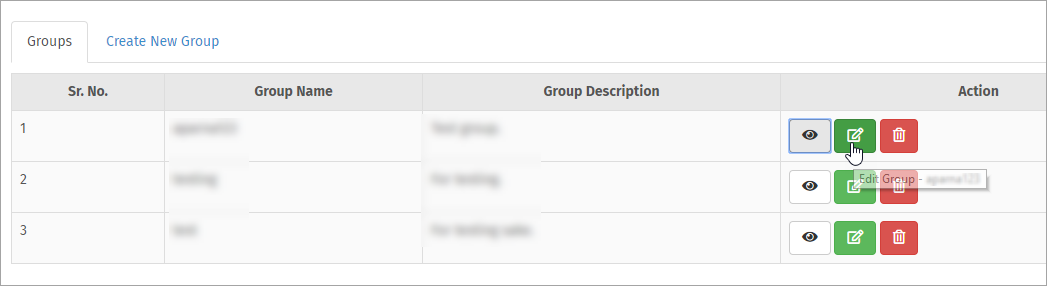
- Click **Edit Group** option in **Action** column to update a specific group information. **Edit Group** page appears.
#### General
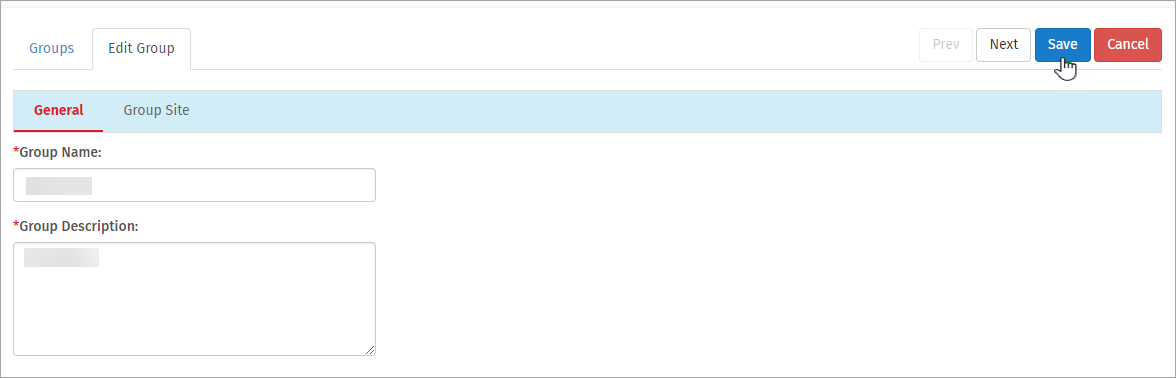
- This option displays the saved **Group Name** and **Description**.
- Click **Name** and **Description** fields, enter the updated information and click **Save** button.
#### Group Site
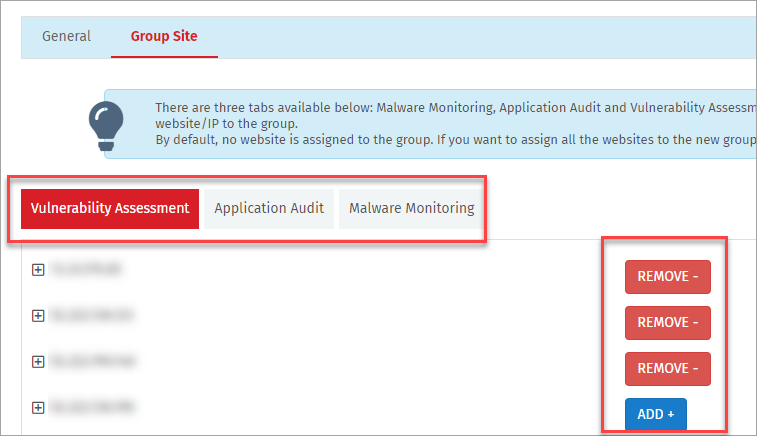
This option displays the websites which are assigned to a specific group. The websites with **ADD** button in all the 3 scan services(AA, MM, and VA) are the ones not assigned to the group. The Websites with **REMOVE** button are the assigned ones in all the 3 scan services.
- Click **REMOVE** button to remove a website from a group.
- Click **ADD** button to add a website into a group.
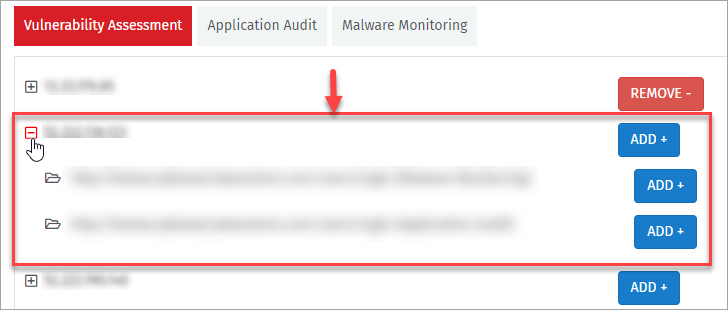
- Click plus symbol of an **IP Address** to **ADD** or **REMOVE** a specific URL alone.
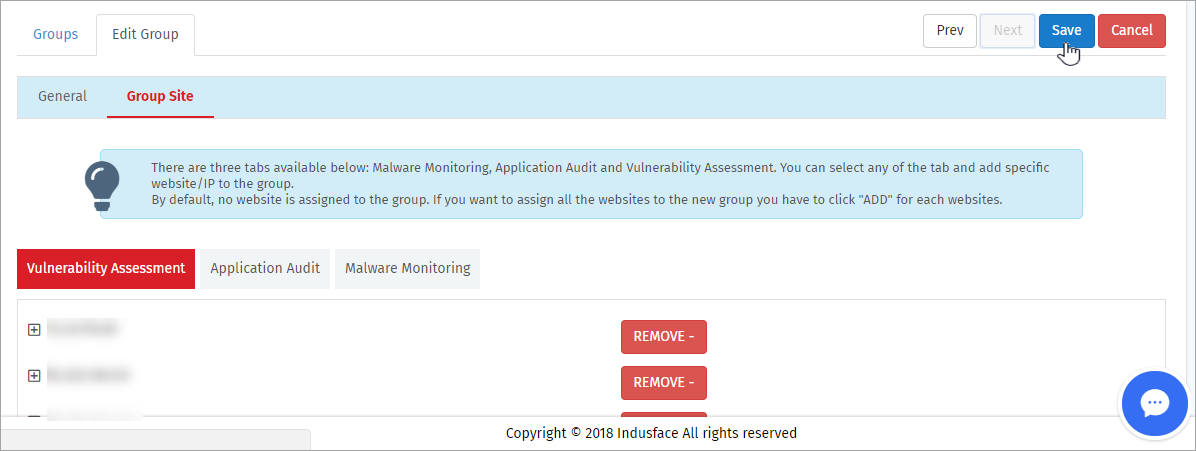
- Click **Save** button after modifying the group information. **Success** pop-up is displayed.
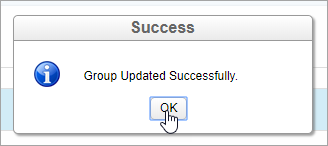
- Click **Ok** button to close the pop-up.
#### Delete Group
- Click **Delete** option in **Action** column of *Group Settings* page. A **Confirmation** pop-up appears.
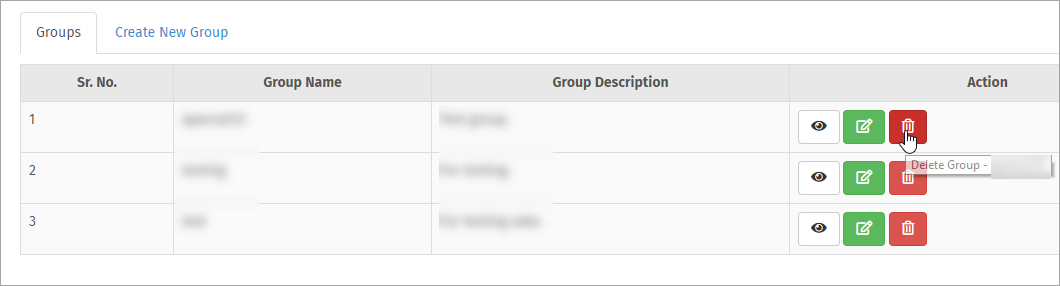
- Click **OK** button to delete the selected group. A **Success** message is displayed.
- **Group Deleted Successfully** message is displayed with successful deletion.

#### Create New Group
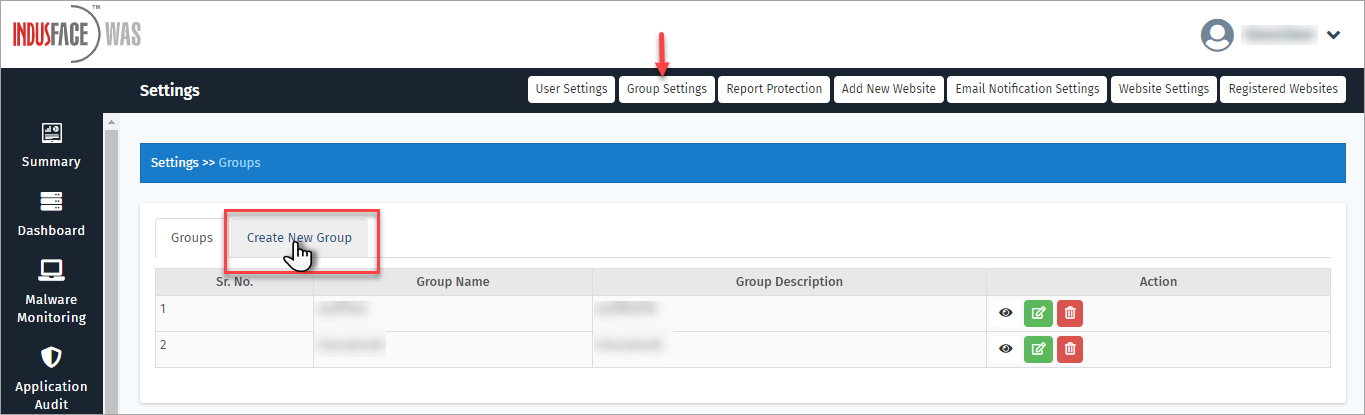
- Click **Create New Group** option in **Group Settings** tab in **Settings** page. **General** information option is displayed.
- Click to enter group name and description for the new group and then click **Next** button. **Group Site** option is displayed.
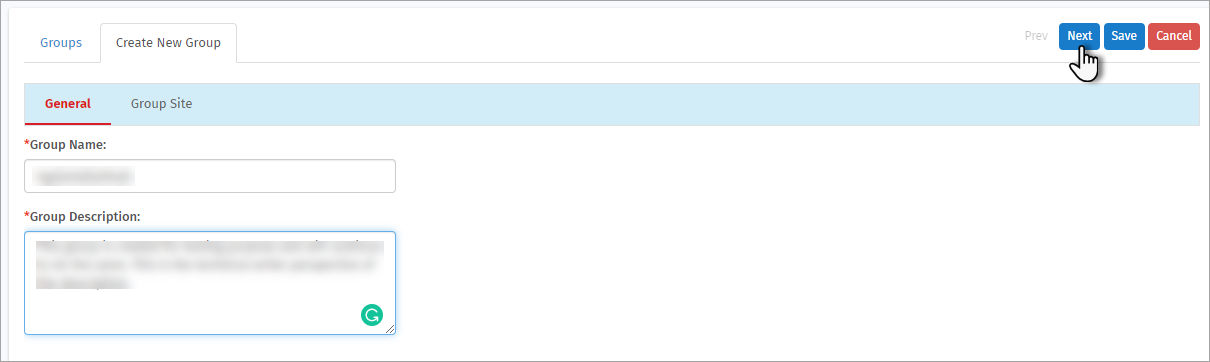
> An error message is displayed as "Group name should contain alphabets and numbers only" in case other values are entered.
- This option displays all the existing websites, assigned to three different services.
- Click **ADD** button to add a website into a group.
- Click **REMOVE** button to remove a website from a group.

- Click plus symbol of an **IP Address** to **ADD** or **REMOVE** a specific URL alone.

- Click **Save** button after modifying the group information. **Success** pop-up is displayed.
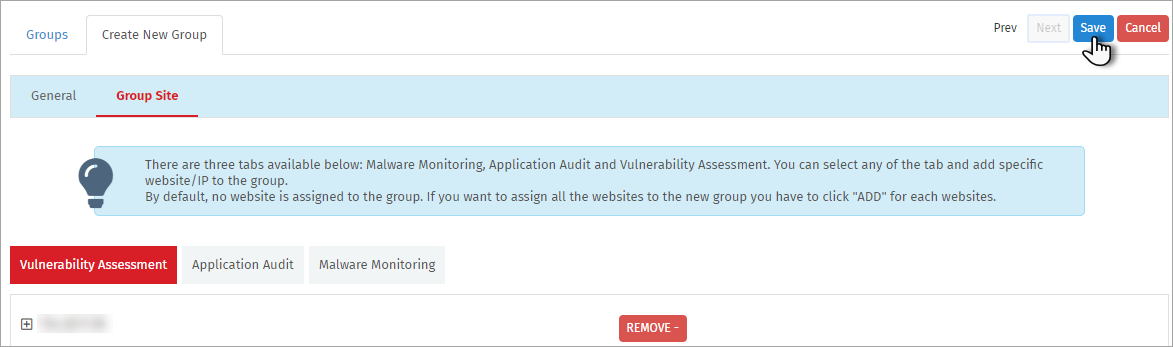
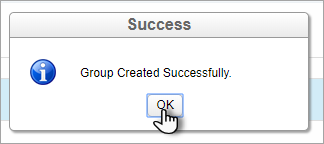
- **Group Created Successfully** pop-up message is displayed.
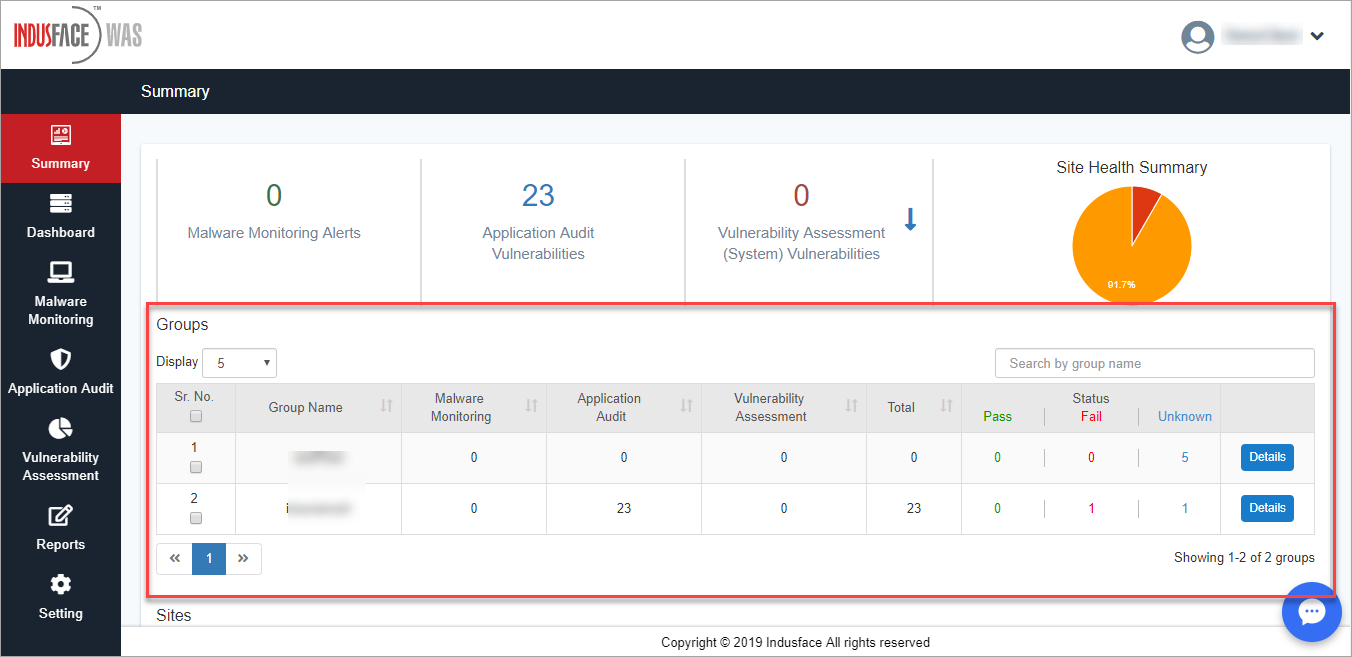
- The created/existing groups are displayed in **Summary** page.
> If a group is not assigned with websites from at least one of the services, the group information is not displayed in the Summary page.
### Report Protection
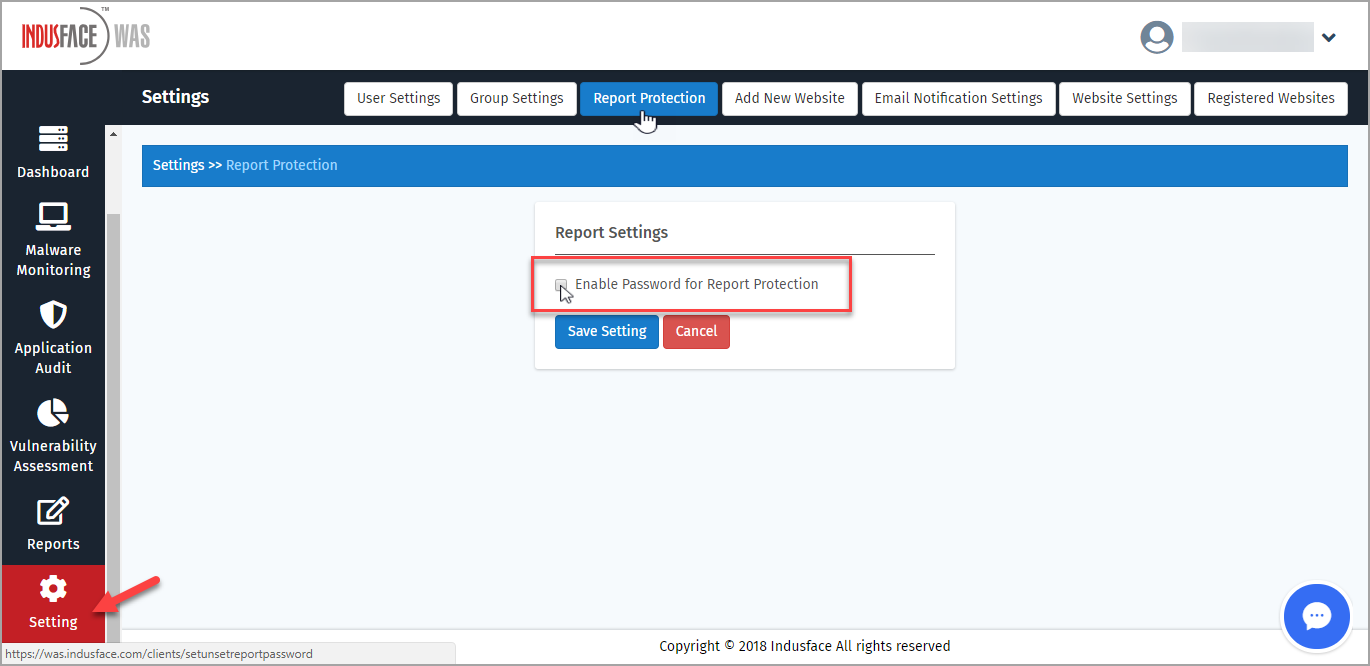
- This tab provides the protection by enabling a password to your reports.
- Click Reports Protection tab in Settings page. Report Settings option displays.
- Click to select **Enable Protection for Report Protection** option. **Password Setting** option appears.
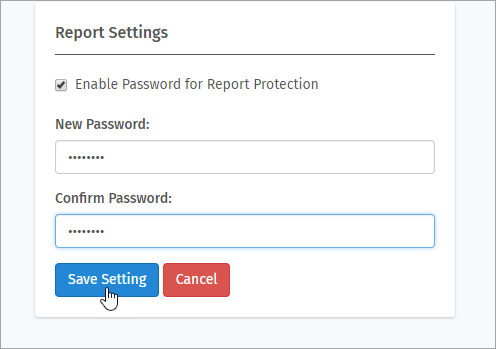
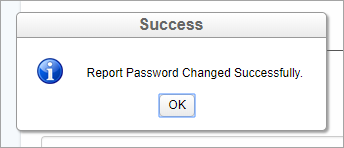
- Click **New Password** option to enter an unique password, click **Confirm Password** option to re-enter the password and then click **Save Settings** button. **Success** pop-up displays.
- Click **OK** button to close the pop-up.
### Add New Website
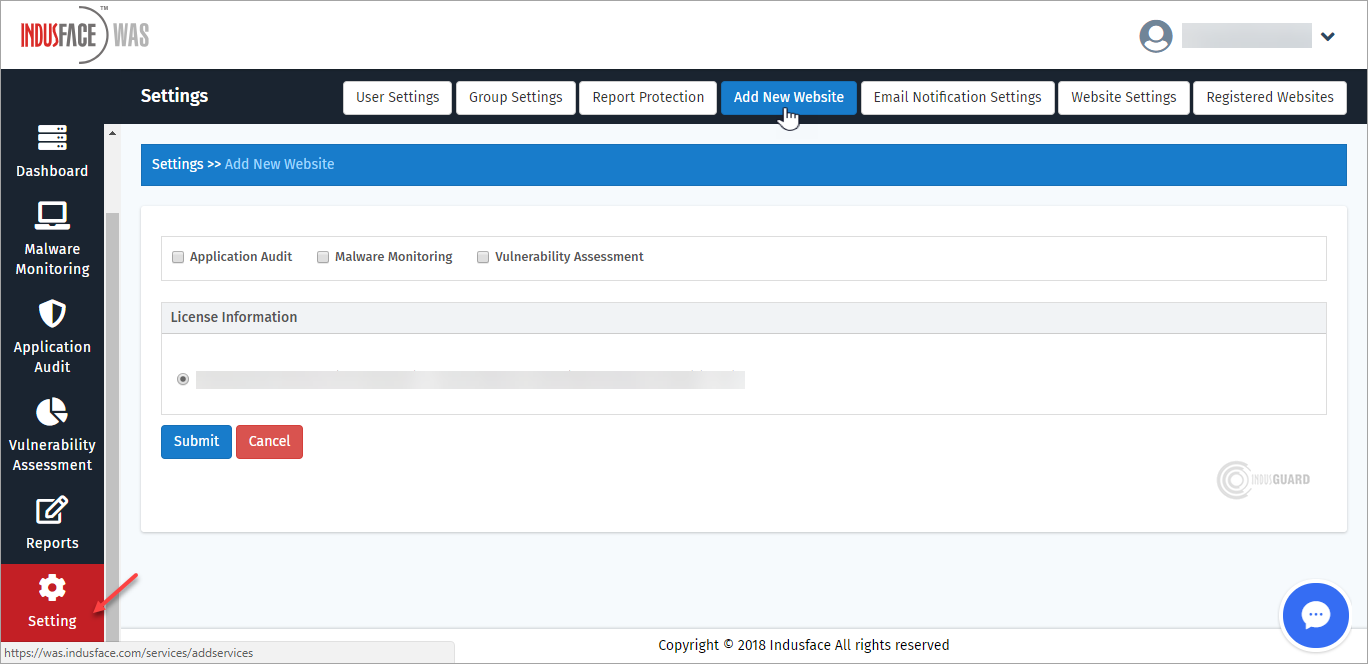
- Click **Add New Website** tab in *Settings* page.
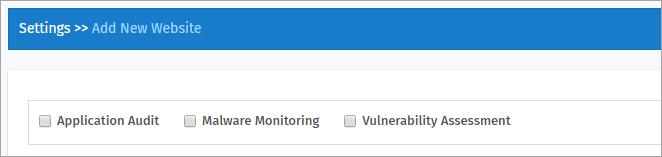
- Click to select **Scan Type** for the new website. **Website Details** and **Scan Slot Settings** options display.
- Click to fill up the information in the given fields and click **Submit** button. **Success** message is displayed.
| **Parameter** | **Description** |
| --- | --- |
| URL | Click and enter the URL of the new website. |
| Customer Asset ID | Click and enter a short and unique name for your website. |
| Scan Time Slot | Click and set a time slot for the selected scan(s) to run. |
| License Information | Click any one of the existing license if you have more than one. |
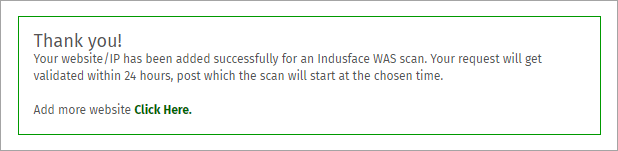
- Thank You message is displayed with successful website entry.
- Click **Click Here** link to add more websites.
### Email Notification Settings
- This option is used for regular notifications on the reports of the scans of specific websites on particular days.
- Click **Email Notification Settings** tab in **Settings** page. **Existing Email Notifications** is display if any.
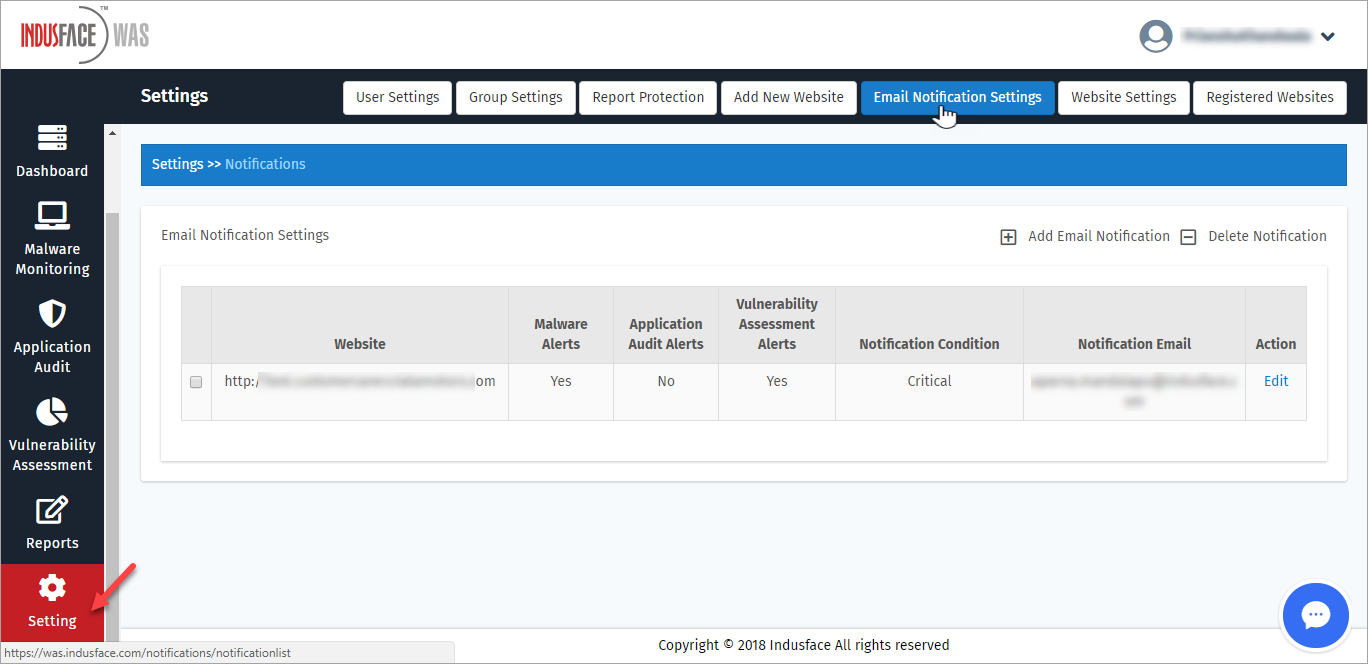
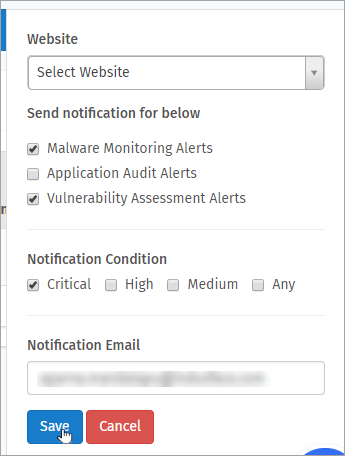
Click **Edit** option **Action** column to update the information of a notification setting. **Notification Details** pop-up appears.

Click to modify the existing information and click **Save** button.
#### Add Email Notification
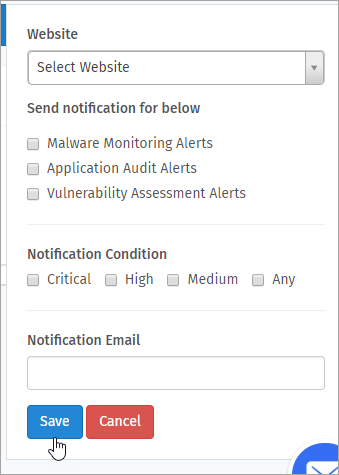
Click **Add Email Notification** icon to add a notification. **Notification Details** pop-up appears.

Click to enter the notification details and click **Save** button. **Success** message is displayed.
| **Parameter** | **Description** |
| --- | --- |
| Website | Click Select Website drop-down and choose a website. |
| Send notification for below | Click to select the scan service(s) to display the notifications for the scan results. |
| Notification Condition | Click to select the severity level for which a notification should trigger. |
| Notification Email | Click and enter the email address for which the notifications should be sent. |
With successful entry of the information, Successful message is displayed as **Notification Email Saved Successfully**.

#### Delete Email Notification
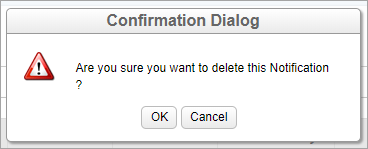
Click to select the row or notification which you want to delete and then click **Delete** icon. **Confirmation** pop-up appears.
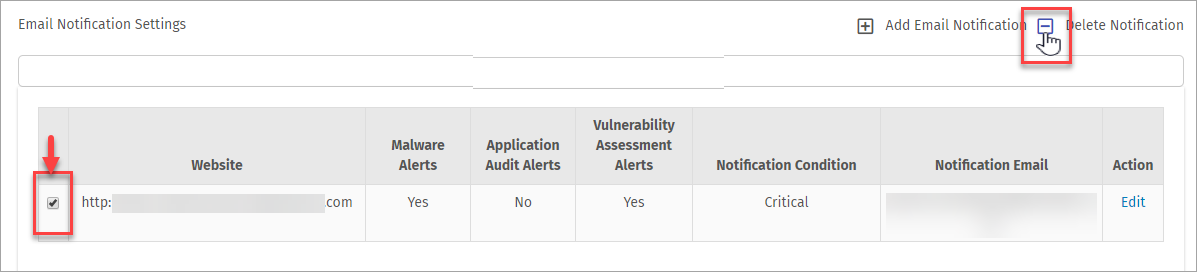
Click **OK** button to confirm the action. Success message is displayed with successful deletion.
The **Success** message is displayed as **Selected Notifications deleted successfully.**

### Website Settings
This page provides the settings for a website available in **Indusface WAS** portal.
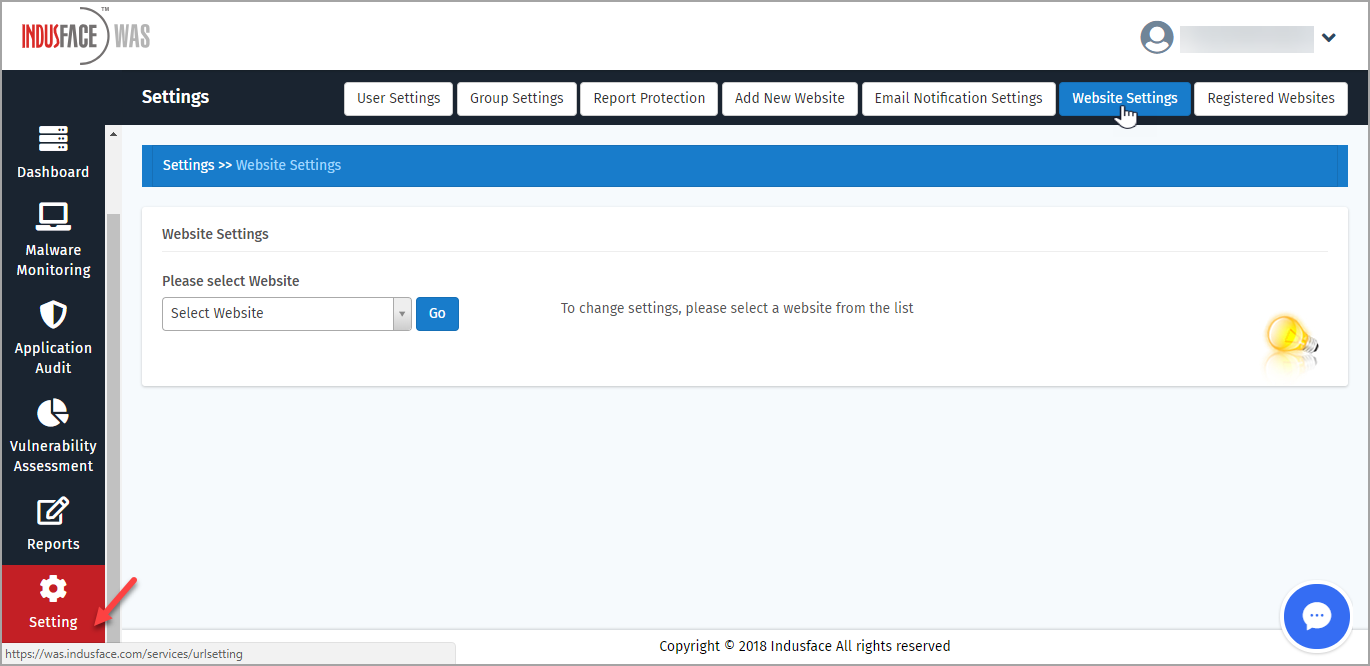
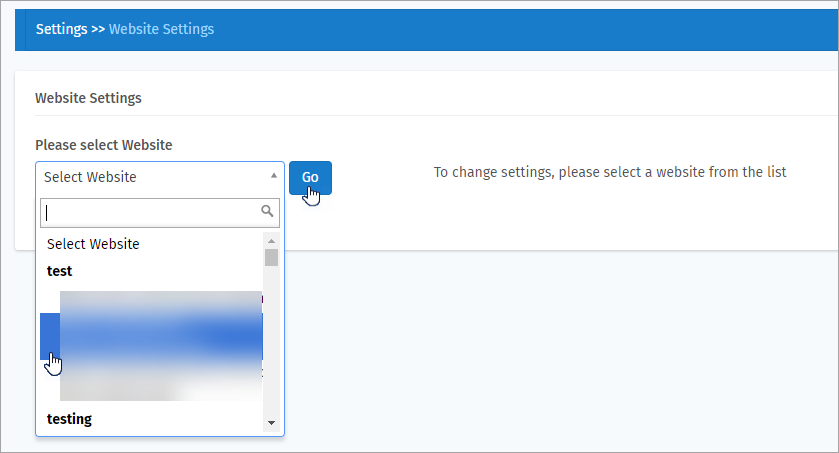
- Click **Select Website** option to change the settings and click **Go** button. Website Settings page appears.
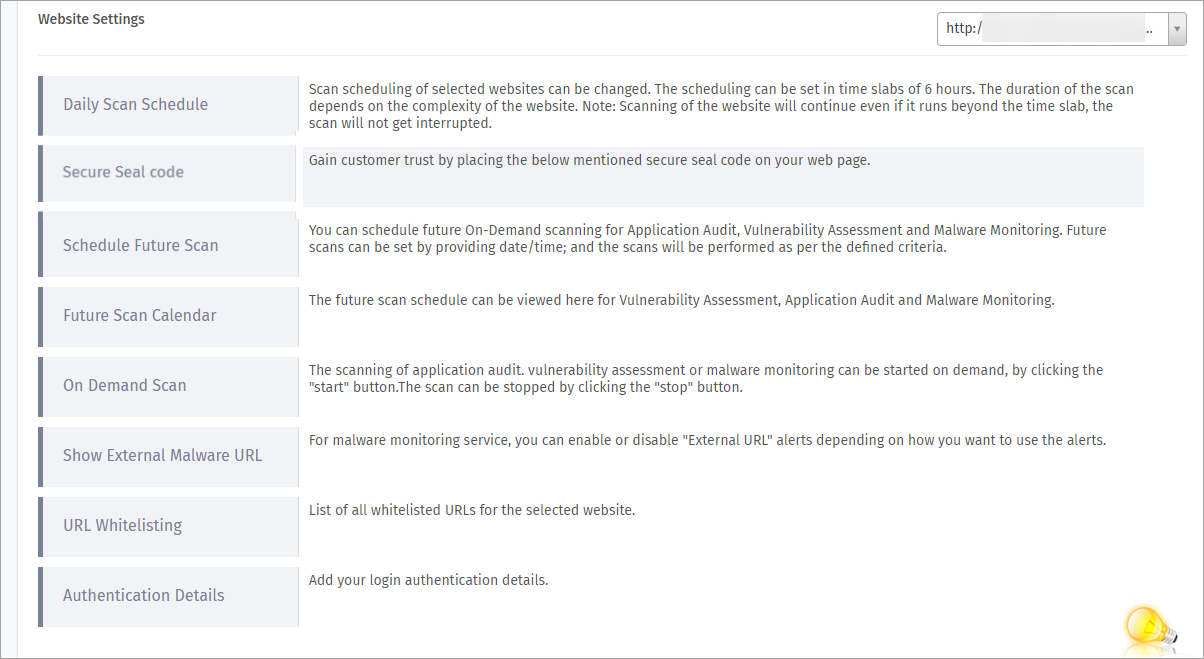
- Website settings with descriptions is displayed in a row, click any specific setting to display further details.
#### Daily Scan Schedule
This option helps a user to automate an everyday scan which is typically for 10 hours and will be restarted next morning from the scratch. If your application is huge/complex and needs at least 3 or 4 days to complete a scan, enable **Application Audit Perform Incremental Scan** option to continue the scan by pausing it instead of stopping and disrupting it.
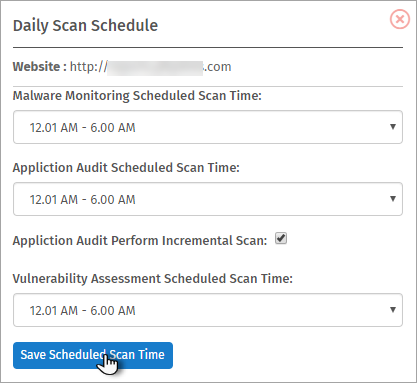
Click **Daily Scan Schedule**(first) option to change the existing schedule or to create new schedule. **Daily Scan Schedule** pop-up appears.

The Website URL, different Scan Services and the allotted schedules are displayed.
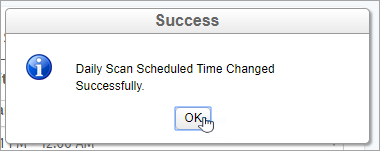
Click and set a scan schedule time from the respective drop-downs and then click **Save Scheduled Scan Time** button. **Success** pop-up is displayed.
| **Parameter** | **Description** |
| --- | --- |
| Malware Monitoring Scheduled Scan Time | Click this drop-down and click a specific time duration for this scan. |
| Application Audit Scheduled Scan Time | Click this drop-down and click a specific time duration for this scan. |
| Application Audit Perform Incremental Scan | Click this option to enable the option to pause a scan and continue it for how many ever days required for an application. |
| Vulnerability Assessment Scheduled Scan Time | Click this drop-down and click a specific time duration for the scan. |
| Delete Table
\- Column
\+ Column
\+ Row
\- Row |
| --- |
Click **OK** button to close the pop-up.
#### Secure Seal Code
Indusface suggests to create a **Secure Seal Code** on your web page to gain customer trust.
**Warning**
A user cannot create or update a **Secure Seal Code**, contact Indusface Support for further help.
Click **Secure Seal code** option to view the code. Seal Code box appears.
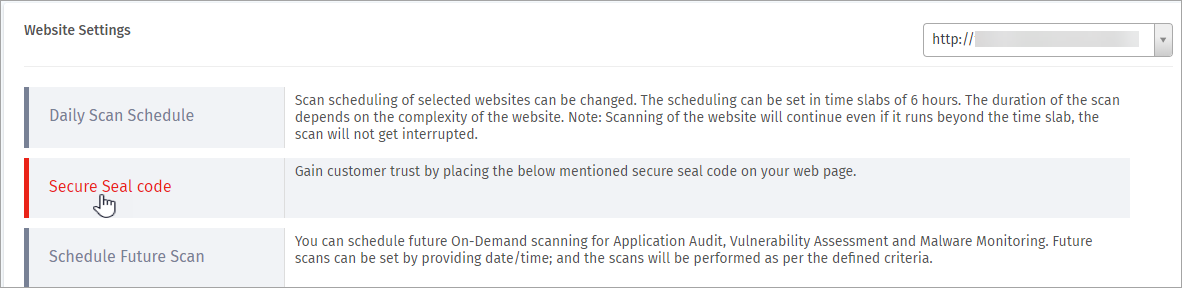
The Secure Seal code placed on the web page is displayed.

#### Schedule Future Scan
A Future On-Demand Scan can be scheduled for any Scan Services with the help of this option.
Click **Schedule Future Scan** option. **Schedule Scan** page appears.

Scheduled Scan Details
The Future Scan Details of the website URL which has initiated the future scan is displayed.

- The registered scan(s) is displayed with details like **Schedule Time**, **Date**, **Status** etc.

| **Parameter** | **Description** |
| --- | --- |
| Schedule Time | The allotted time for scan is displayed in this option. |
| Schedule Date | The date of the future scan is displayed in this option. |
| Status | This option displays if the scan is in **Active** or **Inactive** mode. |
| Created Date | The date and time of the schedule is displayed in this column. |
| Action | The **Delete** option is displayed in this column. Click **Delete** option to remove a **Scheduled Scan** |
#### Future Scan Schedule
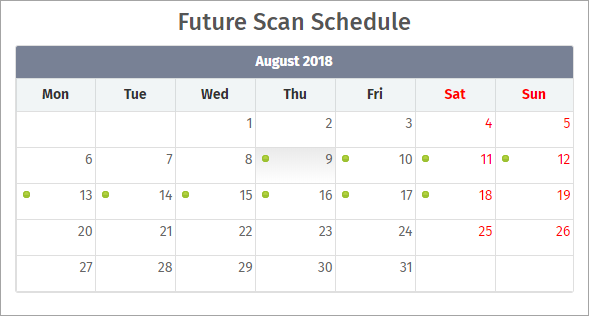
This option displays the calendar of the present month with green dots indicating the future scan schedules.
#### Schedule Scan
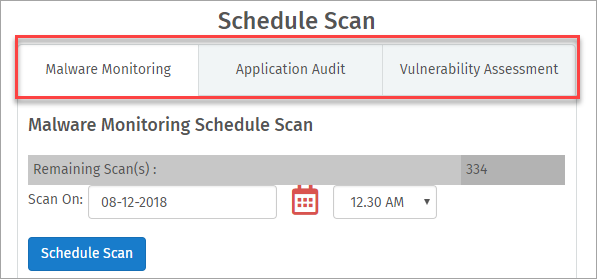
- This option allows a user to create a scan schedule ahead in the time.
- The Remaining Scans registered are displayed.
- Click any one of the **Scan Service** options( i.e., AA, MM or VA ), click Scan on option and click a date of your choice.
- Click **Time** drop-down, click to select a time allotted and then click **Schedule Scan** button.
- The created future scan is displayed in **Scheduled Scan** details and the **Future Schedule Scan** with the time.
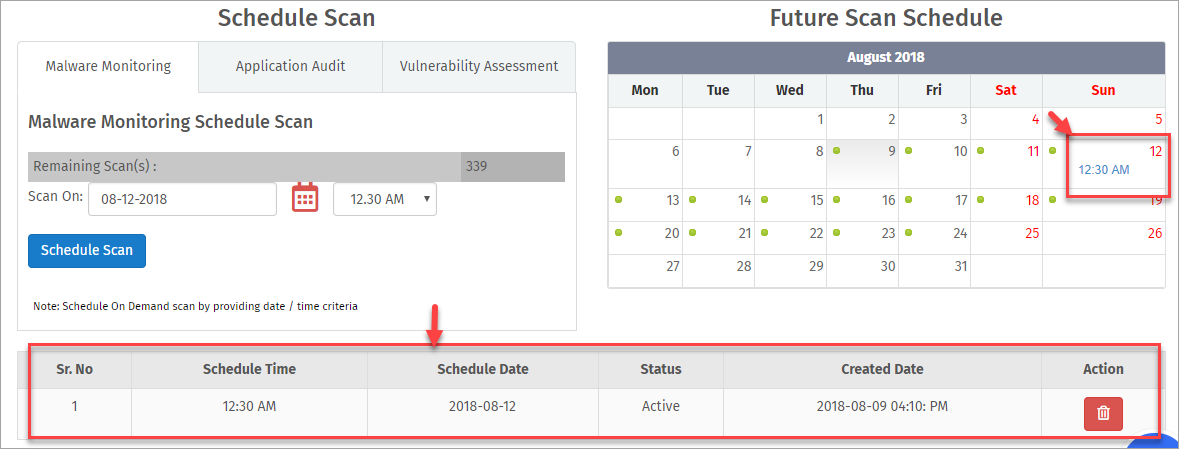
#### Delete Future Scan Schedule
- Click **Delete** option in **Action** column of **Schedule Scan** details.

- The **Scheduled Scan** details from the details table and the **Future Schedule Scan** are disappeared.
#### Future Scan Calendar
- The scheduled scans for different scan services are displayed for future.
- Click **Future Scan Calendar** option. The registered scan service(s) is displayed.
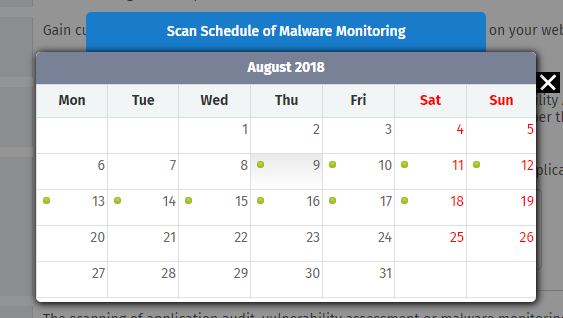
- Click **View Schedule** button of any service to display the details of scheduled scan. The Scan Schedule pop-up is displayed.

- For example, if **Malware Monitoring Future Scan Calendar** is requested, **Scan Schedule of MM** pop-up is displayed.
- If **Future scans** are scheduled for a service type, green dots are displayed on the day of scheduled future scan.
#### On Demand Scan
- This option helps a user to start a scan of any scan service on demand by clicking Start button and can be stopped by clicking **Stop** button.
- Click **On Demand Scan** option in Website Settings page to start a scan. Start Scan and Stop Scan options appear.

- Click **Start** button of a **Scan Service** of your choice to start an **On-Demand** scan.

#### Show External Malware URL
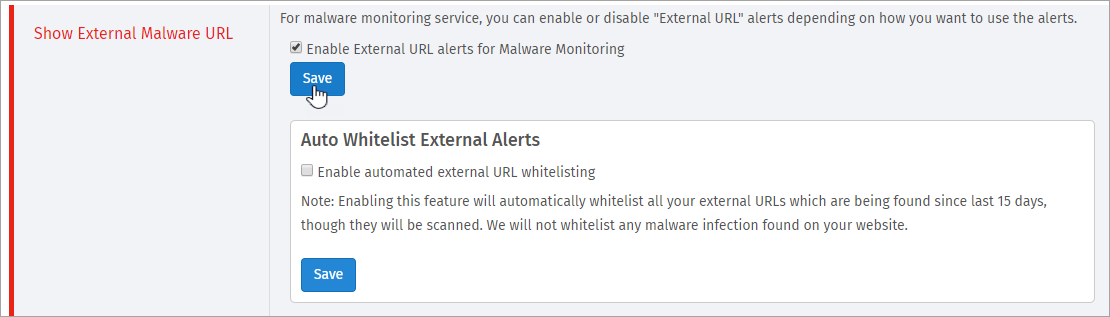
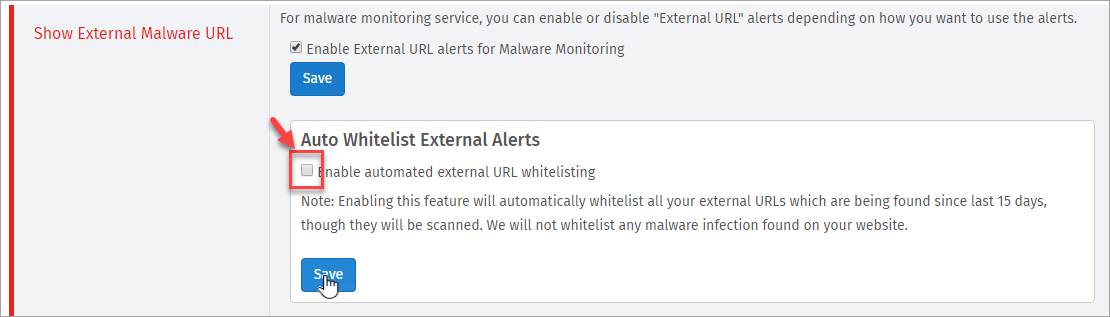
- This option helps in enabling or disabling **External URL** alerts depending on how you want to use the alerts.
- Click **Show External Malware URL** option to enable or disable the alerts.

- Click Enable option to select or unselect enabling. **Auto Whitelist External Alerts** option appears.
- Click **Save** button to just enable external URL.
\[OR\]
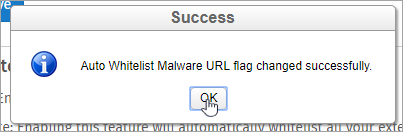
- Click **Enable automated external URL whitelist** option and click **Save** button. **Success** pop-up appears.
- **Auto Whitelist Malware URL** flag changed successfully.
- Click **OK** to close the pop-up.
#### URL Whitelisting
- This option displays the list of URLs whitelisted for a particular website.

- Click on the **Whitelisted URLs** (MM/ AA/ VA) button and the whitelisted URLs page for the selected scanning service will open.
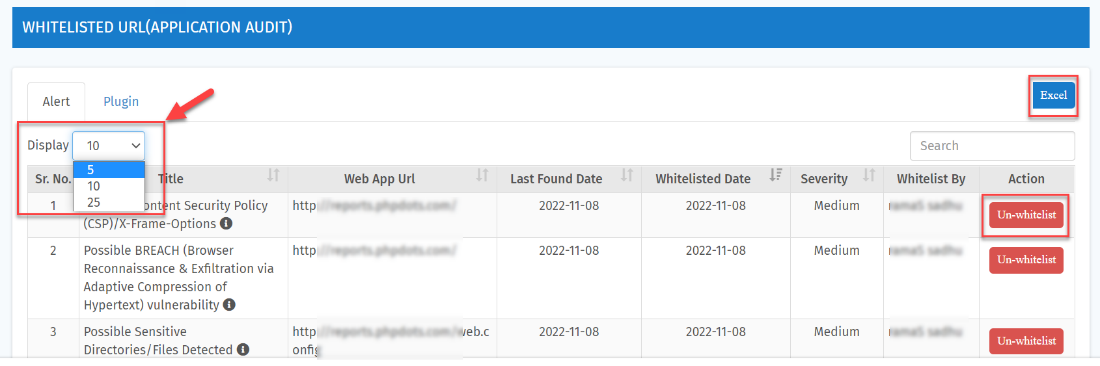
- Select the **Alert** or **Plugin** button.
- Click on the **Display** drop-down menu to select the number of records (**5,10,25**) to display in the table. A maximum of **25** records can be displayed.
Click on the Excel button to download the whitelisted URLs in CSV format.
In the Action column, click on the **Un-whitelist** button to remove a vulnerability from the whitelisted data. A new window will open, enter the reason in the Comments field, and then, click on the **Submit** button.

A confirmation pop-up will appear, click **OK** to confirm.
Once the vulnerability is un-whitelisted successfully, an email will be sent to the user with the necessary details.
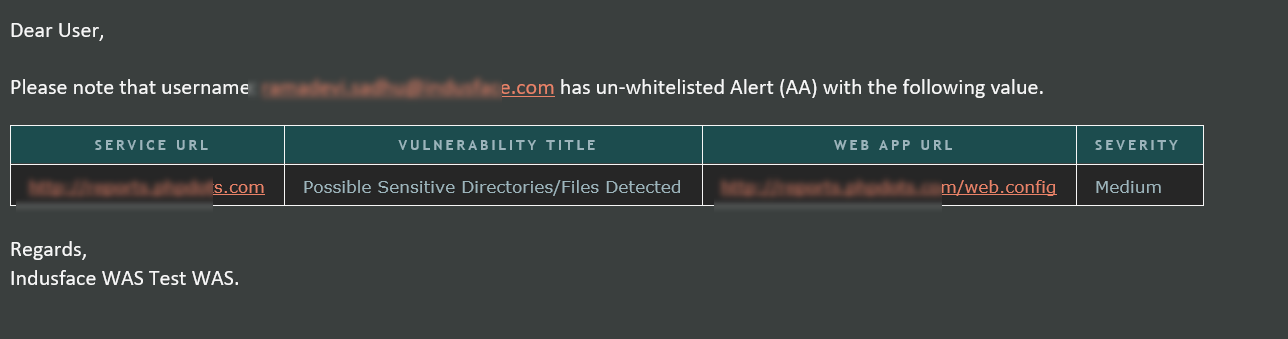
The un-whitelisted alert/plugin will be reflected again in the whitelisted URL data of the Scan summary data.
#### Authentication Details
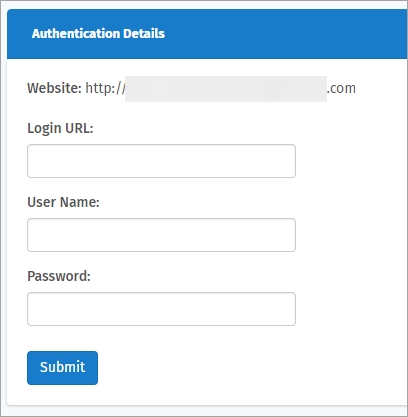
- This option helps in adding login authentication details for more security.
- Click **Authentication Details** option. **Authentication Details** page appears.

- Click to enter details in the boxes like **Login URL**, **User Name**, and **Password** and then click **Submit** button. Success message is displayed with a successful entry.
### Registered Websites
This page displays all the websites a user has registered along with the **Scan Service Types**. To have an idea of any website or the type of scan being registered for a website is shown clearly in here.
- Click **Registered Websites** tab in **Settings** page. **List of Registered websites** page appears.
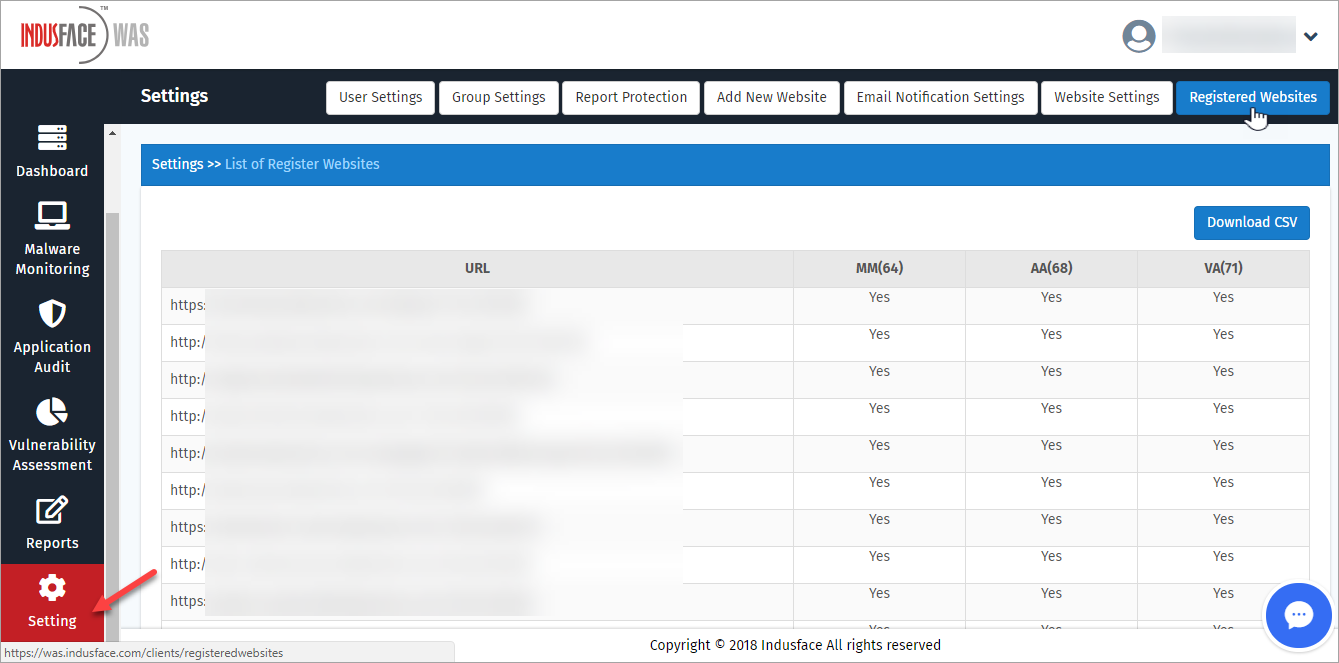
- Along with websites URLs, **Scan Services** like **MM**, **VA**, and **AA** display the count of websites registered for the scan service.

- Click **Download CSV** button to download the list in **CSV file format**.
