---
title: "Global Traffic Access Settings"
url: "https://docs.indusface.com/en/article/global-traffic-access-settings"
language: "en"
last_updated: "2025-03-03T05:22:17.128Z"
---
# Global Traffic Access Settings
### Introduction
Global traffic actions allow customers with the flexibility to manage and control incoming traffic to their websites. Customers can blacklist or whitelist specific IP ranges, countries, and URLs.
There are 5 different sections provided to allow managing traffic settings.
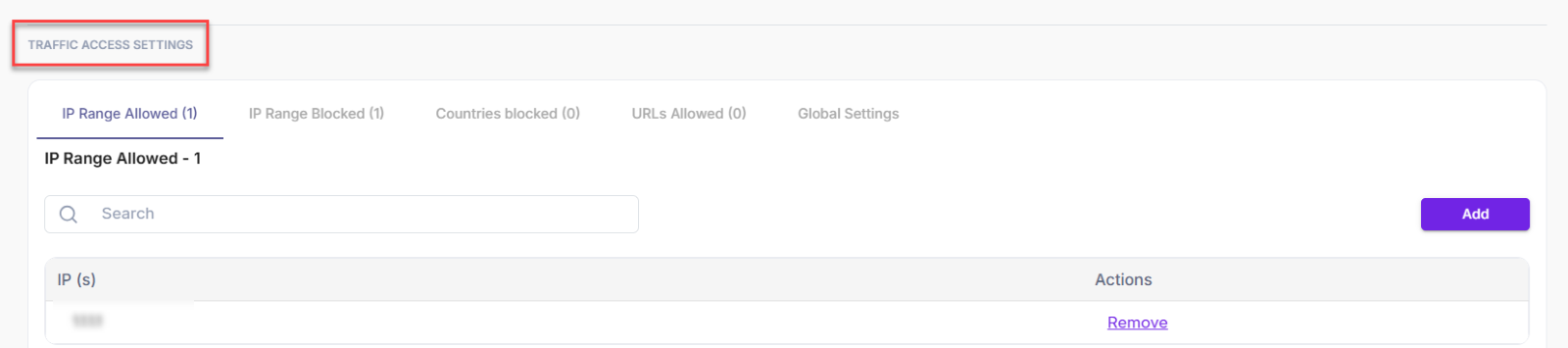
#### IP Range Allowed
- This section shows the count of allowed IP addresses and IP ranges. The search bar helps you quickly identify specific IPs or IP ranges.
- The table lists all allowed IPs and IP ranges. You can remove any entry from the table to block further access.
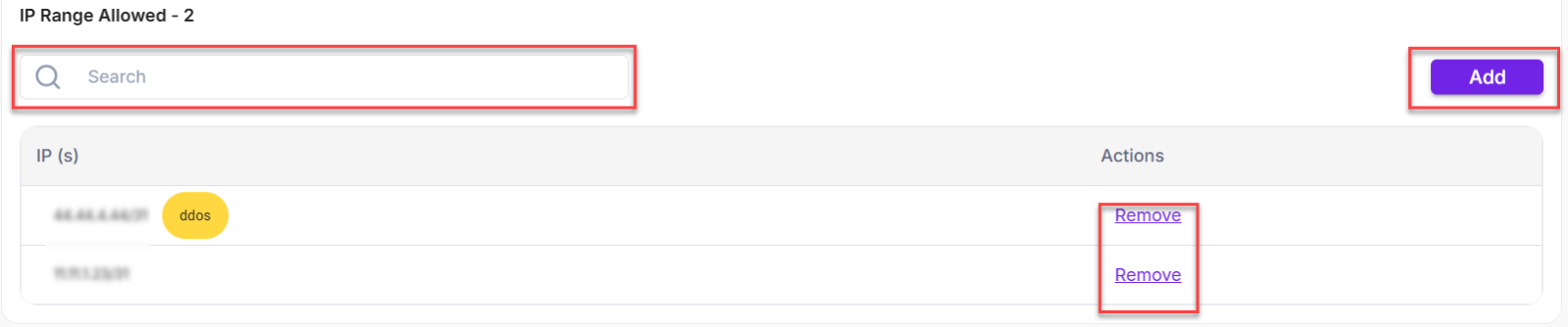
- Click **Add** to enter a new IP or IP range. A pop-up window appears, where you can enter the IP or IP range and select the rule type, such as **DDoS**, **Bot**, or **All Rules**.
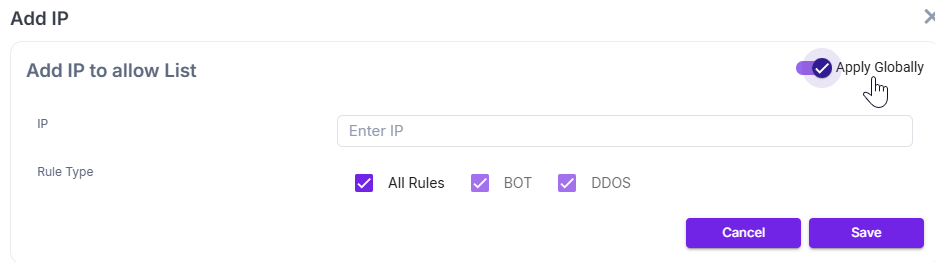
> - When you select **All Rules** as the **Rule Type**, you apply both BOT and DDoS policies. However, this selection does not block traffic based on behavioral DDoS or BOT attacks.
> - When you select **BOT** as the Rule Type, the system does not block BOT attacks but blocks DDoS attacks.
> - When you select **DDoS** as the Rule Type, the system does not block DDoS attacks but blocks BOT attacks.
> A toggle switch appears in the **Apply Globally** field, allowing you to apply this configuration to all applications associated with the account.
#### IP Range Blocked
- This section shows the count of blocked IP addresses and IP ranges. The search bar helps you quickly identify specific IPs or IP ranges.
- The table lists all blocked IPs and IP ranges. You can remove any entry from the table to allow further access.
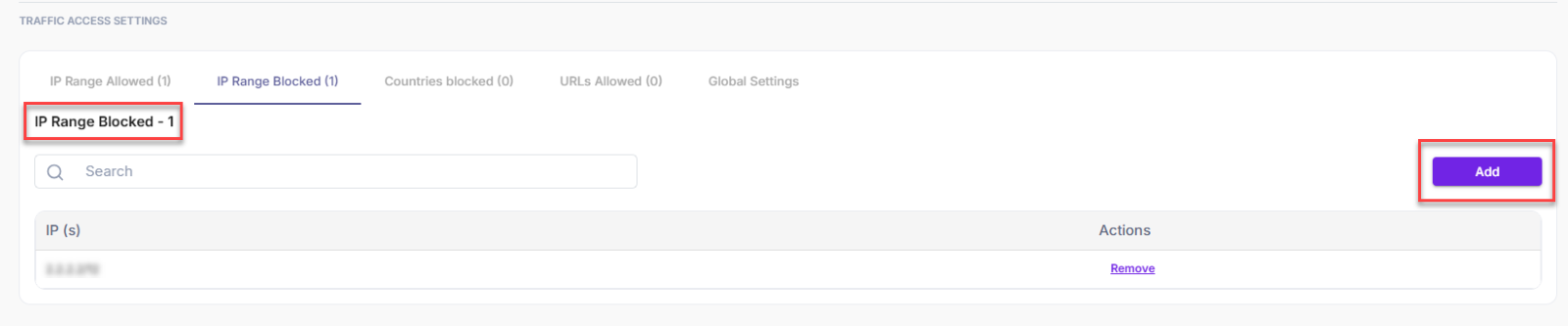
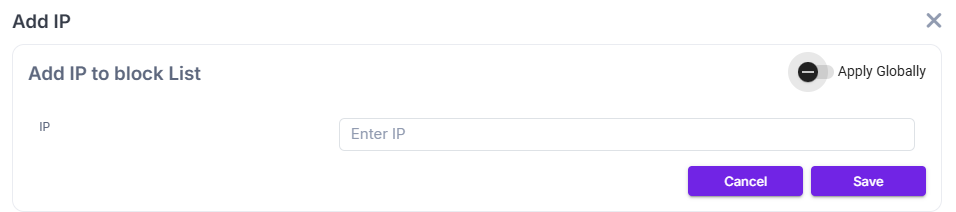
- Click **Add** to enter a new IP or IP range. A pop-up window appears, where you can enter the IP or IP range.
- A toggle switch appears in the **Apply Globally** field, allowing you to apply this configuration to all applications associated with the account.
#### Countries Blocked
- This section shows the count of blocked countries. The search bar helps you quickly identify the country.
- The table lists all blocked countries. You can remove any entry from the table to allow further access.

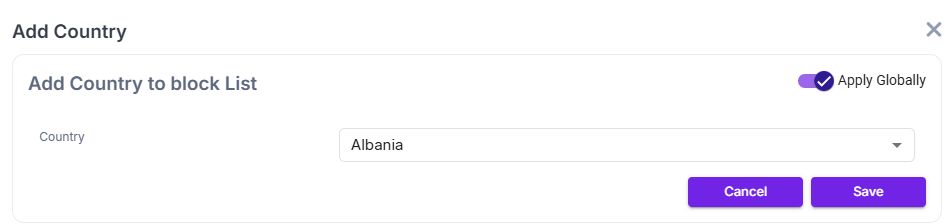
- Click **Add** to enter a new country. A pop-up window appears, where you can select the country.
- If the toggle switch is turned on, the same configuration applies to all web applications in the account.
#### URLS Allowed
- The URLs that have access to the application are allowed. The list of URLs is displayed in the table and the total count is displayed on the top. You can remove any URL from the table to block further access.

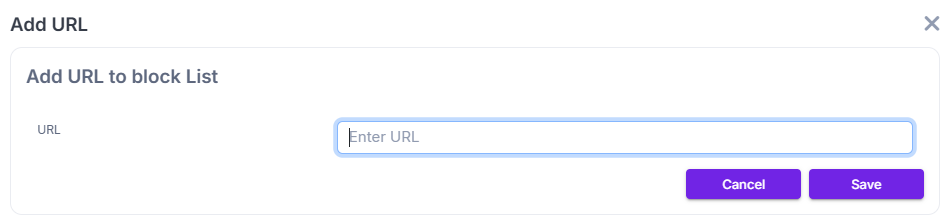
- Click **Add** to enter a new URL. A pop-up screen opens, where you can enter the URL.
#### Global Settings
The summary of various actions is displayed in the table.
| **Parameter** | **Description** |
| --- | --- |
| Value | This field contains the IP and IP Range values, and the Country name for which an action has been performed. |
| Action | Actions like whitelist/ blacklist for the value will be displayed here. |
| Username | The username of the person who performed the action is displayed. |
| Status | The status of the action appears here, typically showing **Success**, **Failure**, or **Pending**.
- If an action is performed by the user, initially the status will be **Pending** till the action is completed from the back end.
- If the action is performed successfully in the back end, then, the status will be displayed as **Successful**.
- If the actions fail in the backend process, then, the status will be displayed as **Fail**. |
| Remove Action | Click **Remove** to delete the action from the list. |