---
title: "Application Scan "
url: "https://docs.indusface.com/en/article/application-scan-mssp"
language: "en"
last_updated: "2025-09-16T06:57:19.728Z"
---
# Application Scan
The Application Scan Tab provides a centralized interface to monitor, manage, and report application vulnerabilities. It allows security teams and MSSP partners to view detailed audit results, track trends, manage alerts, and share reports with customers in multiple formats.
## Key Sections
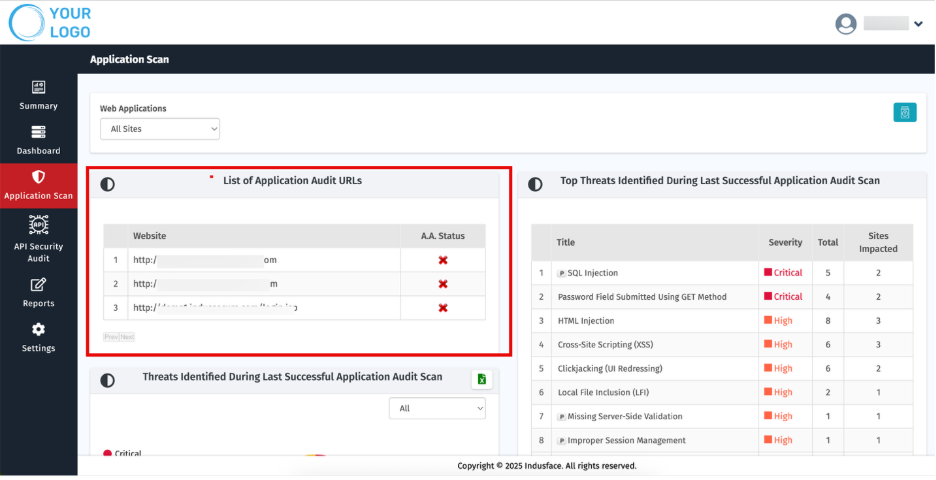
**1\. List of Application Audit URLs**
- Displays all URLs that were part of the application audit, along with their current audit status.
**2\. Top Threats Identified During Last Successful Application Audit Scan**
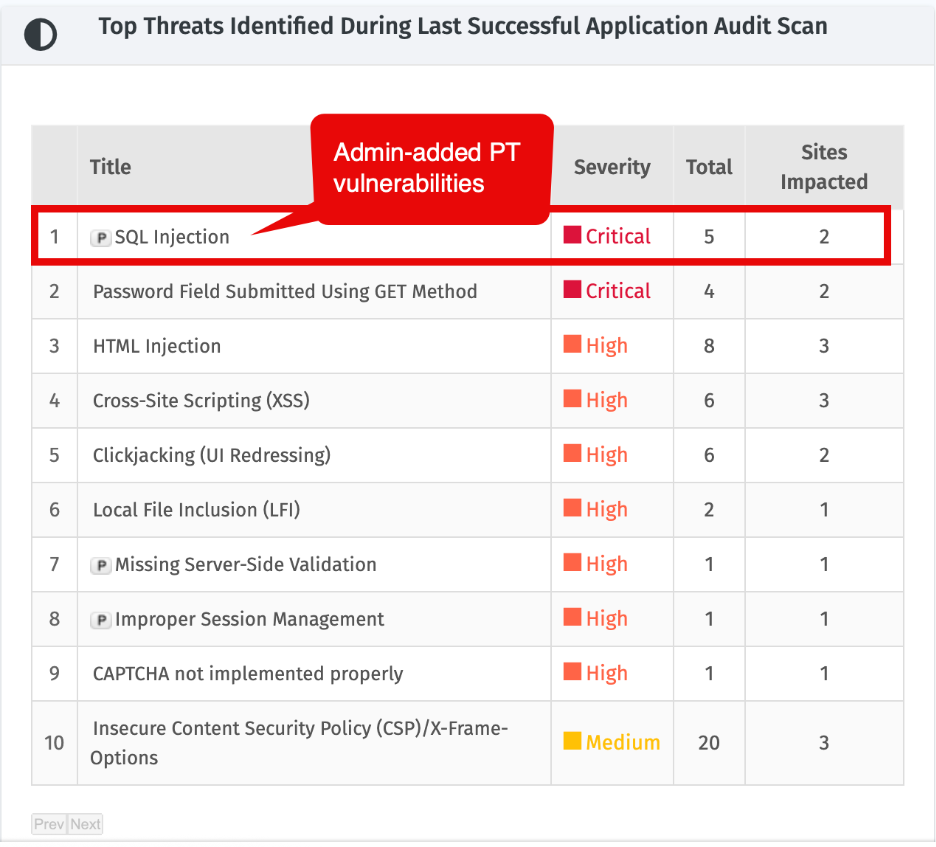
- Shows the top vulnerabilities from the latest successful scan, with details on severity, occurrence, and impacted sites.
- Any manual penetration-test (PT) vulnerability added via the Admin panel will appear here with a **P** tag.
**3\. Threats Identified During Last Successful Application Audit Scan**
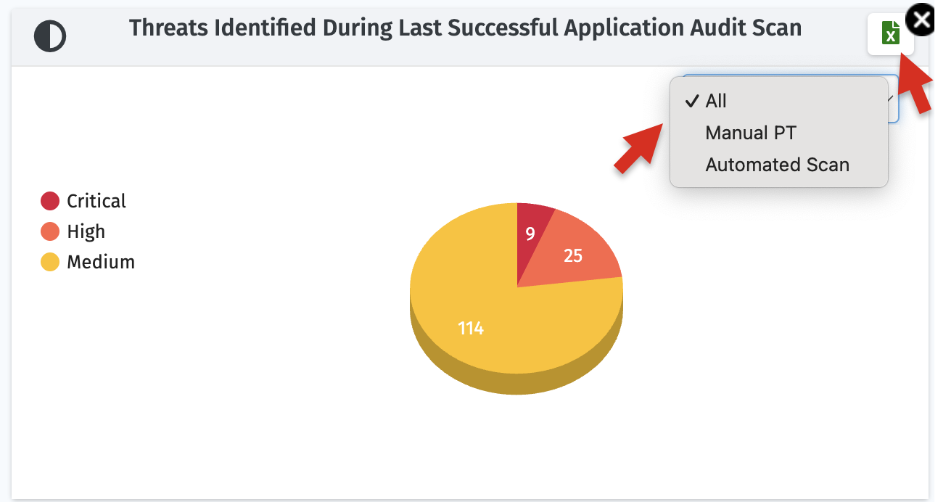
- Displays a pie chart of total vulnerabilities categorized by severity level
- You can view all threats collectively or filter them by those identified through **Manual PT** or **Automated Scan**.
- The data can also be exported in **CSV format**, which provides an executive summary report.
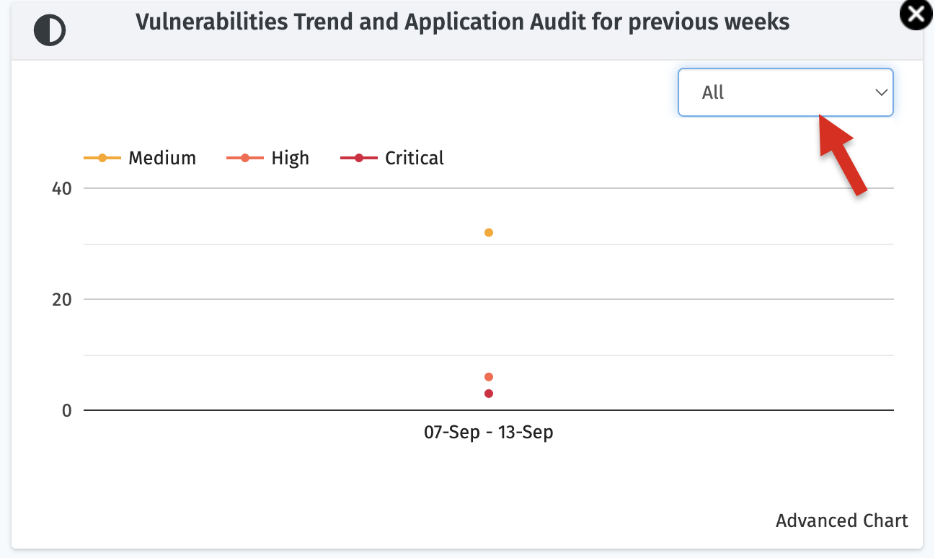
**4\. Vulnerabilities Trend and Application Audit for Previous Weeks**
- Provides a graphical view of vulnerability trends over time, categorized by severity level. This helps track improvements or regressions in application security.
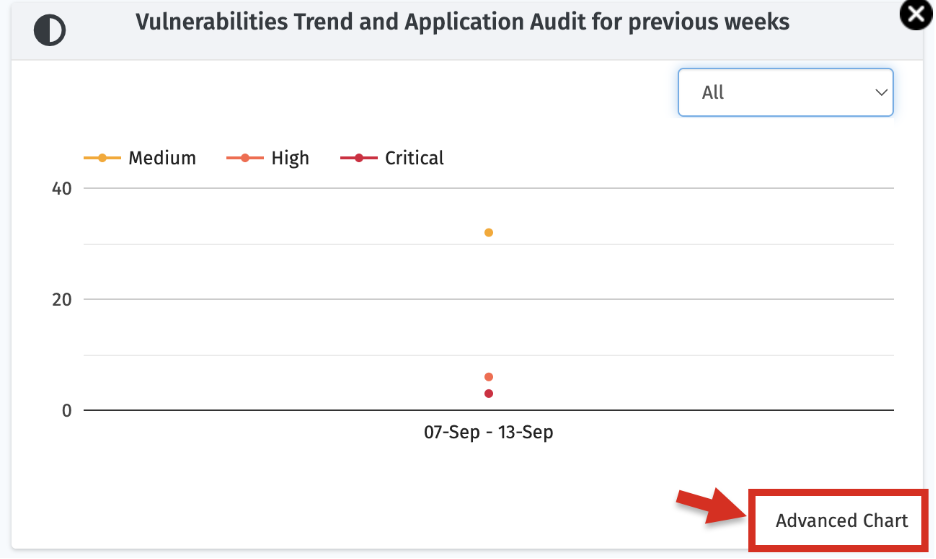
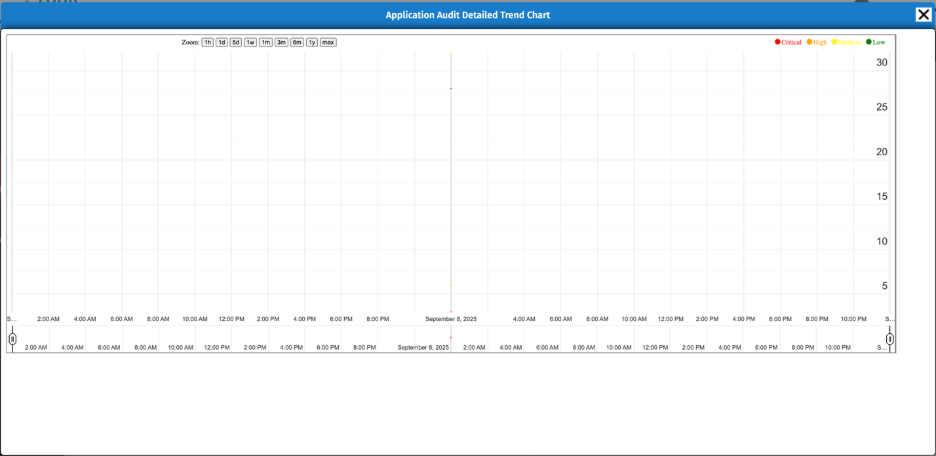
- By clicking **Advanced Chart**, you can access a detailed trend chart of application audits.
- You can choose to view all trends collectively or filter them by vulnerabilities identified through **Manual PT** or **Automated Scan**. The data can also be exported in **CSV format**, which includes an executive summary report.
**5\. Aging Application Audit Summary**
- Categorizes vulnerabilities by age (Open for 30, 90 or 180 days) and severity (Critical, High, Medium), highlighting unpatched vulnerabilities.
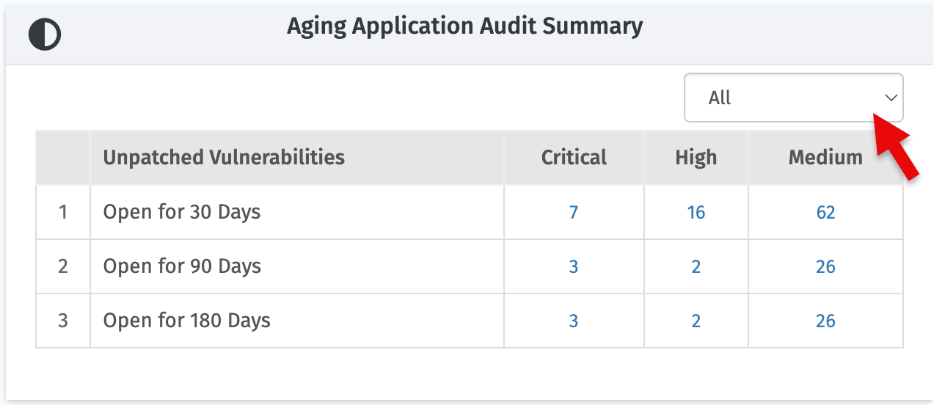
- Open vulnerabilities can be viewed collectively or filtered by those identified **Manual PT** or **Automated Scan**.
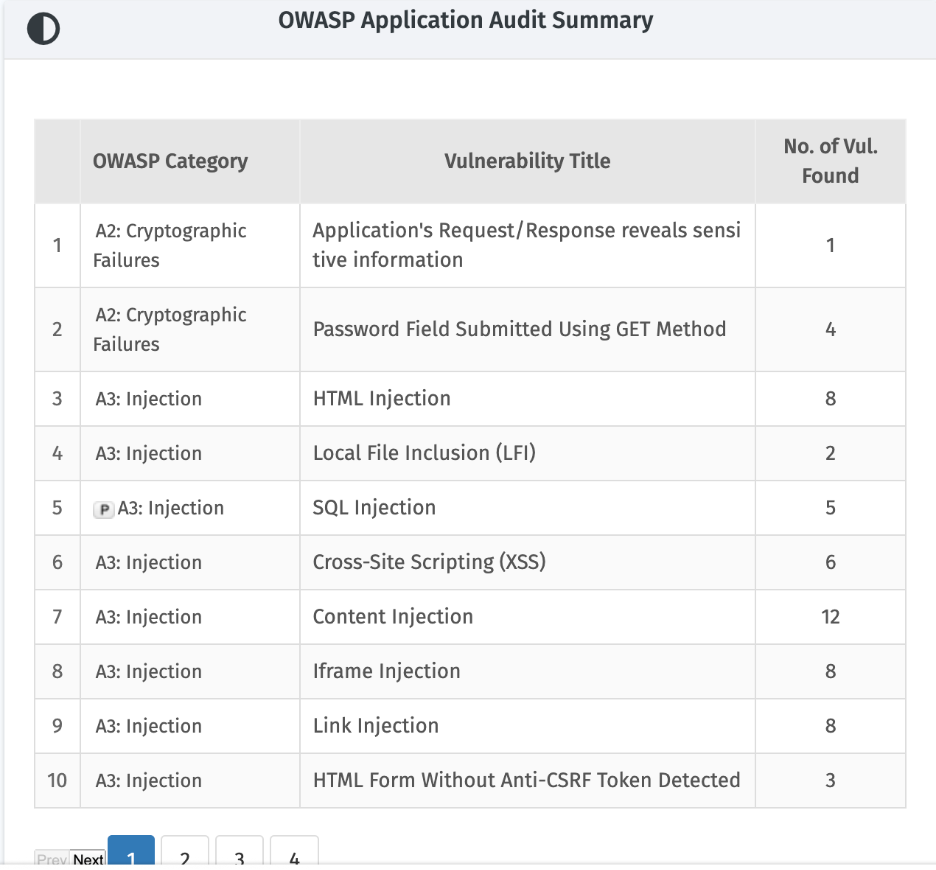
**6\. OWASP Application Audit Summary**
- Summarizes vulnerabilities according to OWASP standards, helping teams ensure compliance with security best practices.
## Scan Status
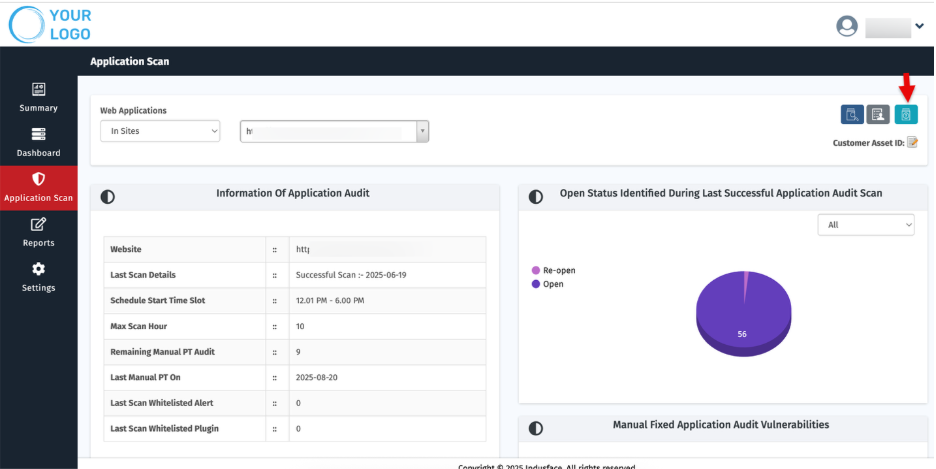
- Use **Scan Status** for quick visibility into scan activity and control.
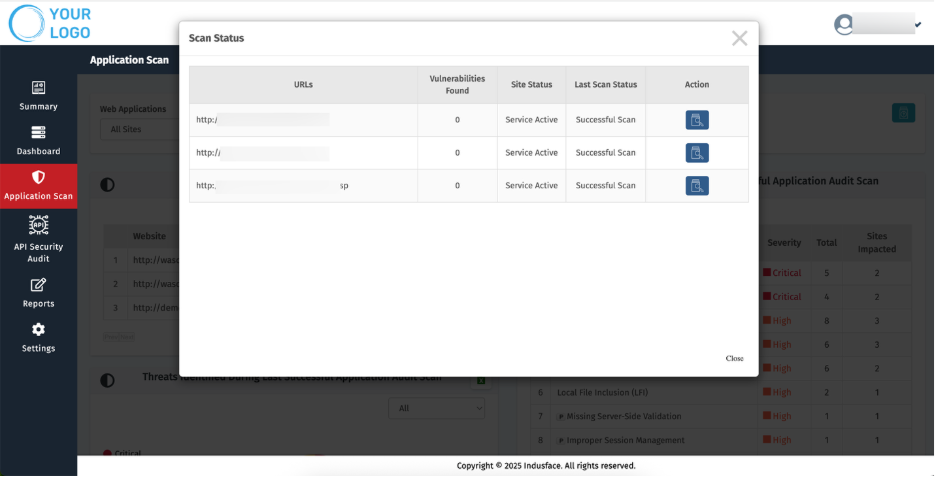
- Click the **Scan Status** button. The **Scan Status** popup appears.
Review the grid.
| **Parameter** | **Description** |
| --- | --- |
| URL | Displays the website address under scan. |
| Vulnerabilities Found | Number of vulnerabilities identified. |
| Status | Current scan status (e.g., *Service Active*, *Paused*). |
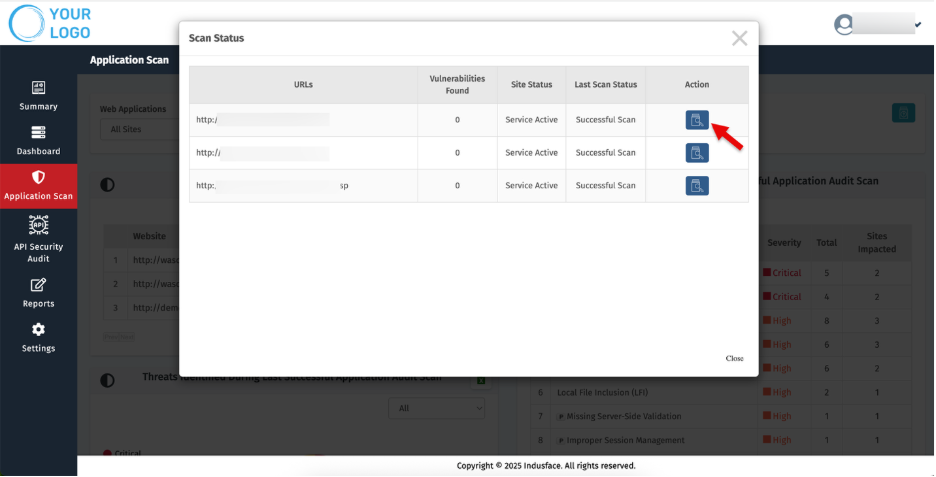
| Action | Displays **Start** or **Resume** button depending on scan state. |
#### **Actions**
- **Start a Scan:** Click **Start** for the specific website.
## Selecting and Viewing Detailed Audit Details
The Indusface WAS MSSP platform allows you to select a specific application to view detailed audit results, analyze vulnerabilities, and share the findings with your customers.
1\. Navigate to select **In Sites** (**All Sites** by default).
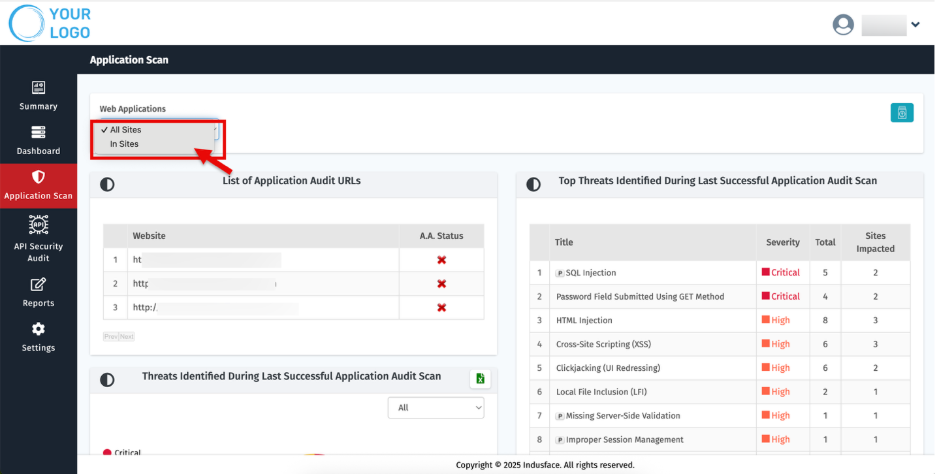
2\. Choose the relevant **Asset** you want to review.
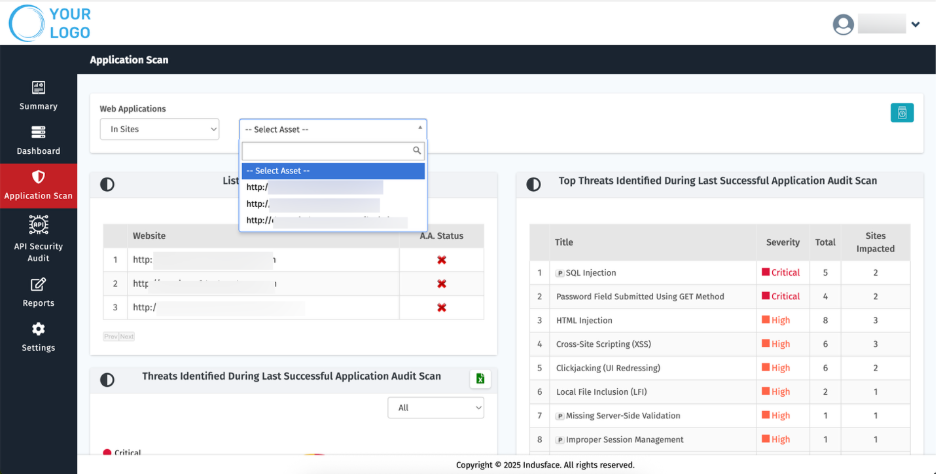
3\. Once selected, the platform displays all relevant audit details and scan history for that application.
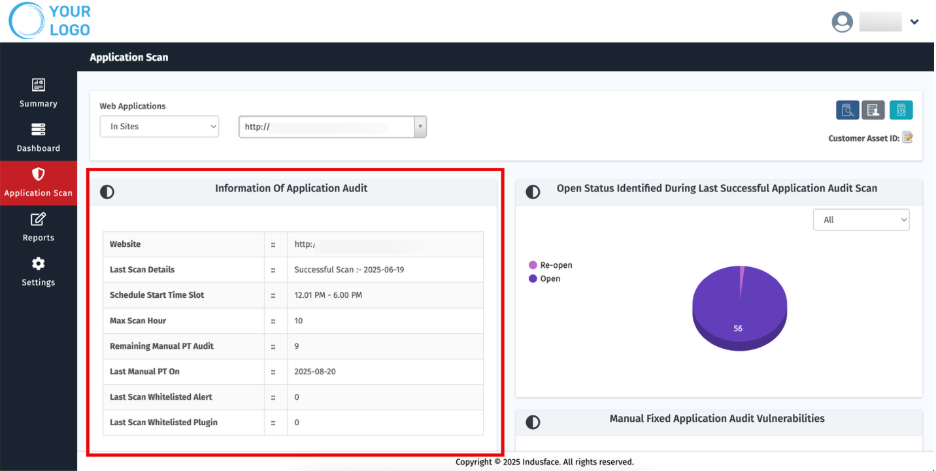
#### 1\. Information of Application Audit
- Shows general details about the selected application and audit scope.
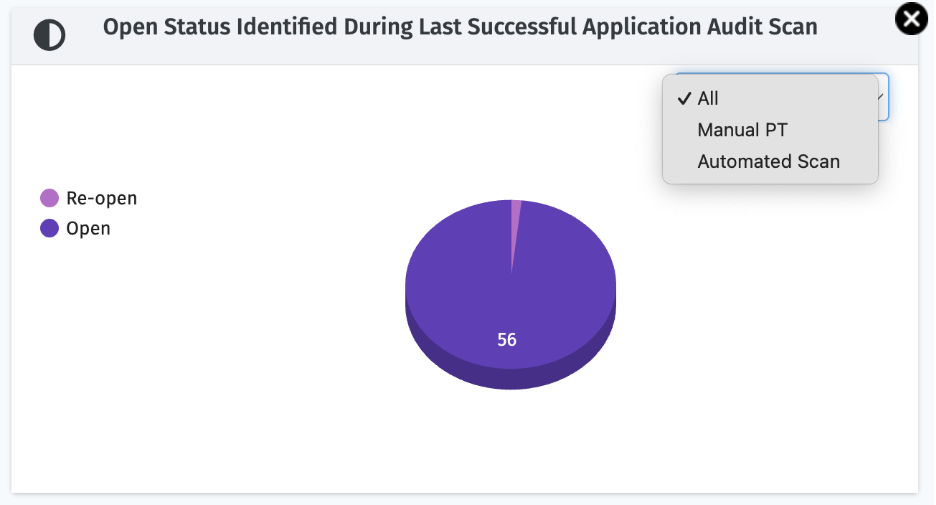
#### 2\. Open Status Identified During Last Successful Application Audit Scan
- Displays all **Open**, **Re-open** and **Newly** identified vulnerabilities from the most recent scan in a pie chart.
- You can view results collectively or filter them by vulnerabilities detected through **Manual PT** or **Automated Scan**.
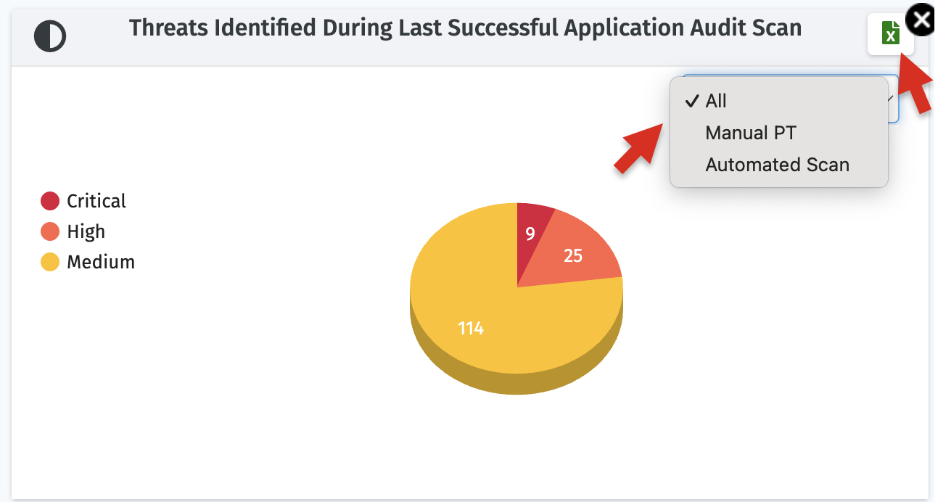
####  3. Threats Identified During Last Successful Scan
- Displays a pie chart of vulnerabilities for the selected application categorized by severity level.
- You can view all threats collectively or filter them by those identified through **Manual PT** or **Automated Scan**.
- The data can also be exported in CSV format, which provides an executive summary report.
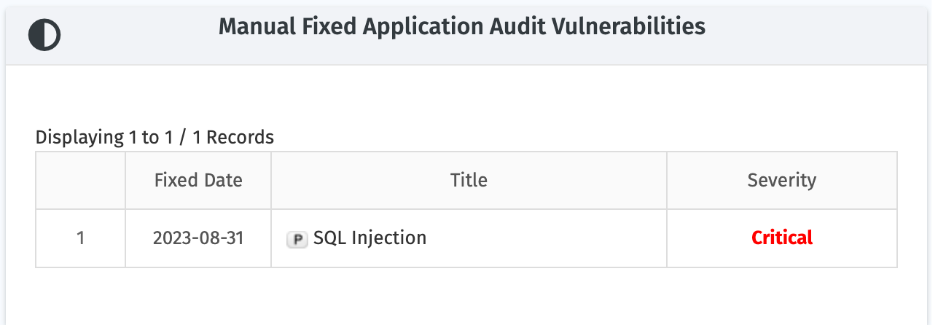
#### 4\. Manual Fixed Application Audit Vulnerabilities
- Shows vulnerabilities that were manually remediated by the security or application team.
| **Parameter** | **Description** |
| --- | --- |
| Title | Name of the remediated vulnerability |
| Severity | Critical / High / Medium / Low |
| Fixed Date | Date when manual remediation was completed |
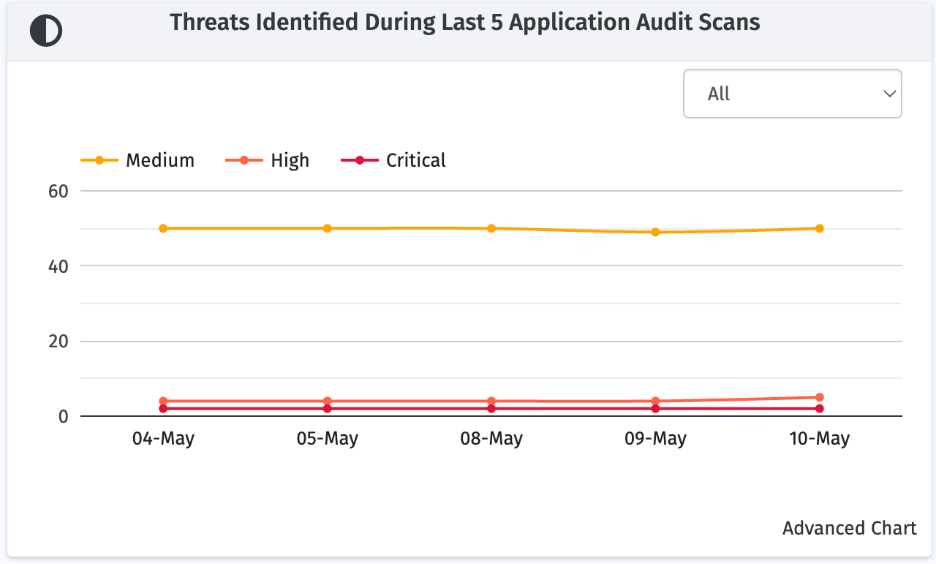
#### 5\. Threats Identified During Last 5 Application Audit Scans
- Tracks recurring vulnerabilities across the last 5 scans of seletect application, helping identify trends.
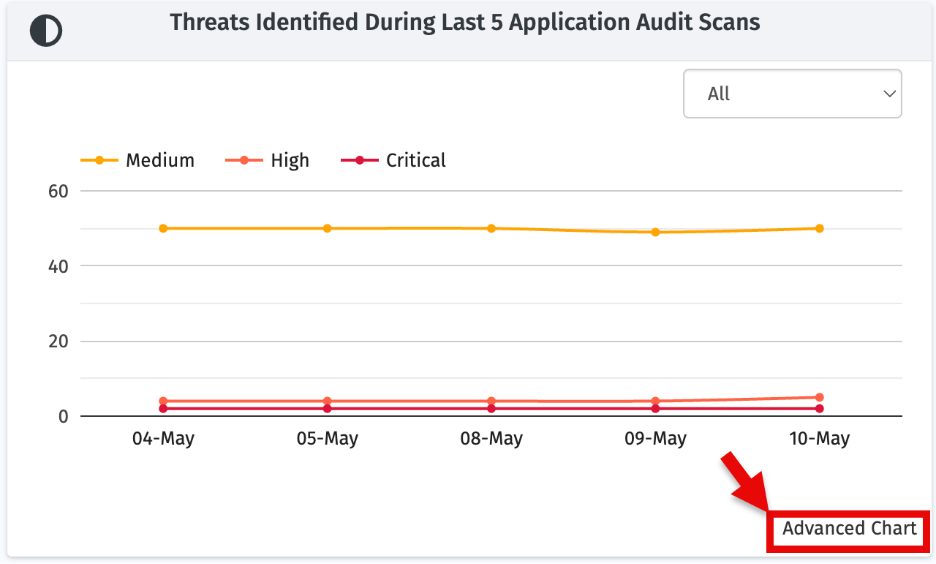
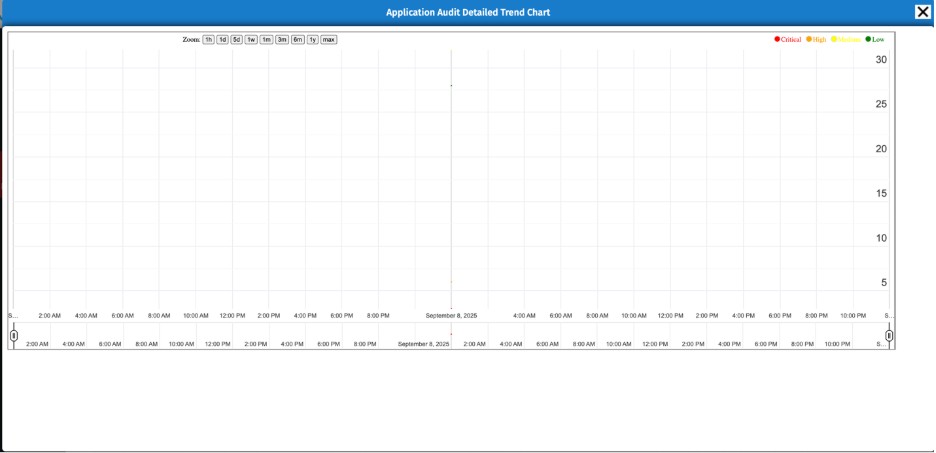
- By clicking **Advanced Chart**, you can access a detailed trend chart of application audits.
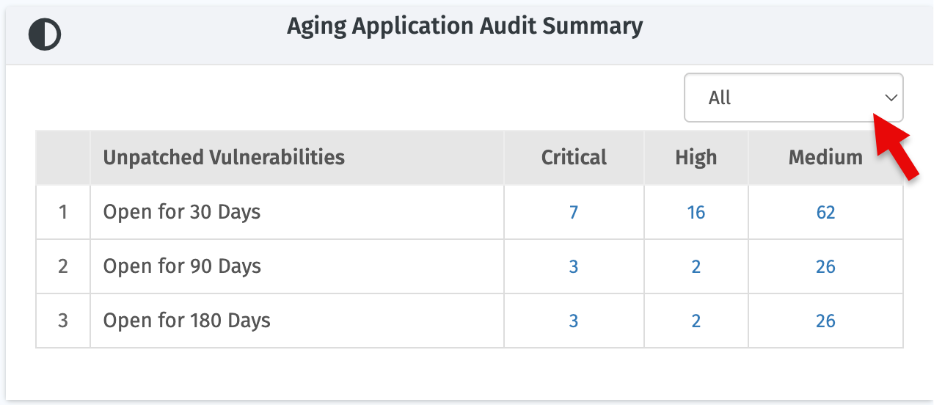
#### 6\. Aging Application Audit Summary
- Shows vulnerabilities by how long they have remained unpatched: 30, 90, and 180 days.
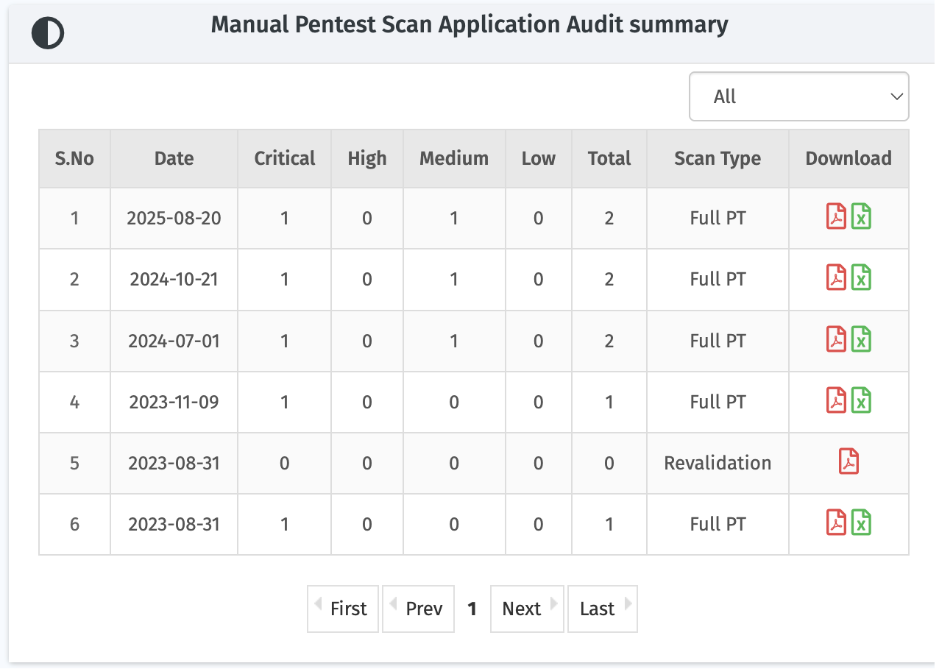
#### 7\. Manual Pen Testing Application Audit Summary
Displays results from manual penetration tests conducted by security experts, including:
- Date – Scan date
- Critical, High, Medium, Low – Number of vulnerabilities by severity
- Total – Total number of vulnerabilities found
- Scan Type – Full PT or Revalidation
- Download – Available in PDF or CSV format
#### 8\. Scan Application Audit Summary
- Provides a consolidated view of automated scans, including severity, total vulnerabilities, and scan type.
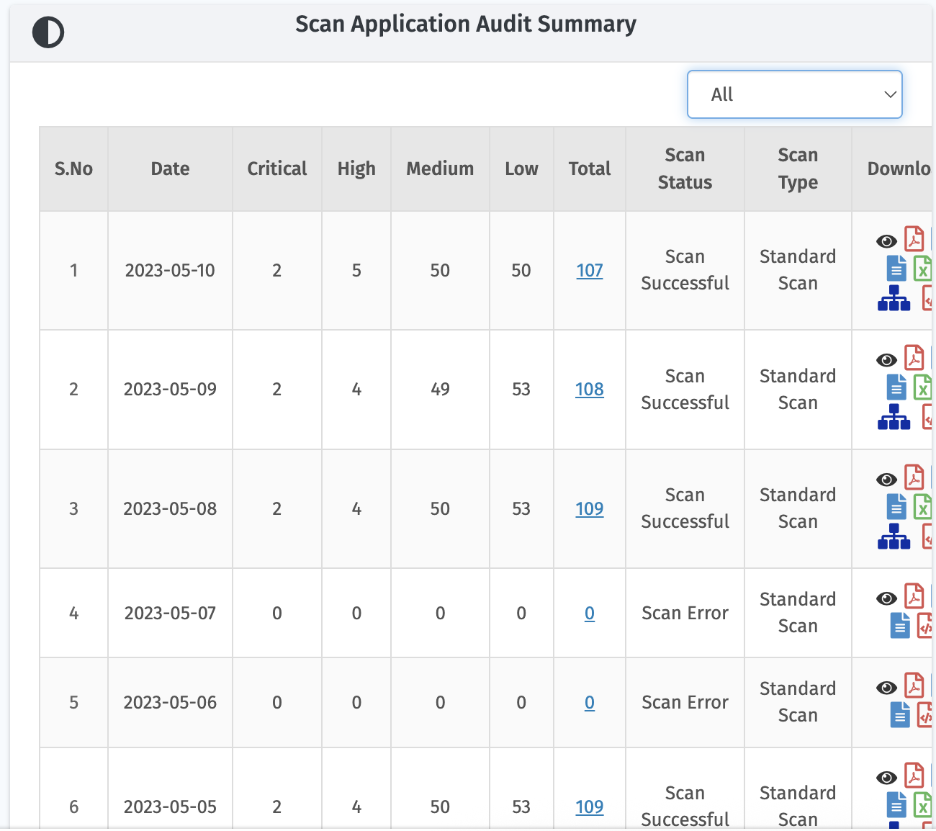
| **Parameter** | **Description** |
| --- | --- |
| Date | Scan date |
| Critical / High / Medium / Low | Number of vulnerabilities categorized by severity |
| Total | Overall number of vulnerabilities detected |
| Scan Status | Current status of the scan |
| Scan Type | Type of scan conducted |
| Download Options | Different formats available for report export
- PDF – Standard executive report
- JSON – For MSSP partners to ingest reports into centralized tools
- CSV – Tabular report for further analysis
- URL Sitemap (CSV) – Shows the crawled URLs during the scan
- Word – Editable format to modify and share customized reports with customers |
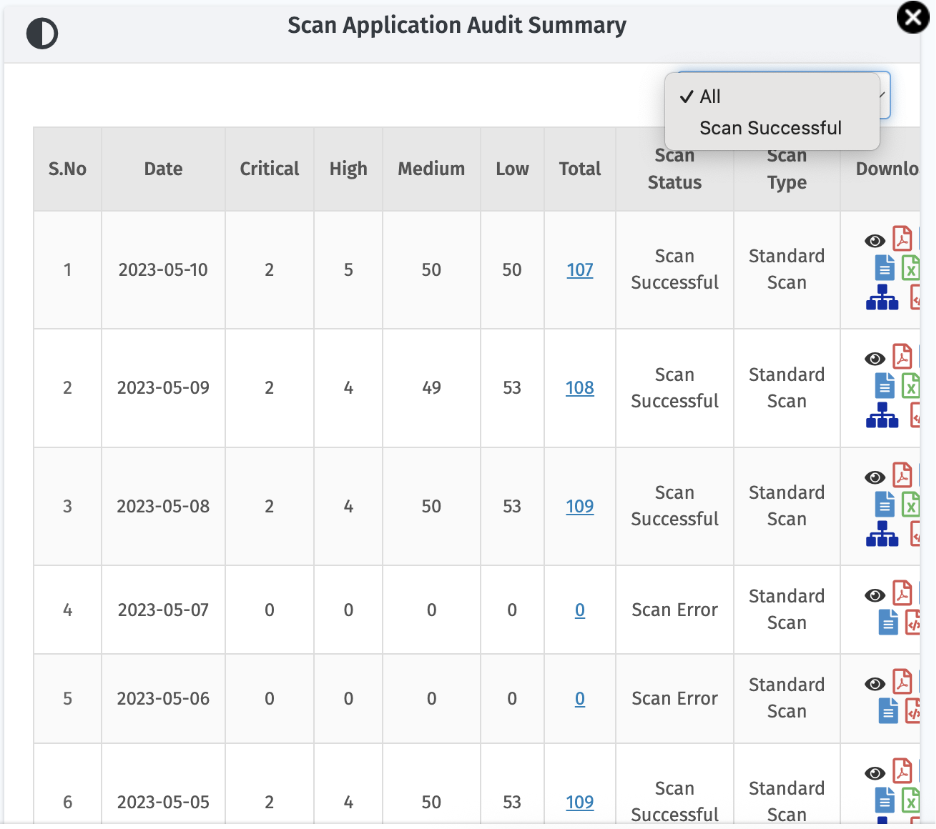
> You can filter the summary to view only scans that were successful.
**Scan Application Audit Summary – Vulnerability Details**
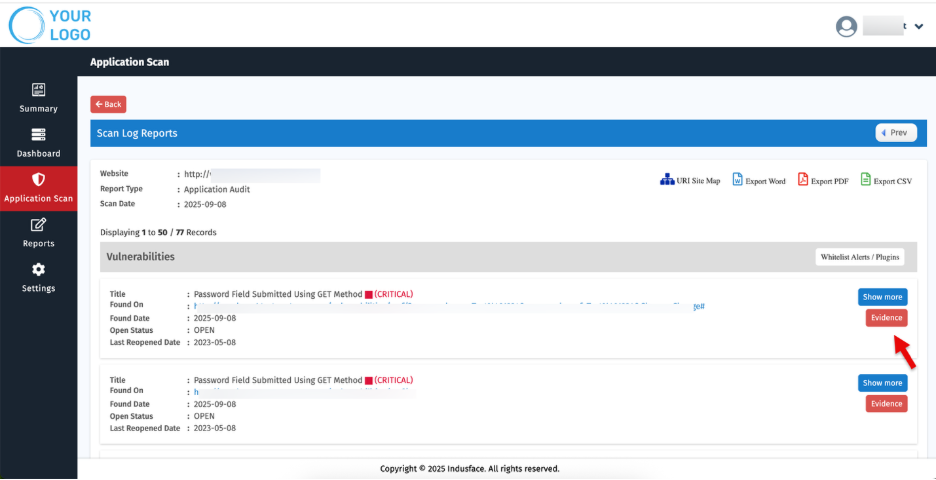
- To know more about identified vulnerabilities, Click the total count of vulnerabilities for a particular scan.
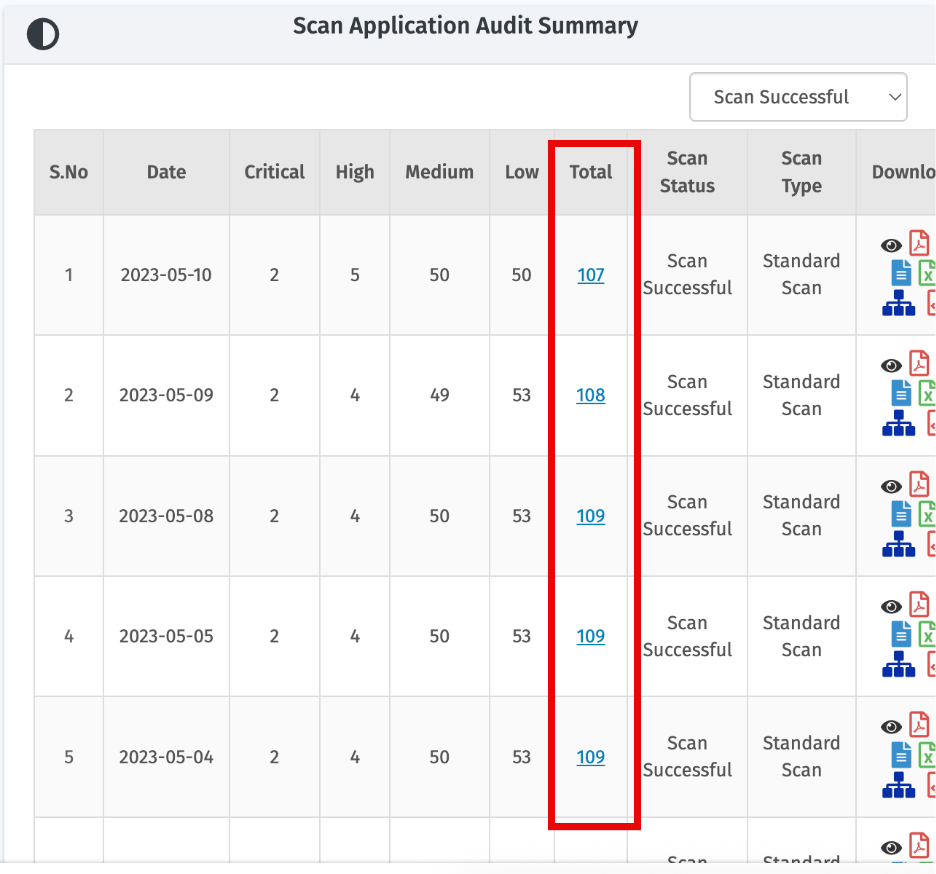
- A detailed list of vulnerabilities will open:
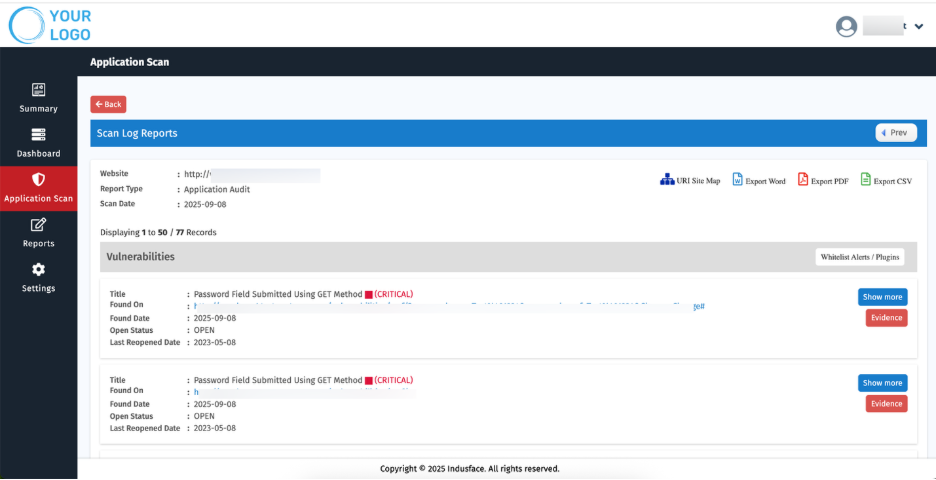
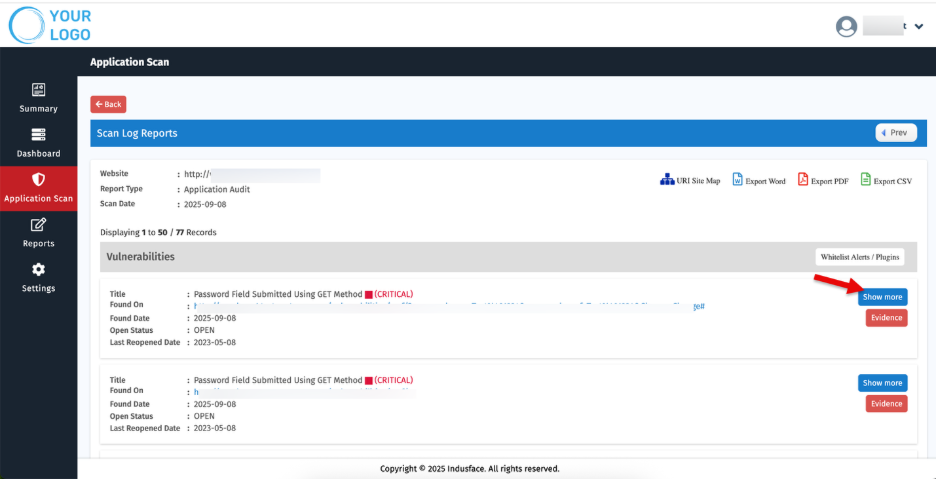
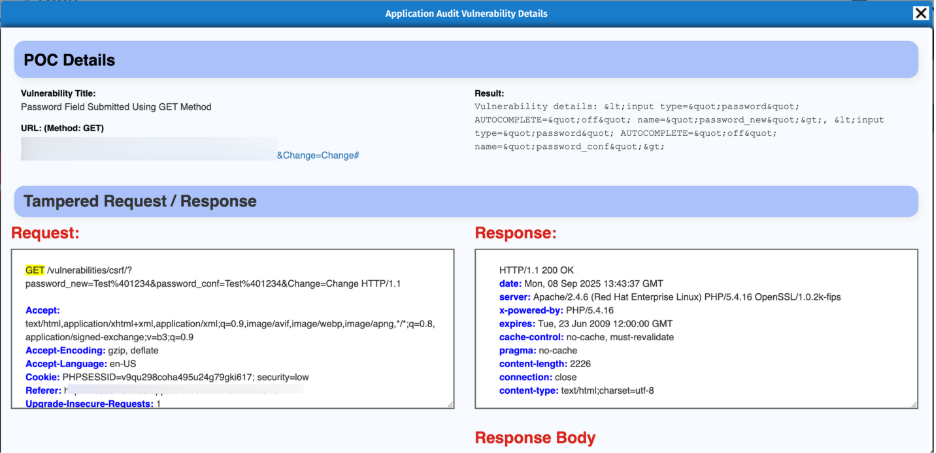
- Click **'Show more'** to view additional details, including evidence such as tampered requests and responses.
- These are generated automatically by the PoC tool and verified by our Managed Security Team, ensuring zero false positives.
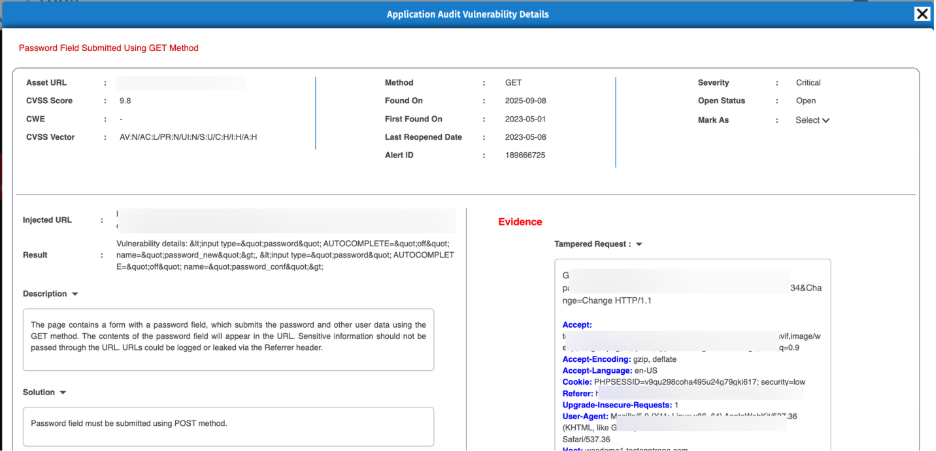
- Click the **‘Evidence’** to understand why the vulnerability is marked as valid, supported by automated proof-of-concept and tampered request/response data.
 **Whitelisting Options** – You can whitelist alerts or plugins if required.
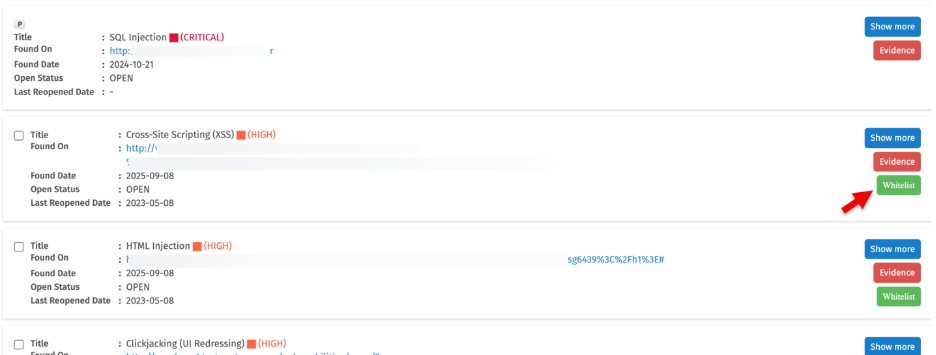
> Vulnerabilities with Critical severity cannot be whitelisted.
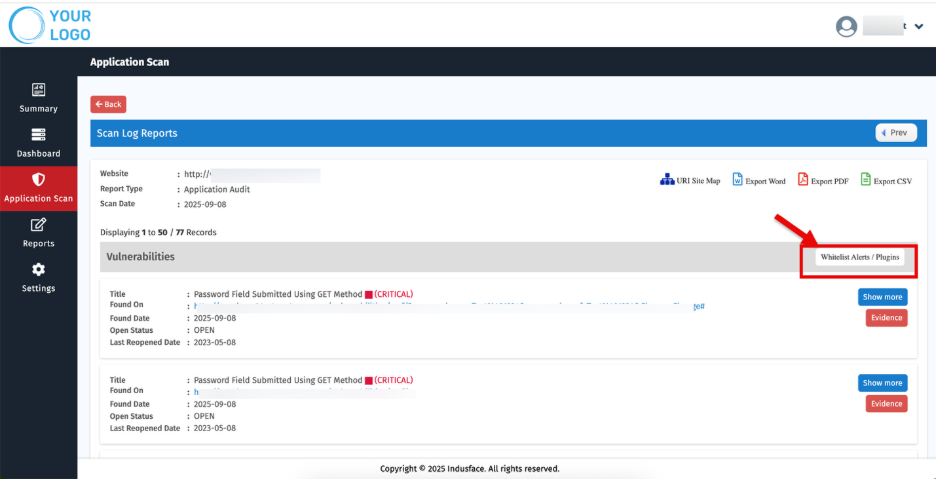
- Select Multiple vulnerabilities and use [**'Whitelist Alerts/ Plugins**”](https://docs.indusface.com/en/article/whitelist-vulnerabilities) to whitelist them in bulk.
## Quick Access: Initiate and Monitor Scans
- Use the ‘**Scan Now’** option to initiate a scan for the selected application.

- Use the **'Manual Pen Testing Request'** icon to submit a request
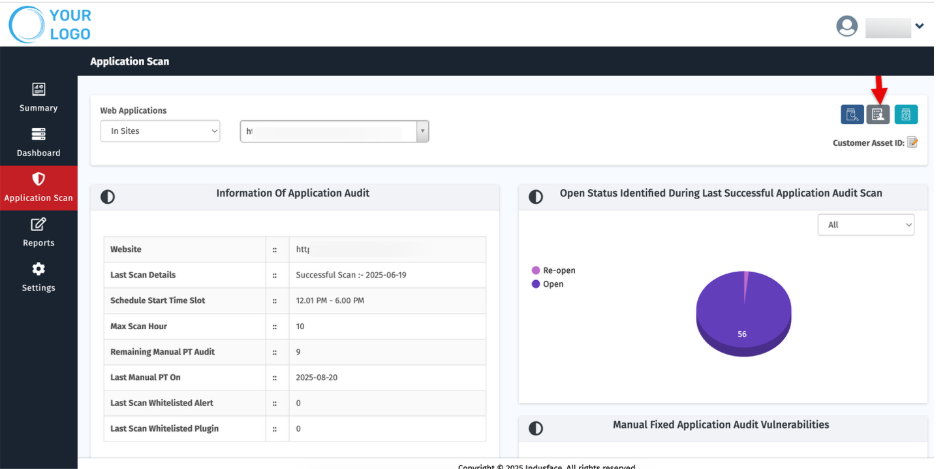
- Use the ‘**Scan Status icon’** for quick visibility and control over scan activities.
##  Customer Asset ID
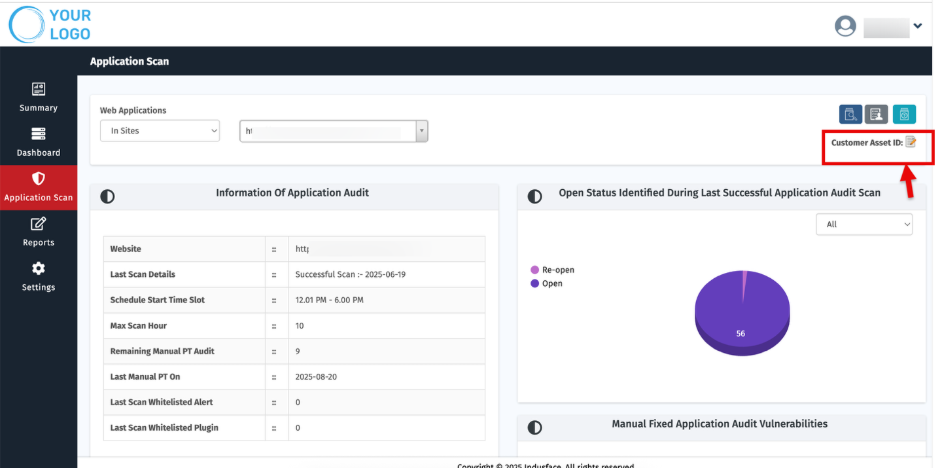
Managing multiple clients and websites can be complex. **Customer Asset IDs** provide MSSPs with short, unique labels for quick identification and streamlined reporting.
### **Set or Update Customer Asset ID**
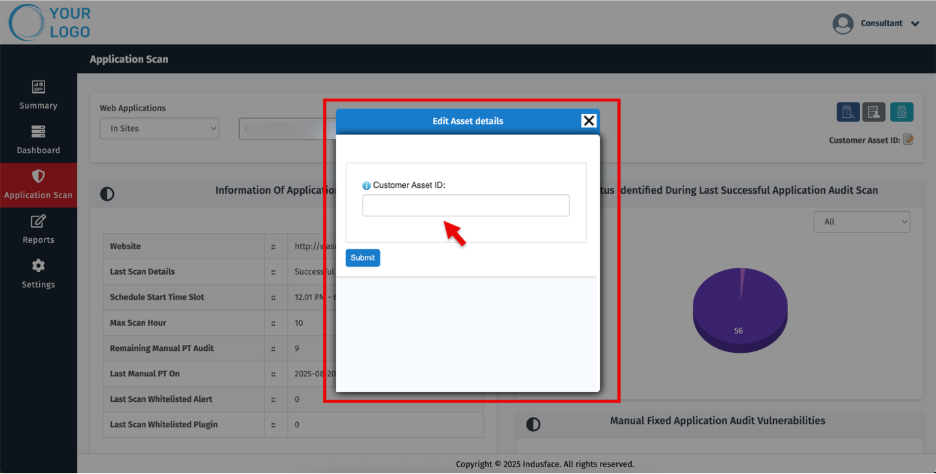
1\. On the site’s Dashboard, click the **Edit** icon next to **Customer Asset ID**. The **Edit Customer Asset ID** popup appears.
2\. Enter a meaningful name (e.g., *StorefrontINProd*).
3\. Click **Submit**.