---
title: "Administrators "
url: "https://docs.indusface.com/en/article/administrators-mssp-consultant"
language: "en"
last_updated: "2025-10-09T08:46:06.149Z"
---
# Administrators
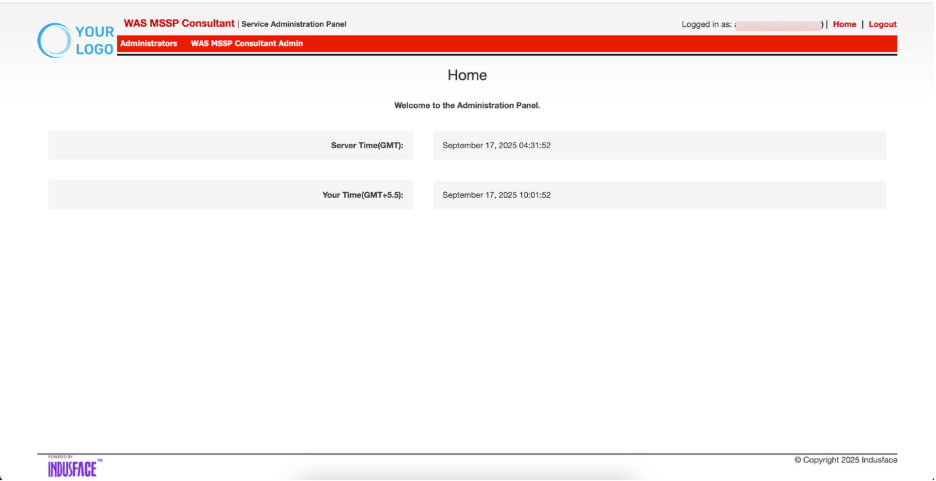
The Administrator section provides centralized controls to manage consultant administrators within the MSSP portal. It includes options to update profiles, add new administrators, and view or manage the list of existing administrators with defined access rights.
## Change Profile
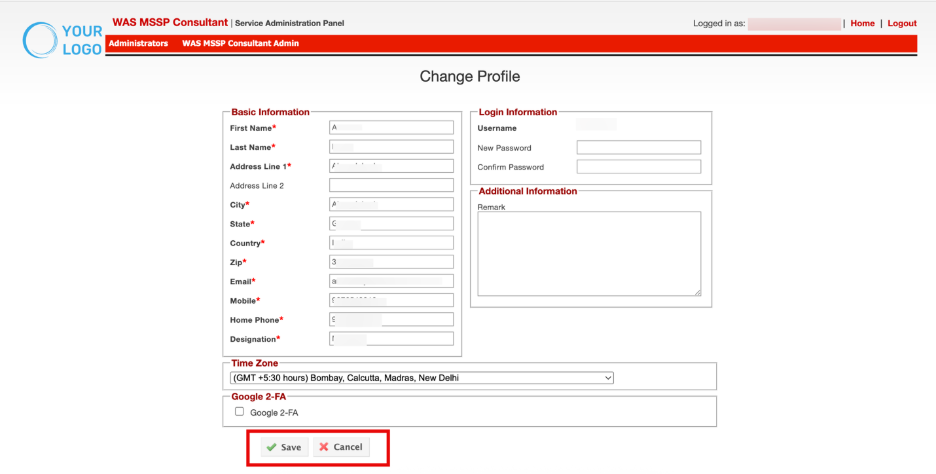
Adminstrator ->Change Profile
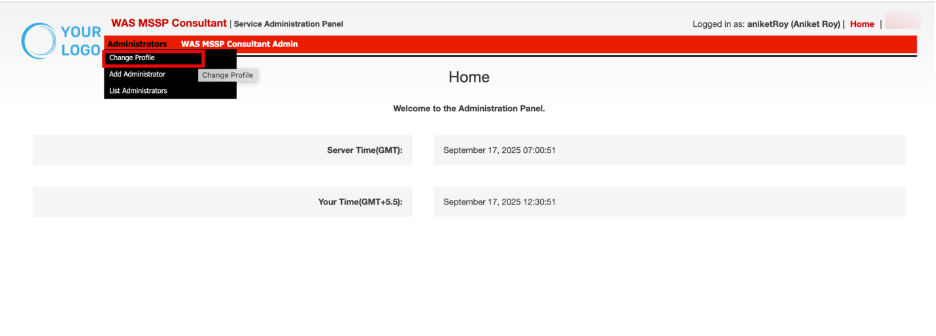
The **Change Profile** section allows consultants and administrators to update personal details, manage login credentials, set preferences, and enable security features.
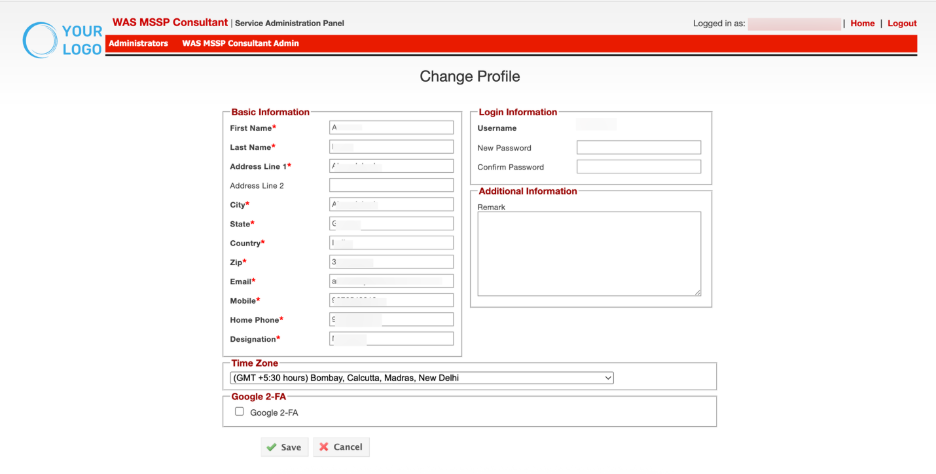
The table below explains each field and its purpose:
| **Section** | **Field/Option** | **Description / Purpose** |
| --- | --- | --- |
| **Basic Information** | First Name / Last Name | Consultant’s full name used for identification. |
| | Address Line 1 & 2 | Official address details for records and compliance. |
| | City / State / Country / Zip | Location details to map consultant’s geography. |
| | Email | Registered email for communication and notifications. |
| | Mobile / Home Phone | Contact numbers for verification and urgent communication. |
| | Designation | Role of the consultant (e.g., Manager, Consultant, Admin). |
| **Login Information** | Username | Unique system-generated login ID (cannot be changed). |
| | New Password / Confirm Password | Allows consultants to reset or update their login credentials. |
| **Additional Information** | Remark | Free-text field for internal notes, consultant-specific instructions, or comments. |
| **Time Zone** | Dropdown Selection | Set consultant’s operating time zone to align reports and logs with local time. |
| **Google 2-FA** | Enable Checkbox | Option to enable Google Two-Factor Authentication for enhanced account security. |
| **Action Buttons** | Save | Saves updated consultant profile details. |
| | Cancel | Discards changes without saving. |
- Click **Save** to update the details
## Add Administrator
Administrators -> Add Aministrator
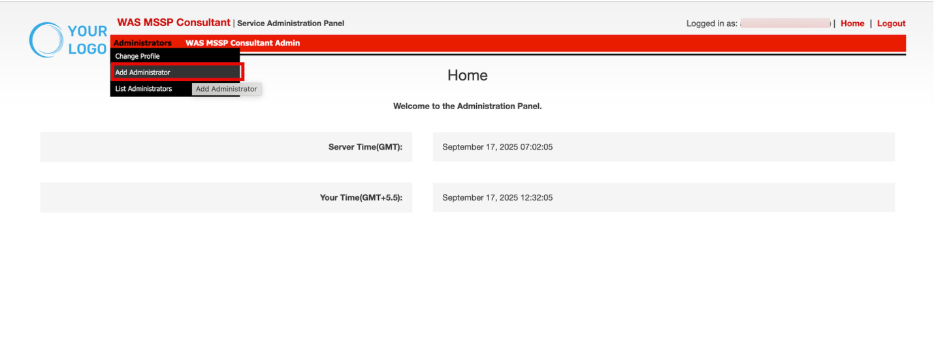
The **Add Administrator** section enables MSSP administrators to create new admin accounts, define their access rights, and enforce security configurations. This ensures centralized role-based management within the VAPT consultant platform.
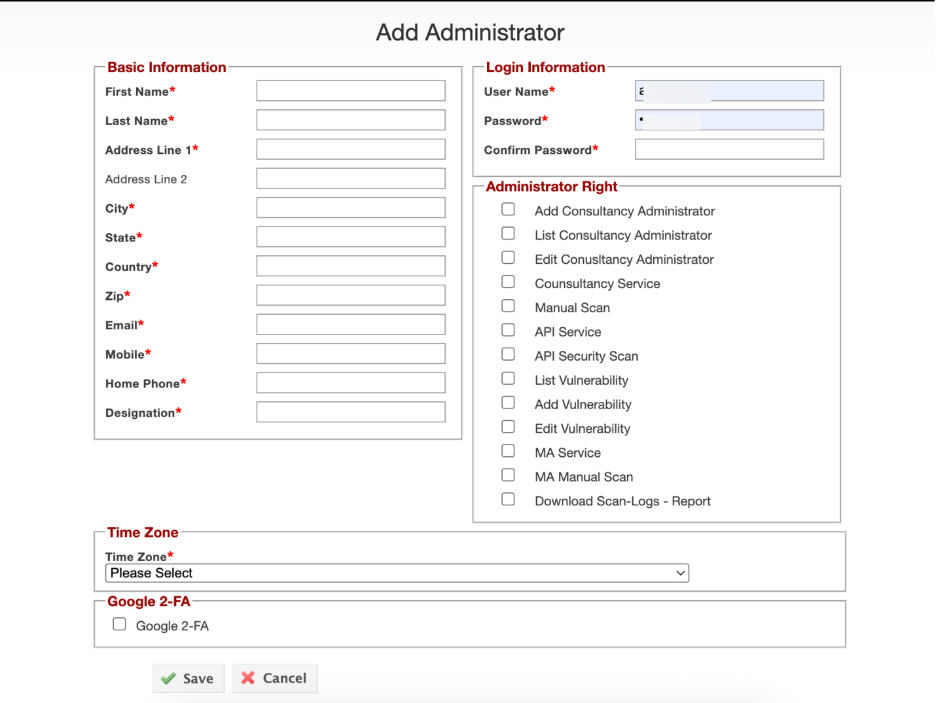
| **Section** | **Field/Option** | **Description / Purpose** |
| --- | --- | --- |
| **Basic Information** | First Name / Last Name | Name of the administrator being added. |
| | Address Line 1 & 2 | Official address details for record-keeping. |
| | City / State / Country / Zip | Location details for compliance and identification. |
| | Email | Primary contact email for credentials and notifications. |
| | Mobile / Home Phone | Contact numbers for verification and urgent communication. |
| | Designation | Administrator’s role (e.g., Security Admin, Consultant Manager). |
| **Login Information** | User Name | Unique login ID for the administrator (cannot be reused). |
| | Password / Confirm Password | Secure credentials to access the portal. |
| **Administrator Rights** | Add Consultancy Administrator | Allows creating new consultant administrators. |
| | List Consultancy Administrator | Grants access to view existing consultant administrators. |
| | Edit Consultancy Administrator | Allows editing details of consultant administrators. |
| | Consultancy Service | Provides access to Consultancy Service tab |
| | Manual Scan | Provides access to Manual Scan tab |
| | API Service | Provides access to API Services tab |
| | API Security Scan | Enables execution of API-specific vulnerability scans. |
| | List Vulnerability | Allows viewing List Vulnerability. |
| | Add Vulnerability | Allows accessing Add Vulnerability |
| | Edit Vulnerability | Allows to Edit Vulnerability |
| | MA Service | Provides access to MA Service tab (Mobile Application Service). |
| | MA Manual Scan | Enables access to MA Manul Scan |
| | Download Scan-Logs – Report | Grants permission to download scan logs and reports. |
| **Time Zone** | Dropdown Selection | Configures the administrator’s operating time zone for report synchronization. |
| **Google 2-FA** | Enable Checkbox | Option to enable Google Two-Factor Authentication for secure login. |
| **Action Buttons** | Save | Creates the administrator with the configured profile and rights. |
| | Cancel | Discards the setup without saving. |
> - This section provides **role-based access control (RBAC)**, ensuring administrators have only the permissions required for their responsibilities.
> - Supports **least privilege principle** by allowing granular assignment of rights.
> - Strengthens security with **2-FA enforcement** and **password management**.
> - Enables **scalability** by letting MSSPs add multiple administrators to manage consultants, scan results, and reports efficiently.
## List Administrator
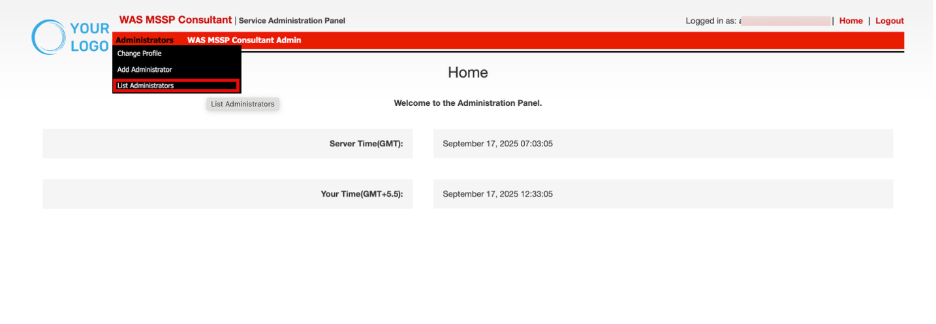
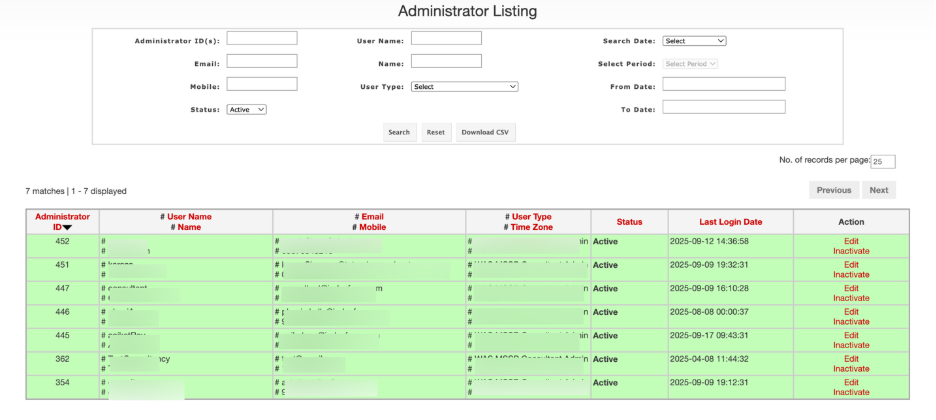
These sections enable easy management and oversight of administrators in the MSSP panel.
| **Field** | **Description** |
| --- | --- |
| Administrator ID | Unique ID assigned to each administrator |
| User Name Name | Username and full name of the administrator for clearer identification within the organization. |
| Email
Mobile | Email and mobile contact of admin. Used for sending notifications, password recovery, or contact during support and access issues |
| User Type
Time Zone | Role and selected time zone within panel. Specifies the type of admin (for example, MSSP Consultant Admin) and the user's time zone for reporting and scheduling accuracy. |
| Status | Indicates if account is active (granted permissions) or inactive (access revoked/restricted). |
| Last Login Date | Timestamp of the last successful login. Assists audit trails by tracking the most recent access per administrator. |
| Action | Allows quick management like edit details or inactivate the user. |
### Search and Filter Administrators
Filters Available:
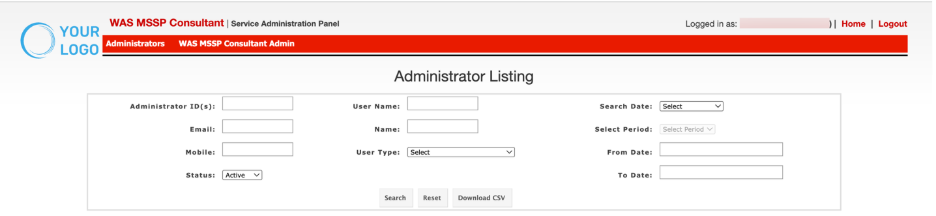
- **Administrator ID(s):** Enter one or more IDs to filter specific admins.
- **Email:** Search administrators by their registered email.
- **Mobile:** Search by mobile number.
- **Status:** Choose between Active or Inactive status.
- **User Name / Name:** Find admins using their username or real name.
- **User Type:** Select from available admin roles.
- **Search Date, Select Period, From Date, To Date: Filter** users based on login activity over set periods.
### **Page Controls**
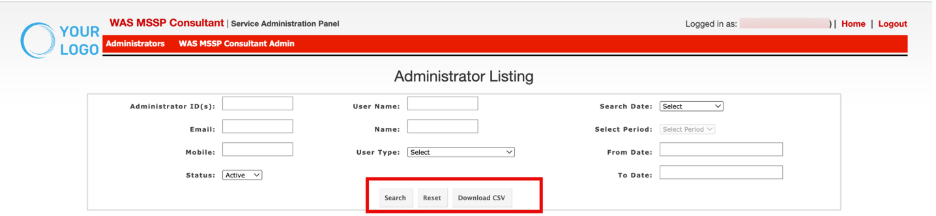
- After entering required search criteria, click **Search** to filter results.
- Click **Reset** to clear filters.
- Click **Download CSV** to export the filtered administrator list for offline analysis.
| **Control** | **Description** |
| --- | --- |
| Search | Filters administrator records |
| Reset | Clears applied filters |
| Download CSV | Exports the current table view |
### **Workflow**
#### **Filter**
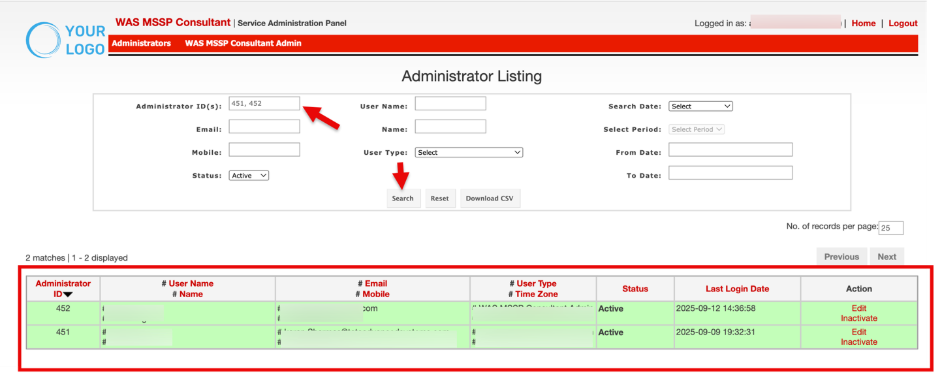
- To filter based on Administrator ID, enter the ID(s), and click **Search**
- It displays the matching administrator record(s) in the list view
####  Edit
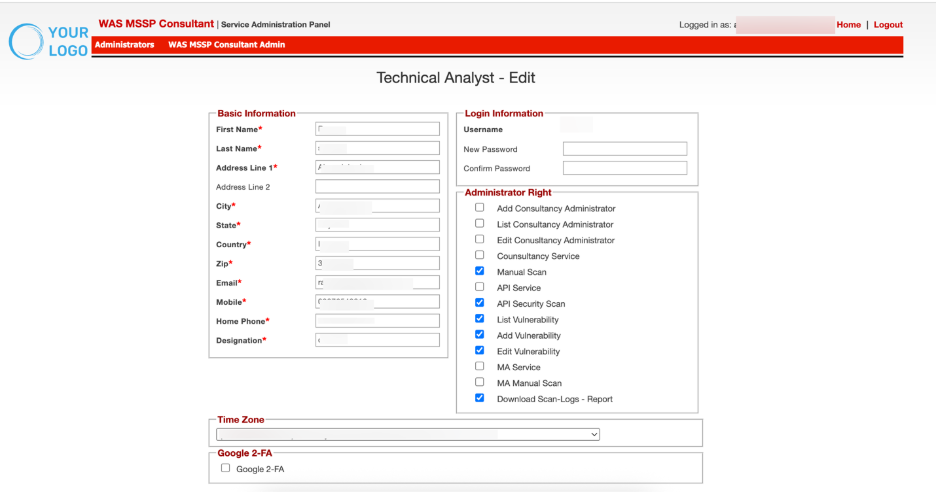
To edit admin profile, click **Edit** beside the intended user
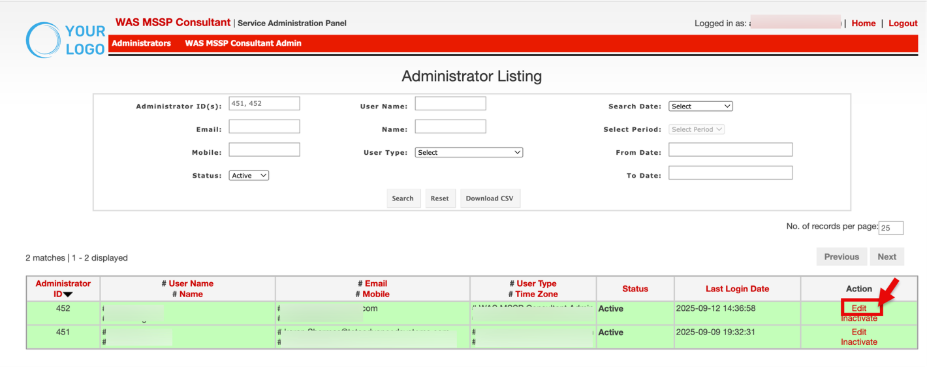
Modify the details, and click **Save**
####  Inactivate
To inactivate a user, click **Inactivate** in the Action column and confirm.
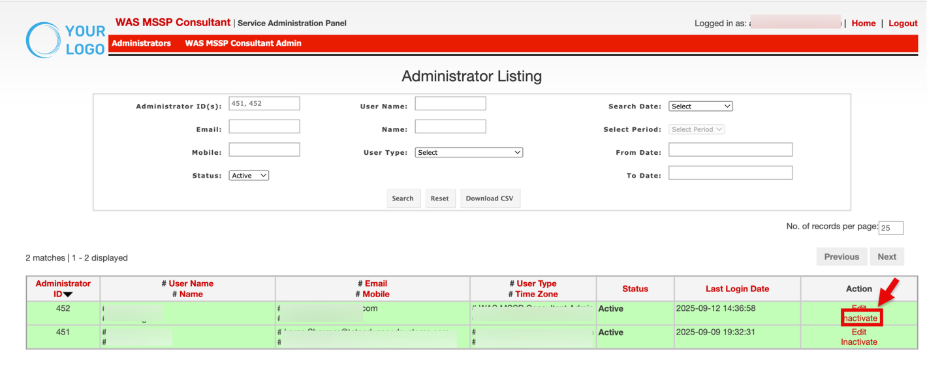 Confirm the action in the confirmation prompt to complete the inactivation.